Bad cellular signal can make simple calls feel stressful. A call drops at the front door. The audio turns robotic in the kitchen. Most people blame the phone, but the network path is often the real issue.
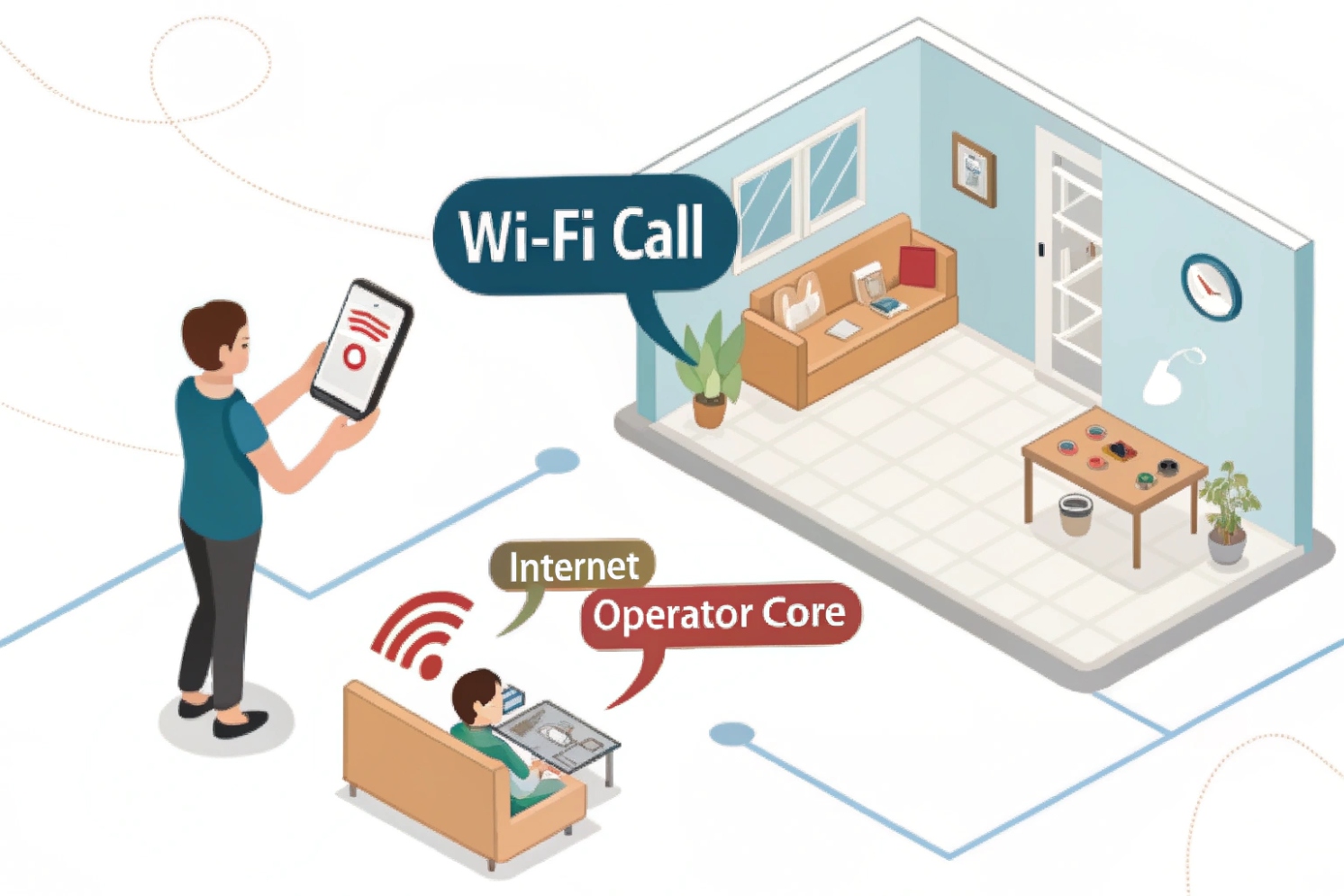
Wi-Fi calling lets your phone place normal carrier calls over Wi-Fi instead of a cellular tower. It keeps your usual number and dialer, but call quality depends on Wi-Fi stability, latency, and how your phone roams between Wi-Fi and cellular.
Wi-Fi calling is carrier voice over Wi-Fi, not “an app call”
The Wi-Fi calling feature 1 (often called VoWiFi) is not the same as WhatsApp or Zoom. Your carrier still provides the calling service, your phone still uses the native dialer, and your normal phone number still appears. The difference is the access network. Instead of using a cell tower, your phone uses a Wi-Fi access point and home internet.
This changes what “good call quality” means. Cellular voice is managed end-to-end by the carrier radio network. Wi-Fi calling depends on your local Wi-Fi, your ISP uplink, and your router queueing behavior. A fast speed test does not guarantee good voice. Voice needs low delay and stable timing. It also needs quick roaming decisions when you walk around the house. On iPhone, you can enable Wi-Fi Calling on iPhone 2 in carrier-supported settings.
What improves, and what can get worse
Wi-Fi calling usually helps when cell coverage is weak indoors. The audio can sound clearer, and the phone can stop fighting for a weak tower signal. Still, Wi-Fi calling can be less stable if the Wi-Fi is congested, if the router buffers too much, or if a mesh system moves you between nodes too aggressively.
| Situation | Wi-Fi calling often does | Common downside |
|---|---|---|
| Weak indoor cell signal | Improves reachability | Depends on Wi-Fi quality |
| Busy home network | Can still work if QoS is right | Choppy audio if bufferbloat exists |
| Walking around (roaming) | Can hand off between Wi-Fi/cell | Drops if handoff fails |
| Public Wi-Fi | Can place calls with no cell | Captive portals and filtering can break it |
A simple mindset helps: Wi-Fi calling is “carrier-grade voice riding on your Wi-Fi.” If the Wi-Fi behaves like a stable wired LAN, the call feels normal. If the Wi-Fi behaves like a busy shared hotspot, the call quality will show it fast.
A lot of confusion starts with billing, so the next section clears that up in a practical way.
Some people only need one clear rule: Wi-Fi calling changes the path, not the service. The rest is about details.
Does Wi-Fi calling use my minutes or data plan?
A bill surprise can ruin trust in the feature. People turn Wi-Fi calling off after one confusing charge, even if it fixed their coverage problem.
Wi-Fi calling usually does not use your cellular data allowance, but it does use your Wi-Fi broadband data. Billing for voice minutes depends on your carrier plan, yet most carriers treat Wi-Fi calls like normal voice calls for talk/text allowances and international rules.
The simple rule that prevents surprises
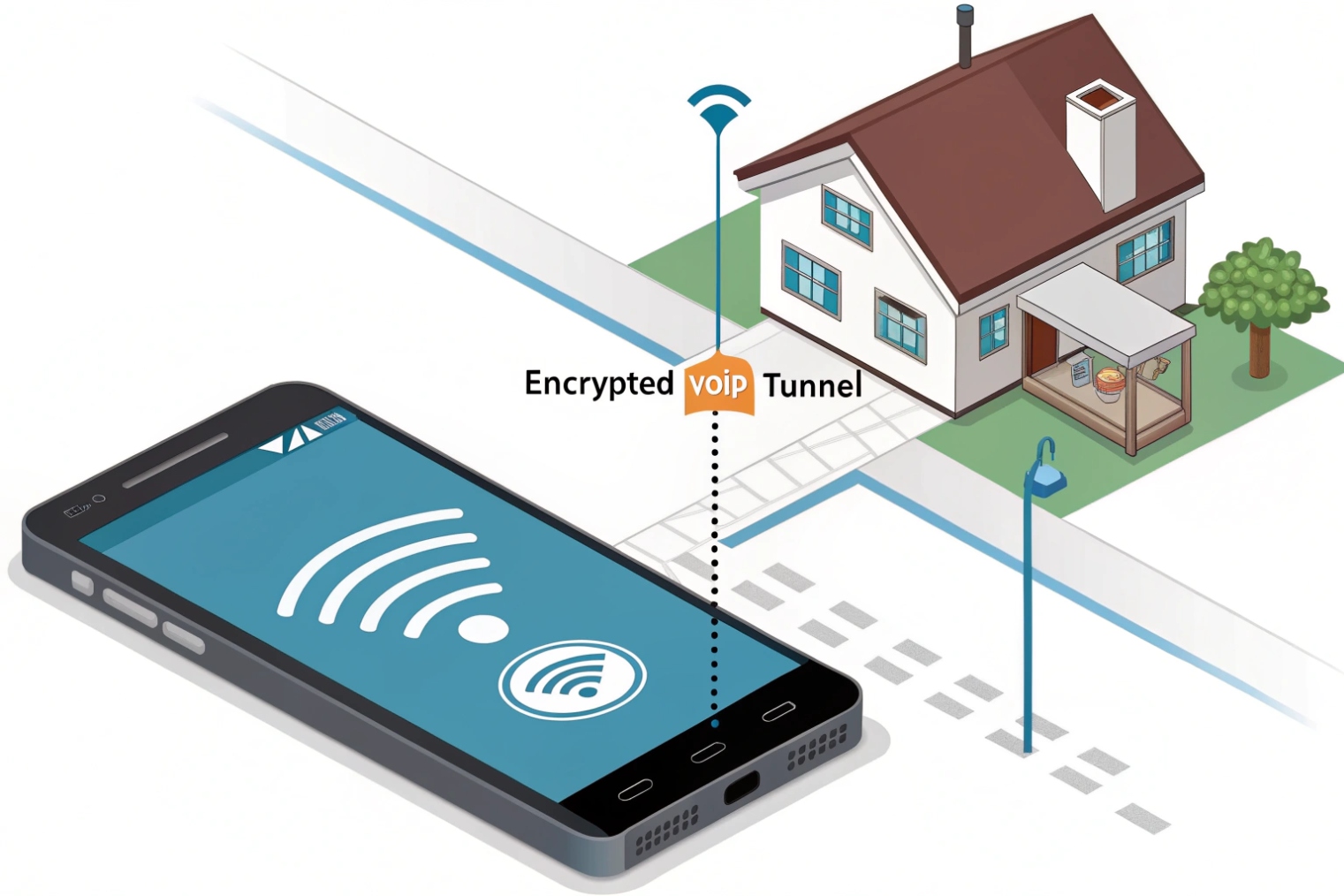
Wi-Fi calling sends voice over your Wi-Fi internet link. So your carrier is not using its cellular data network for that call. Still, your ISP is carrying the traffic. If your home internet plan has a data cap, Wi-Fi calling can contribute to it. Voice is not huge compared to video, but it is not zero.
Most modern mobile plans include unlimited talk and text. In that case, Wi-Fi calling usually feels “free” for domestic calling, because the voice bucket is not a constraint. If a plan still has a limited voice-minute bucket, the safest assumption is that Wi-Fi calling is counted like a normal call under the carrier’s voice rules. Some plans and prepaid products also have exceptions, so plan details matter.
International calling and travel nuance
Wi-Fi calling can be great when traveling because you can call back home from Wi-Fi. Still, international billing rules often depend on the number you dial. A call to a non-home-country number is often treated as an international call, even if you are on Wi-Fi. The phone UI may show a prompt about possible charges.
| Scenario | What usually happens | What to check |
|---|---|---|
| Calling a home-country number on Wi-Fi | Often treated as domestic calling | Carrier Wi-Fi calling FAQ |
| Calling a foreign number on Wi-Fi | Often billed as international long distance | International calling add-on |
| Wi-Fi calling on prepaid | Sometimes supported, sometimes limited | Plan eligibility notes |
| Heavy Wi-Fi calling at home | Uses home broadband data | ISP data cap / usage meter |
If the goal is “no surprises,” I recommend two habits. First, confirm Wi-Fi calling rules on your carrier’s official page. Second, treat Wi-Fi calling as “normal calling for billing,” and treat your Wi-Fi as the data path that carries it.
Once billing is clear, the next real pain point is quality. Home Wi-Fi issues can make calls drop or sound choppy even when everything looks “connected.”
Why do Wi-Fi calls drop or sound choppy at home?
A home network can feel fast for streaming and still be terrible for voice. Video buffers and hides problems. Voice exposes them immediately.
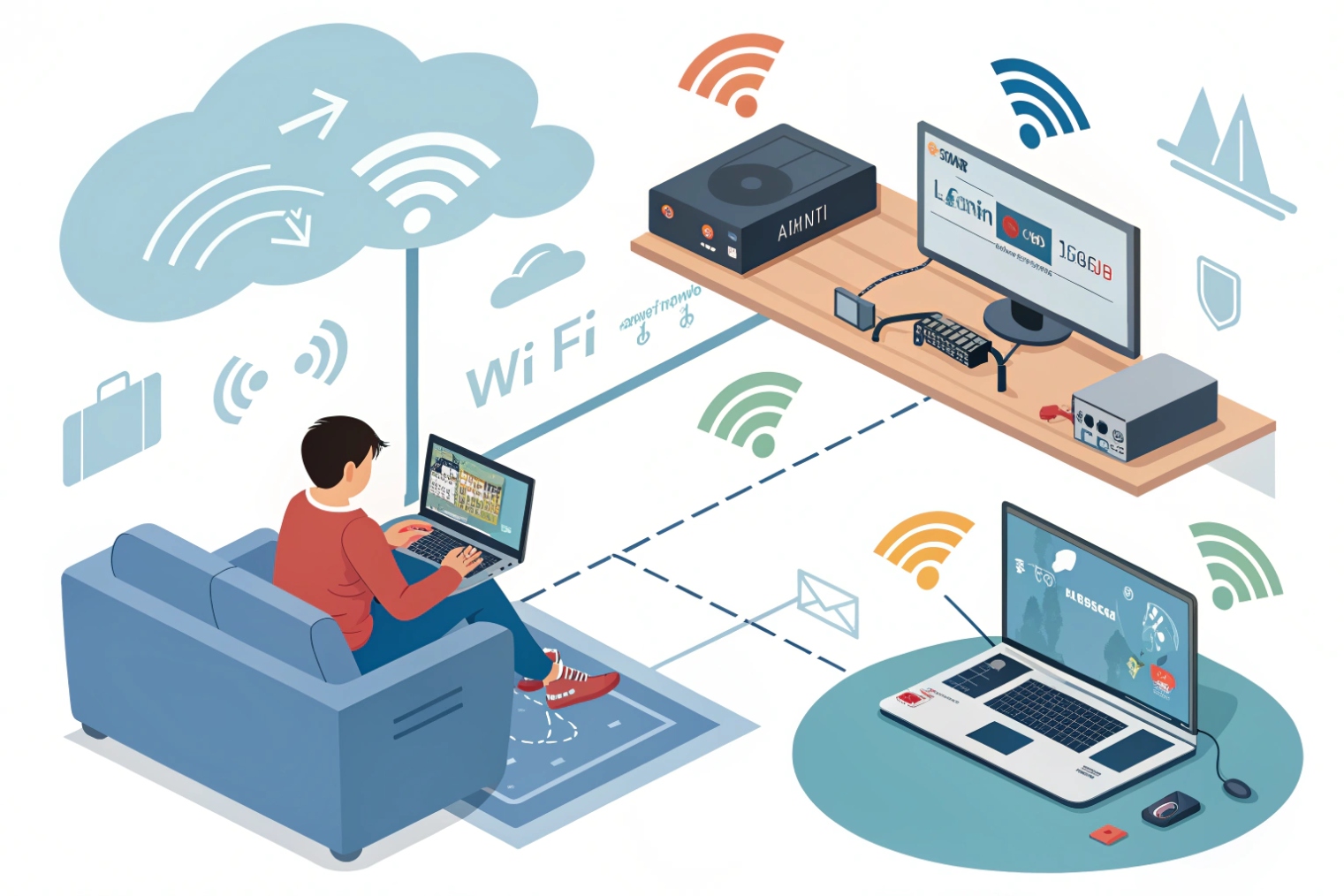
Wi-Fi calls drop or sound choppy when Wi-Fi has high latency, jitter, or packet loss. Common causes include weak signal, interference, router bufferbloat, mesh roaming events, and uplink congestion during uploads or cloud backups.
The three metrics that matter more than “speed”
Voice quality is sensitive to:
- Latency: delay between you and the carrier voice core
- Jitter: variation in delay, which forces bigger jitter buffers
- Packet loss: missing packets, which causes gaps and robotic audio
A speed test can show 300 Mbps and still hide 200 ms latency spikes when someone uploads photos. That is classic router bufferbloat 3. Many home routers keep long queues. The call audio arrives late in bursts. The phone cannot play it smoothly.
Home-specific causes that show up in real installs
Weak signal is common. A phone might show Wi-Fi bars, but the link can still be unstable due to multipath reflections, microwaves, and neighboring access points. 2.4 GHz interference is common in apartments. Mesh networks add another variable: roaming between nodes can break a call if the device switches at the wrong moment.
A practical troubleshooting flow works well:
1) Stand near the router and test again. If quality improves, it is RF or roaming.
2) Pause heavy uploads. If quality improves, it is congestion or bufferbloat.
3) Try 5 GHz. If quality improves, it is 2.4 GHz interference.
4) Use wired backhaul for mesh nodes. If quality improves, it is wireless backhaul congestion.
| Symptom | Likely cause | Fix that usually helps |
|---|---|---|
| Robotic audio in evenings | ISP congestion or bufferbloat | SQM/QoS on router, reduce uploads |
| Drops when walking room to room | Roaming between APs | Tune roaming, add one strong AP, wired backhaul |
| One-way audio feeling | NAT/firewall oddities on some routers | Update router firmware, avoid strict UDP filtering |
| Choppy only on 2.4 GHz | Interference and low rates | Use 5 GHz, move AP, change channel |
Wi-Fi calling behaves like real-time VoIP. So the same habits that protect SIP intercom audio also protect Wi-Fi calling: stable RF, short queues, and predictable roaming.
That leads to the settings that most home users ignore: QoS, band choice, and roaming behavior.
How do QoS, 2.4GHz vs 5GHz, and roaming affect Wi-Fi calling?
Many routers ship with settings that look “advanced,” so people never touch them. Still, a few choices can change voice stability a lot.
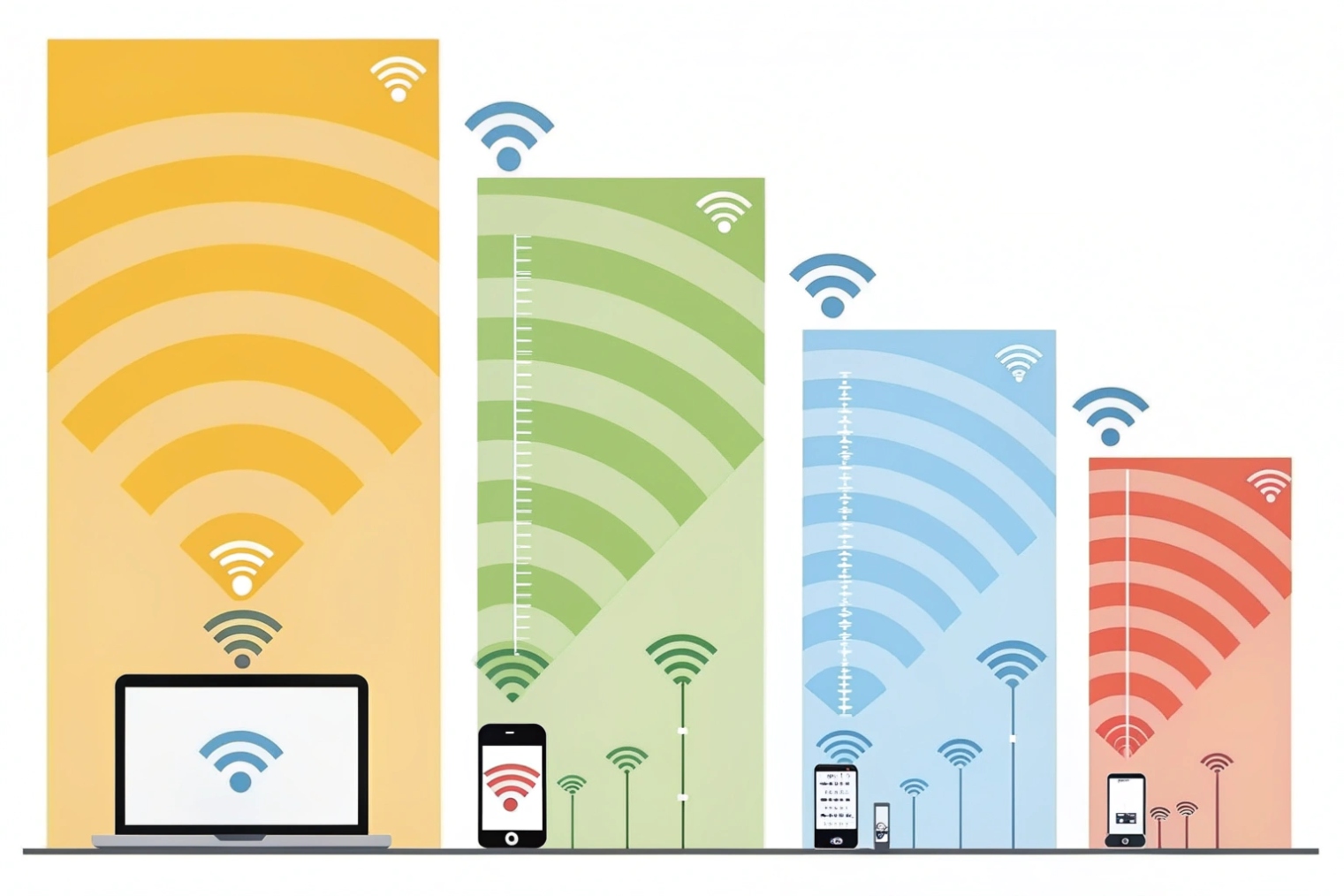
QoS helps when your router can prioritize voice frames and control queueing. 5 GHz usually gives cleaner performance than 2.4 GHz at short range, while roaming behavior in mesh networks can cause drops if handoffs happen mid-call.
QoS and WMM: the realistic expectation
On Wi-Fi, the first practical QoS feature is usually Wi-Fi Multimedia (WMM) 4. WMM maps traffic into access categories like voice and video. If WMM is off, voice can fight with bulk downloads in the same queue. If WMM is on, voice frames can get a better chance to transmit.
Still, WMM alone is not enough if the bottleneck is your internet uplink. In many homes, the uplink is the choke point. That is where FQ-CoDel smart queue management 5 (or similar SQM/QoS features) matters most. The goal is simple: keep queues short so voice packets do not wait behind big uploads.
2.4 GHz vs 5 GHz for voice
2.4 GHz travels farther and penetrates walls better. It also suffers more interference and has fewer clean channels. 5 GHz is faster and often cleaner, but it drops sooner with distance. For Wi-Fi calling, I prefer 5 GHz when the phone is within solid range, because stable timing matters more than long reach.
If a home has one router behind two walls, 2.4 GHz might be more stable than a weak 5 GHz link. In that case, adding one more access point is usually better than forcing a weak band.
Roaming and mesh behavior
Roaming is a big reason calls drop “only when I move.” A mesh system may steer your phone between nodes to optimize throughput. That switch can create a short interruption. Some phones handle it well. Some do not. If the system supports 802.11r fast roaming 6, it can reduce handoff delays between access points. If the system uses aggressive band steering, the phone can bounce between 2.4 and 5. That is terrible for real-time voice.
| Design choice | Helps when | Hurts when | Practical setting |
|---|---|---|---|
| WMM on | Many devices share Wi-Fi | Disabled queues everything together | Keep WMM enabled |
| SQM/QoS on uplink | Uploads cause jitter | Misconfigured rates | Set uplink/downlink to real ISP rates |
| 5 GHz preferred | Short range, low interference | Weak signal through walls | Use 5 GHz near AP, add AP for coverage |
| Mesh roaming tuned | Large homes, many nodes | Nodes overlap too much | Reduce node count, use wired backhaul |
When Wi-Fi calling is stable, it often looks boring. That is the goal. A boring network gives smooth voice.
The last topic is the one people forget until it matters most: emergency calling and location.
How does Wi-Fi calling handle E911 location and emergency services?
Emergency calling is not the place for assumptions. Wi-Fi calling can work well, but location handling is different from cellular GPS-assisted E911 in many cases.
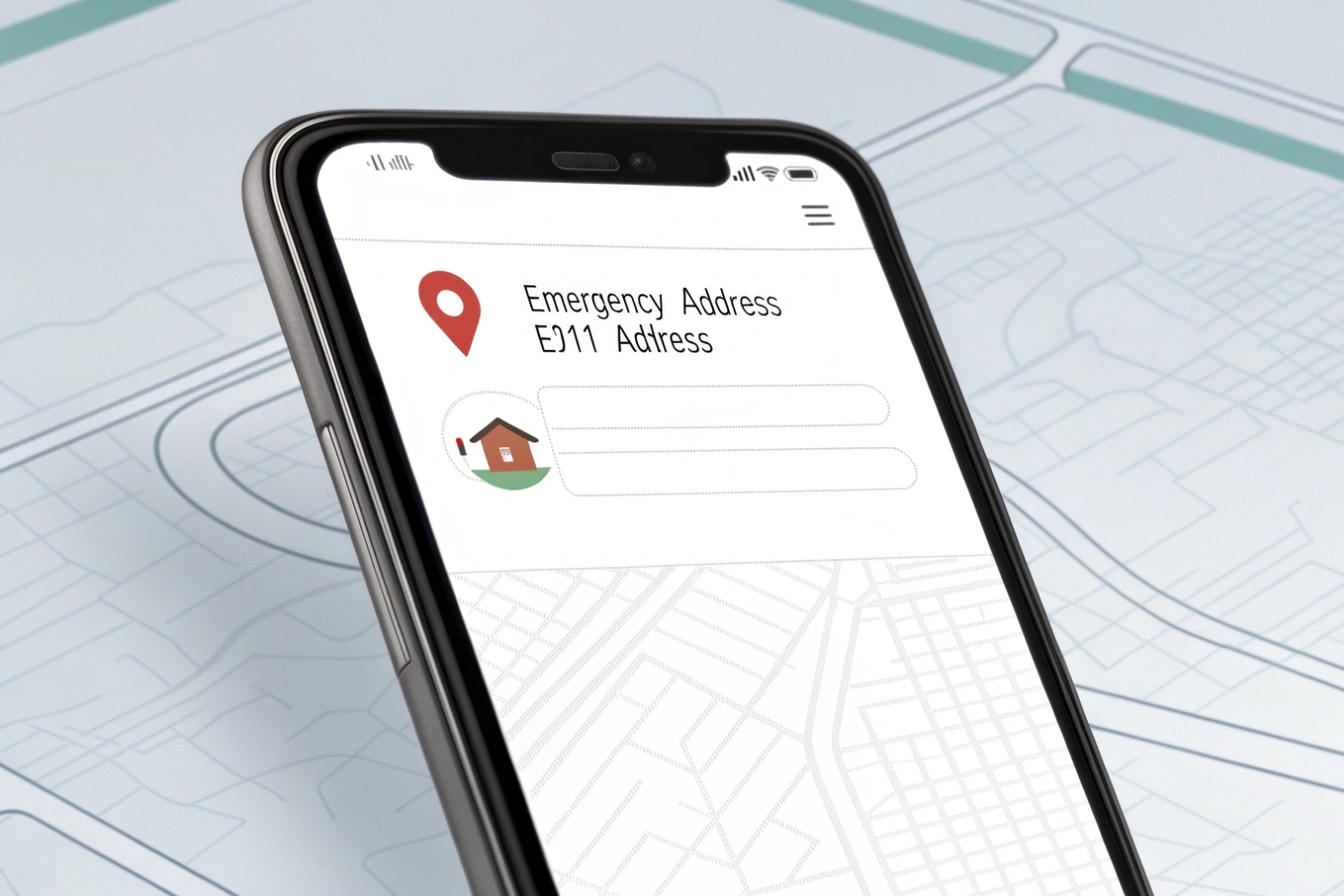
Wi-Fi calling emergency calls rely on a registered emergency address and carrier location methods. At home, accuracy can be good if your address is correct. On public Wi-Fi or while traveling, location may be less precise, so keeping your emergency address updated matters.
Why Wi-Fi is different from cellular for E911
Cellular networks can use tower and device location methods. Wi-Fi calling rides on broadband, so the carrier may not know your physical location from the access network alone. That is why many carriers require you to set an E911 address before Wi-Fi calling is enabled. The phone can then provide that registered location when needed. For broader context, the FCC’s 9-1-1 and E9-1-1 services overview 7 explains how emergency location expectations differ by technology.
This does not mean emergency services always get only the registered address. Modern phones can also provide device-based location in many cases. Still, the safest plan is to keep the registered address correct, because it is a clear fallback that does not depend on local Wi-Fi naming or hotspot behavior.
What I recommend for home and travel
At home:
- Set the emergency address once and confirm it is correct.
- Keep Wi-Fi calling enabled if indoor signal is weak.
- Test a normal call first, not an emergency call.
When traveling:
- Treat Wi-Fi calling as useful, but do not assume location will be perfect.
- Learn your local emergency number if you are outside your home country.
- If the phone shows weak Wi-Fi calling status, do not rely on it for emergencies.
Practical expectations by environment
| Environment | Wi-Fi calling behavior | Location reliability | Best habit |
|---|---|---|---|
| Home Wi-Fi | Usually stable | Good if address is correct | Keep E911 address updated |
| Hotel / public Wi-Fi | Can be blocked by captive portal | Variable | Prefer cellular for emergencies |
| Office Wi-Fi | Often good with managed Wi-Fi | Usually good, but depends on policy | Ask IT about Wi-Fi calling support |
| No Wi-Fi, weak cellular | Wi-Fi calling unavailable | Cellular methods apply | Use cellular if possible |
A clear address entry seems boring, but it prevents the worst-case confusion. In VoIP system design, address and routing details often decide outcomes under stress. Wi-Fi calling is the same. The safer setup is the one that removes guesswork.
Conclusion
Wi-Fi calling can fix indoor coverage, but it depends on Wi-Fi stability, QoS, and roaming. It usually avoids cellular data use, and E911 works best when your emergency address is correct.
Footnotes
-
Step-by-step guide to enable Wi-Fi calling, plus practical notes on billing, roaming, and troubleshooting. ↩ ↩
-
Apple’s official instructions for enabling Wi-Fi Calling and checking carrier support settings on iPhone. ↩ ↩
-
Quick background on bufferbloat and how long router queues create latency spikes that break real-time voice. ↩ ↩
-
Summary of WMM and how Wi-Fi prioritizes voice/video traffic over best-effort downloads. ↩ ↩
-
Technical reference for FQ-CoDel queue management used to reduce latency and jitter under load. ↩ ↩
-
Explains 802.11r fast roaming and why smoother handoffs reduce call drops in mesh and multi-AP homes. ↩ ↩
-
Official overview of 9-1-1 and E9-1-1 services and why location handling differs across networks. ↩ ↩