Phones should work at a glance.
Confusion starts when people cannot see “which line is mine.”
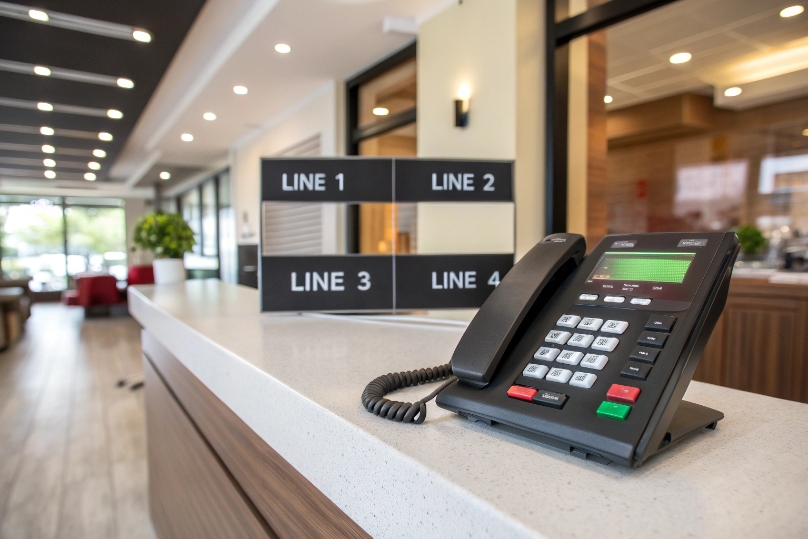
Key system mode keeps the “Line 1–4” muscle memory alive.
A key system phone shows shared line appearances on physical keys. Lamps reveal idle, ringing, hold, or in-use. Several phones can answer, hold, and resume the same business lines without transfers.
Old habits are not a blocker. They are a feature. Many teams still need live “line buttons” for fast handoffs, front-desk work, and quick triage. Modern SIP phones can emulate a key telephone system 1 with features like Shared Call Appearance (SCA) 2, Bridged Line Appearance (BLA) 3, and Shared Line Appearance (SLA) 4. This works with PBX tools like auto attendants, ring groups, paging, and intercom.
How does a key system differ from a PBX for me?
Ringing phones need fast human choices.
Menus and transfers slow down simple tasks.
Key systems keep call handling visual and direct.
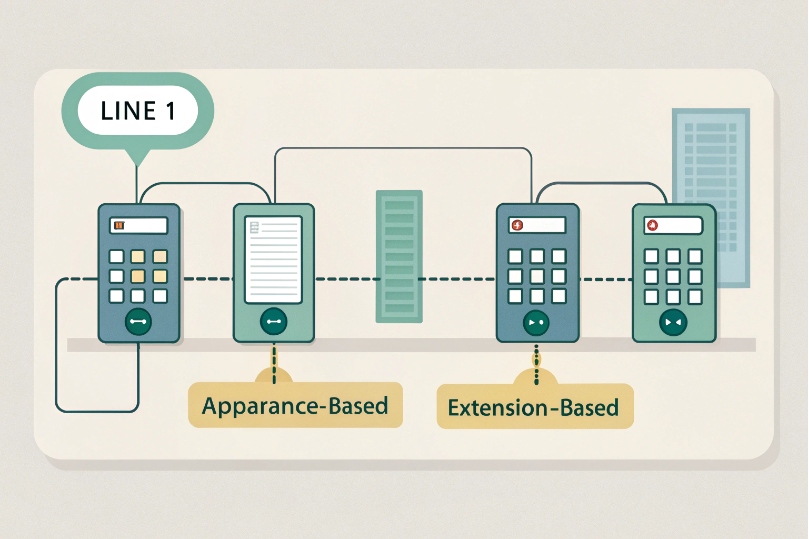
A key system is appearance-based (lines on buttons). A PBX is extension-based (route, queue, transfer). Most modern PBXs can emulate key behavior while keeping advanced features in the background.
Dive deeper Paragraph:
Core idea and mindset
A key system shows shared lines as physical keys. Anyone can press the flashing key, speak, then HOLD and resume on another phone with the same key. A PBX routes calls to extensions, groups, or queues, and users transfer to move calls. Both models can live together. Many small offices prefer the key feel for reception and front desks, while still enjoying IVR, voicemail, and recording from the PBX.
Where each model shines
- Key system strengths: instant visibility, zero training, simple “answer / hold / page / resume.”
- PBX strengths: scale, rules, analytics, queues, multi-site routing, mobile apps, and APIs.
With SIP, you do not choose one forever. You can enable Shared Call Appearance (SCA) or Bridged Line Appearance (BLA) on a modern PBX. You keep line keys for daily work and PBX logic for growth.
Risks and limits
Crowding too many people on too few line appearances creates contention. Two users may try to grab the same call. Also, pure key mode does not solve complex overflow or after-hours rules. The fix is a hybrid: keep line keys for the main numbers, and send overflow to ring groups or a queue.
| Dimension | Key System (Appearance-based) | PBX (Extension-based) | Hybrid in Practice |
|---|---|---|---|
| User action | Press line key | Answer then transfer | Press line, PBX handles overflow |
| Visibility | Lamps show state | BLF shows people | Lines + BLF on same phone |
| Scale | Small teams | Any size | Small team + PBX features |
| Handoffs | Hold/Resume anywhere | Transfer | Both |
| Learning curve | Very low | Moderate | Low |
Can I emulate line keys on SIP phones and intercoms?
People want “Line 1” on the button, not hidden in menus.
Different brands must behave the same.
Provision once, ship many.
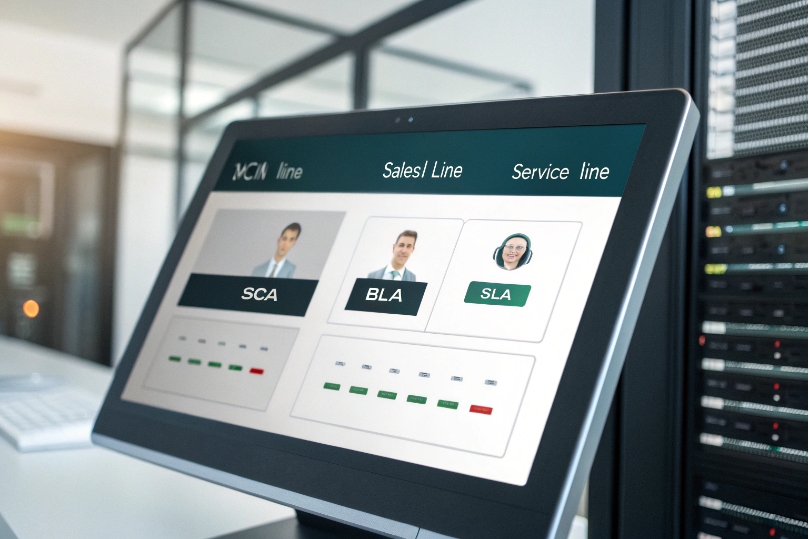
Yes. Use SCA/BLA/SLA profiles on the PBX. Map each appearance to a key. Enable auto-answer for intercom keys and paging. Keep zone paging and door stations on dedicated keys.
Dive deeper Paragraph:
What to configure on the PBX
- Create shared appearances: define a trunk/extension that supports Shared Call Appearance or Bridged Line Appearance. Many PBXs call this SLA or Shared Lines.
- Set appearance counts: choose how many simultaneous calls each line can hold (e.g., 2–4).
- Enable state sync: lamps must show idle, ring, in-use, hold in real time across all phones.
What to push to SIP phones
- Key mapping: Key 1 = “Main Line,” Key 2 = “Sales,” Key 3 = “Service,” Key 4 = “Page.”
- Hold and resume behavior: one-touch HOLD places the call on that line appearance; any phone with that line can resume.
- BLF/Pickup keys: add people you often cover. BLF lamps show busy, and one key can pickup ringing calls.
- Intercom and paging: assign intercom (auto-answer) and multicast paging keys so staff can announce or door stations can speak through speakers.
Intercoms and door stations
SIP intercoms can ring a shared line or a group, and they can page a zone. For doors, reserve a key labeled Door that auto-answers with video (if the phone supports it) or audio. Security can press Door to talk, then press a relay key to open.
Consistency across vendors
Different brands label the same idea differently (SCA, BLA, SLA). The behavior must still be the same. Build one template per model in your provisioning server. Test hold/resume and lamp timing. If you rely on BLF for status, confirm your PBX supports the SIP dialog event package 5 so SUBSCRIBE/NOTIFY lamp updates stay consistent. Align ring tones by line for fast recognition.
| Endpoint | Line Keys | BLF/Intercom | Notes |
|---|---|---|---|
| Desk SIP phone | Yes | Yes | Best for front desk |
| Sidecar/expansion | More | Yes | Many lines/BLFs |
| SIP intercom | N/A | Yes | Auto-answer, relay control |
| IP horn speaker | N/A | Page | For loud areas |
Reception needs simple moves.
Teams need shared visibility.
Both belong on the same row of buttons.
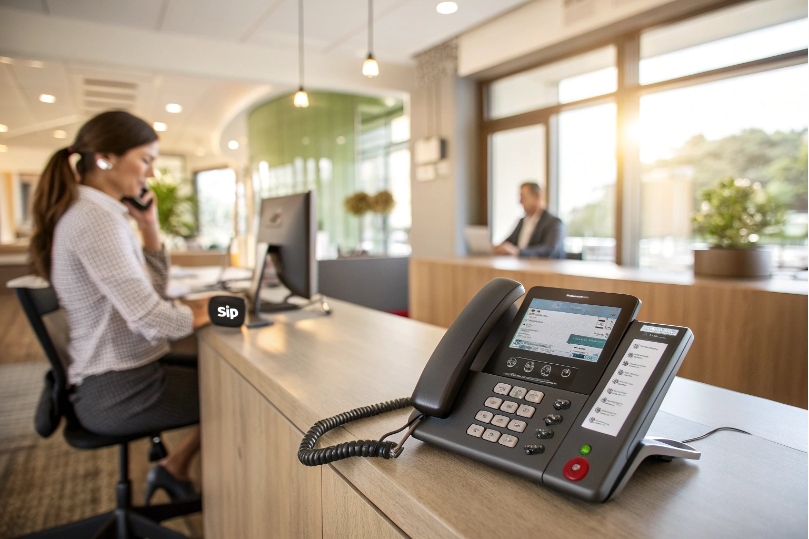
You get shared line appearances, BLF with pickup, one-touch hold/resume, call park with orbit, intercom/paging, and per-line ring. Add night mode and page-then-pickup flows.
Dive deeper Paragraph:
Core features for daily use
- Shared line appearances (SCA/BLA/SLA): several phones handle one business line.
- HOLD/RESUME anywhere: put the caller on hold on Phone A, pick up on Phone B by pressing the same line key.
- BLF + pickup: see who is ringing or busy; press to pickup a call at a coworker’s phone.
- Call Park: park into a slot (orbit) like 71, 72; retrieve with the same slot from any phone.
To keep those lamp states accurate (especially with mixed phone models), many deployments lean on Busy Lamp Field (BLF) 6 and consistent provisioning across endpoints.
Helpful extras
- Per-line ringing: hear different tones per line to triage fast.
- Page then pickup: press PAGE, say “Call for Alex on Line 2,” then the right person presses Line 2 to resume.
- Night mode key: flip routing after hours to voicemail/IVR.
- Privacy and barge-in: allow or block others from joining a call on the same line, per policy.
- Busy Lamp on parked calls: show which park slots are occupied.
What to watch out for
Do not overload one number with too many appearances without enough simultaneous call capacity from the trunk. Phones may show free, but the trunk can reject the next call. Also, confirm music on hold matches the brand rules in your region.
| Feature | What It Does | Why It Helps |
|---|---|---|
| SCA/BLA/SLA | Share a line across phones | Old KSU workflow, zero training |
| BLF + pickup | Watch and answer peers | Fewer missed calls |
| Hold/Resume | Move calls without transfer | Simple handoffs |
| Call Park | Park in a slot, pickup anywhere | Announce over paging |
| Intercom/Page | One-way or talkback | Fast floor alerts |
| Night Mode | Route change on a key | Clean after-hours |
How do I migrate my legacy KSU lines to IP trunks?
Analog lines are fading.
But habits and wiring still exist.
Migrate in steps, not in jolts.
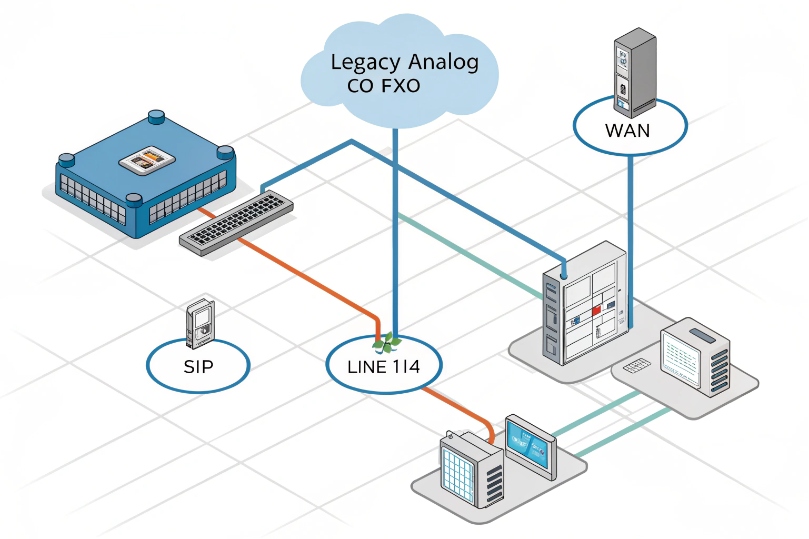
Port numbers to SIP trunks, map them to shared appearances, and keep an ATA/FXO bridge during cutover. Train on hold/park/paging. Validate 911 and failover before the big day.
Dive deeper Paragraph:
Step-by-step plan
- Inventory lines and workflows: list main numbers, rollover groups, door/intercom paths, page circuits, and fax/alarms.
- Choose SIP trunk capacity: match peak simultaneous calls plus headroom. Confirm bursting and CNAM/E911 needs.
- Build shared appearances: create Line 1–4 on the PBX with SCA/SLA profiles; map DIDs to those lines.
- Template phones: push button maps (Line 1–4, Page, Park 71/72, BLF keys). Keep layouts the same across models when possible.
- Bridge legacy devices: use FXO gateways to bring analog POTS lines into the PBX during porting, and ATA ports for fax, alarms, and door relays.
- Paging/intercom: replace analog amplifiers with SIP amps or use a paging bridge. Configure multicast for large zones.
- Training: run short sessions on answer → hold → page → resume, and park → page → pickup.
- Cutover: set a window. Forward old lines to temporary DIDs if porting is staggered. Validate inbound, outbound, E911, CNAM, and page.
- Rollback plan: keep the FXO gateway in place for a day. Document how to forward calls back if needed.
If you must keep analog carrier lines during porting, an FXO gateway 7 provides a clean PSTN-to-VoIP bridge while you move numbers to SIP.
Pitfalls and fixes
- Trunk limits hit: calls fail even with free line keys. Fix by increasing simultaneous call paths.
- Lamp state drift: mixed firmware or vendors. Fix by standardizing firmware and enabling dialog event packages on the PBX.
- Hold music mismatch: update MOH source; some devices require 8-kHz WAV.
- Door/relay timing: confirm SIP events match relay trigger length.
Compliance and safety
Update E911 addresses per phone or per area. Test 933 if your provider offers it. For emergency page, give it highest priority so it barges into active calls and speakers.
| Migration Area | Old KSU | New VoIP | Transition Aid |
|---|---|---|---|
| Lines | Analog CO | SIP trunks | FXO gateway |
| Paging | Analog amp | SIP paging / multicast | Paging bridge |
| Doorphone | Analog relay | SIP intercom + relay | ATA or SIP relay |
| Call handling | Line keys | SCA/SLA | Button templates |
| 911 | POTS address | E911 per endpoint | 933 test call |
Conclusion
Keep the familiar “Line 1–4” workflow, but power it with SIP. Use SCA/BLA, BLF, park, and paging. Migrate in steps, test E911, and template every phone.
Footnotes
-
Defines classic key telephone systems and shared line buttons that modern VoIP phones emulate. ↩ ↩
-
Shows how Shared Call Appearance maps calls to multiple phones with shared line keys and call-state lamps. ↩ ↩
-
Explains Bridged Line Appearance requirements for sharing one line across endpoints and preserving call-state visibility. ↩ ↩
-
Practical configuration notes for Shared Line Appearance on SIP servers and handsets, including hold/resume behavior. ↩ ↩
-
Defines the SIP dialog event package used by many BLF and shared-line implementations for SUBSCRIBE/NOTIFY. ↩ ↩
-
Quick guide to BLF setup and what phones expect from the server to drive lamp states. ↩ ↩
-
Explains FXO interfaces and how gateways bridge analog PSTN lines into VoIP systems during migrations. ↩ ↩