Soft keys seem harmless, but when users guess the wrong button, calls hang up, transfers fail, and every “quick” action turns into a support ticket.
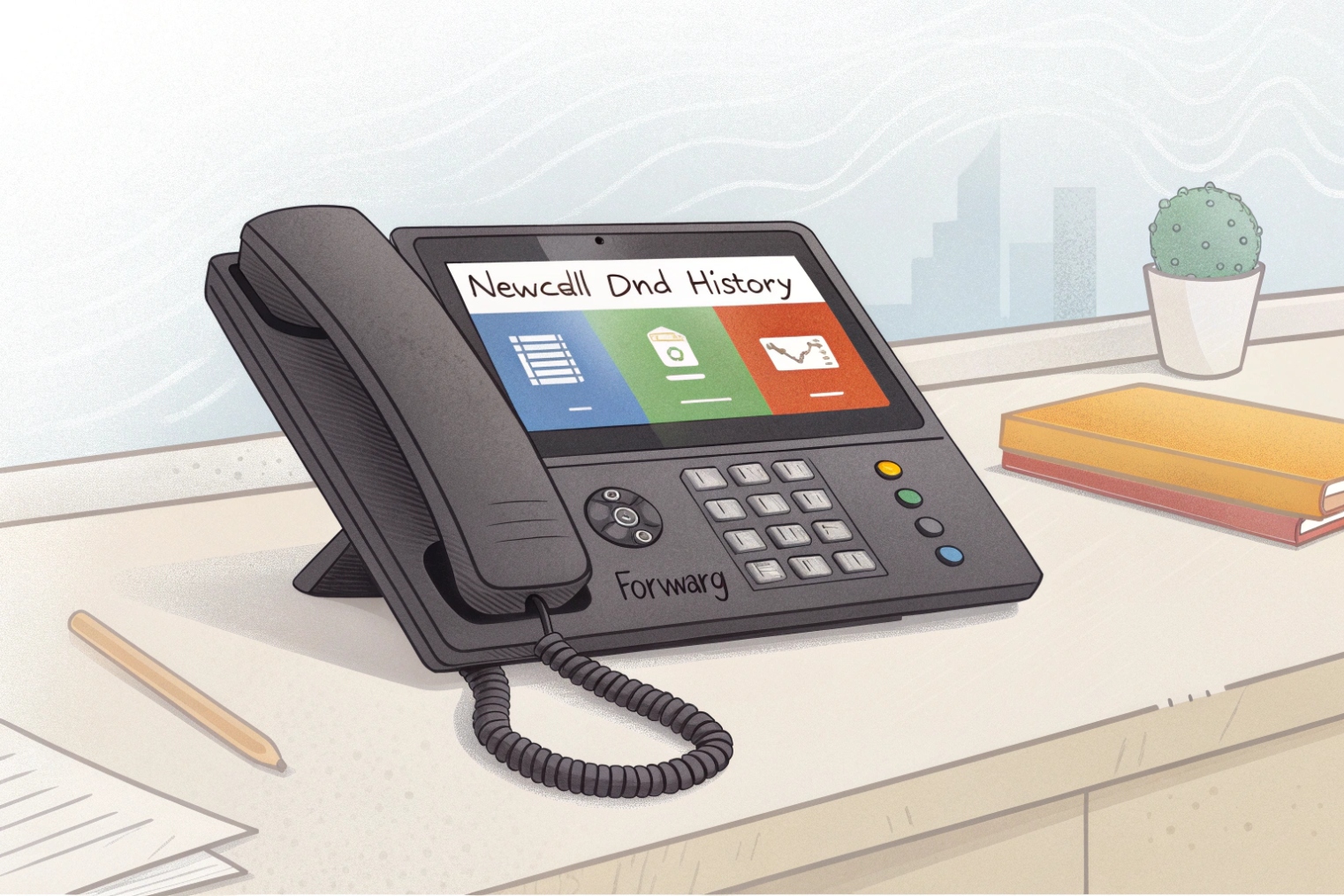
A soft key is a context-sensitive on-screen button. Its label and function change with what the phone is doing—idle, ringing, dialing, in-call, held—so the phone shows only the actions that make sense right now.
Why the same physical key does different things
A SIP desk phone (built on the Session Initiation Protocol (SIP) 1) has limited physical space. Soft keys solve that by letting the screen “relabel” the same keys as the call state changes. That is why the button under “Hold” becomes “Resume” later, and why “Answer” only shows when the phone is ringing.
In practice, a soft key is a small workflow engine. It does not just trigger a single action. It often starts a sequence:
- A transfer soft key may open a prompt for the target.
- The phone dials the target.
- A second soft key completes the transfer.
That design keeps the front panel simple while still supporting complex actions like attended transfer, three-way conference, call park, pickup, recording, paging, and directory shortcuts. Some models even support multiple soft key “pages,” where the rightmost key becomes “More,” letting users flip through extra actions. A few vendors add long-press behavior, so a short press does one thing and a long press does another.
What actually happens when you press a soft key
A soft key is only a “trigger.” The real feature depends on what the phone and PBX agree to do. Most actions happen through one of these paths:
- SIP methods: INVITE to start a call, BYE to end, SIP REFER method 2 (often with the Replaces header 3) for transfer, re-INVITE for hold/resume, and the SIP SUBSCRIBE/NOTIFY event framework 4 for presence or BLF-style status.
- DTMF feature codes: classic star codes like
*8pickup,*72forward, or custom codes defined in the PBX—typically sent using the RTP payload format for DTMF events 5 when the call is established. - Vendor APIs / platform hooks: some ecosystems use extra HTTP actions, XML apps, or proprietary signaling to drive features.
Correct behavior depends on PBX feature support. A phone can display “Transfer,” but if REFER/Replaces is blocked, unsupported, or misconfigured, the key may fail or behave differently than the label suggests.
| Phone state | What users see on soft keys | Typical action behind the scenes | Common failure mode |
|---|---|---|---|
| Idle | DND, CFwd, Pickup, History | Local setting change, star code, or PBX feature | Feature disabled by policy, wrong star code |
| Ringing | Answer, Reject, Forward | Answer via INVITE/200 OK, reject, forward rule | Forward requires PBX permission; reject sends wrong response |
| Dialing | Send, Backspace, Cancel | INVITE, digit edit, abort | Early media / dial plan mismatch |
| In-call | Hold, Transfer, Conf, Record, Mute | re-INVITE hold, REFER, conference bridge or JOIN | PBX lacks attended transfer or conference method |
| Held | Resume, Swap | re-INVITE resume, line swap | Multiple calls not supported in that mode |
A good mental model is simple: soft keys show the most likely “next moves” for the current screen. They are not fixed features. They are dynamic options.
This is also why good UX matters. High-frequency actions should stay on the first row, with clear labels. Every extra “More” press adds time and error risk, especially in reception, help desks, and security control rooms.
Now that the idea is clear, the next questions are the practical ones: how soft keys compare to other keys, how to customize them, how they change mid-call, and how admins lock them down.
How do soft keys differ from line keys, BLF, and DSS?
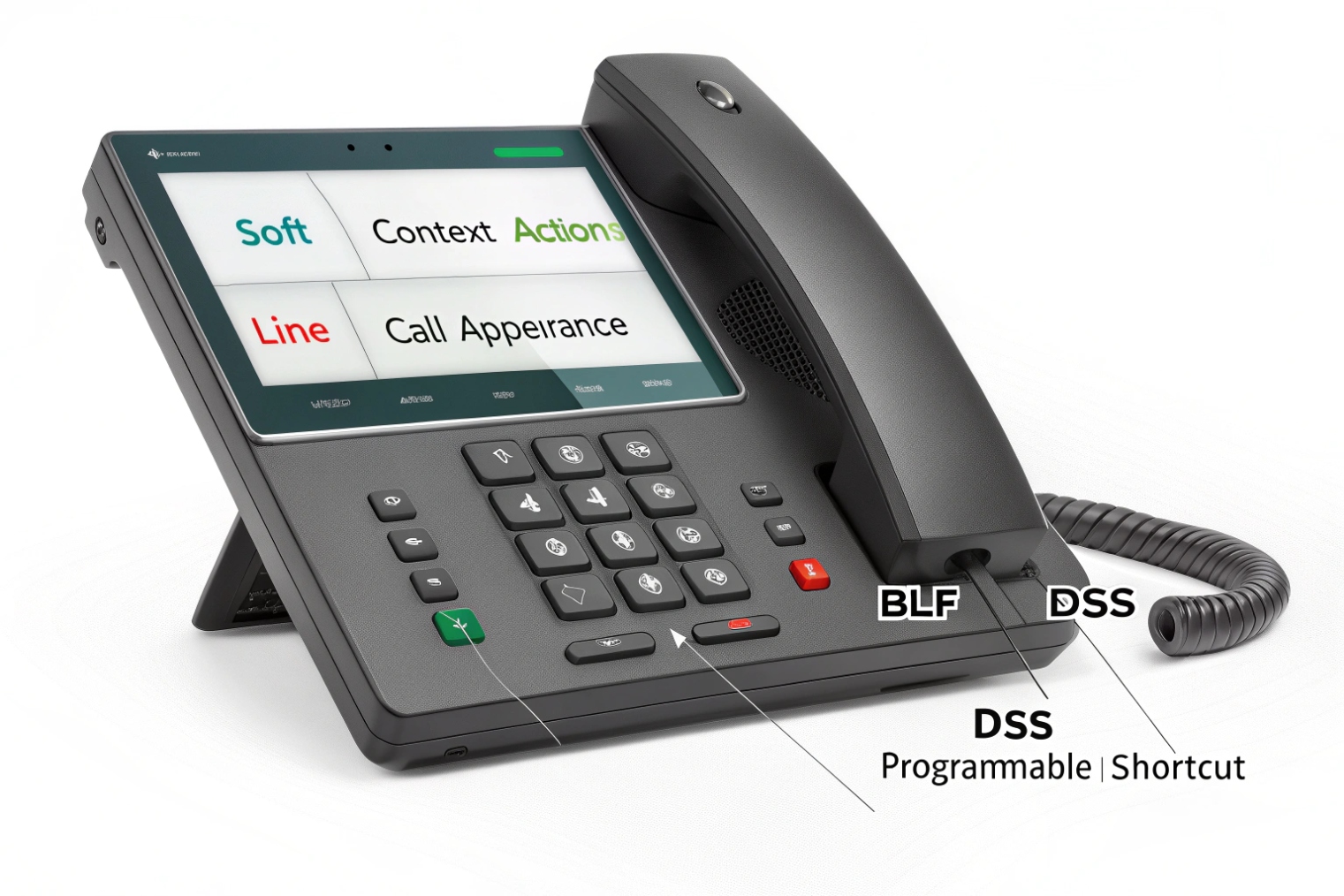
Soft keys are easy to blame when the real confusion is that a phone has several “programmable” surfaces. When users say “the button,” they might mean soft keys, line keys, BLF keys, or DSS keys.
Soft keys live under the screen and change by context. Line keys and BLF/DSS keys are usually fixed-position keys (often with LEDs) that keep a consistent identity, even while their status changes.
The practical difference: changing label vs changing status
Soft keys are screen-driven. Their labels change with the call state and the current UI page. A line key is account-driven. It represents a SIP identity or call appearance. BLF and DSS keys are destination-driven. They represent someone or something you want to reach or monitor.
In real deployments, the difference matters because training and expectations differ:
- With soft keys, the user reads the screen first.
- With line/BLF/DSS, the user learns muscle memory and watches LEDs.
How BLF and DSS relate (and why people mix them up)
Busy Lamp Field (BLF) 6 is about monitoring: busy/idle/ringing status via SUBSCRIBE/NOTIFY. DSS is about fast action: one-touch dial, intercom, pickup, park, or speed dial. Many phones merge the two and call it “BLF/DSS,” meaning “a speed key that also shows presence.”
Soft keys can be status-aware too. For example, a “Pickup” soft key might behave differently if the phone has BLF subscriptions and can tell which extension is ringing. Still, it remains context-driven and screen-labeled.
| Key type | Where it lives | What stays constant | What changes | Best for |
|---|---|---|---|---|
| Soft key | Under/next to screen | Physical position, not the function | Label + action by state/screen | Call handling workflows (transfer/conf/park) |
| Line key | Side keys / top row | SIP account or call appearance | Call state (idle/ringing/active) | Multiple accounts, shared lines, call appearances |
| BLF key | Programmable side key | Target (extension/queue/park slot) | Presence (idle/busy/ringing) | Seeing who is available |
| DSS key | Programmable side key | Action target (speed dial/intercom/pickup) | Sometimes label or status | One-touch operations at scale |
A quick rule used in onboarding:
Soft keys help manage the call you already have. BLF/DSS keys help start or grab the call you want. Line keys help choose which identity is talking.
How do I customize soft keys per screen, account, and context?
Customization is where “soft keys” become a policy tool. The same phone model can feel totally different depending on how keys are mapped for idle, ringing, and in-call screens.
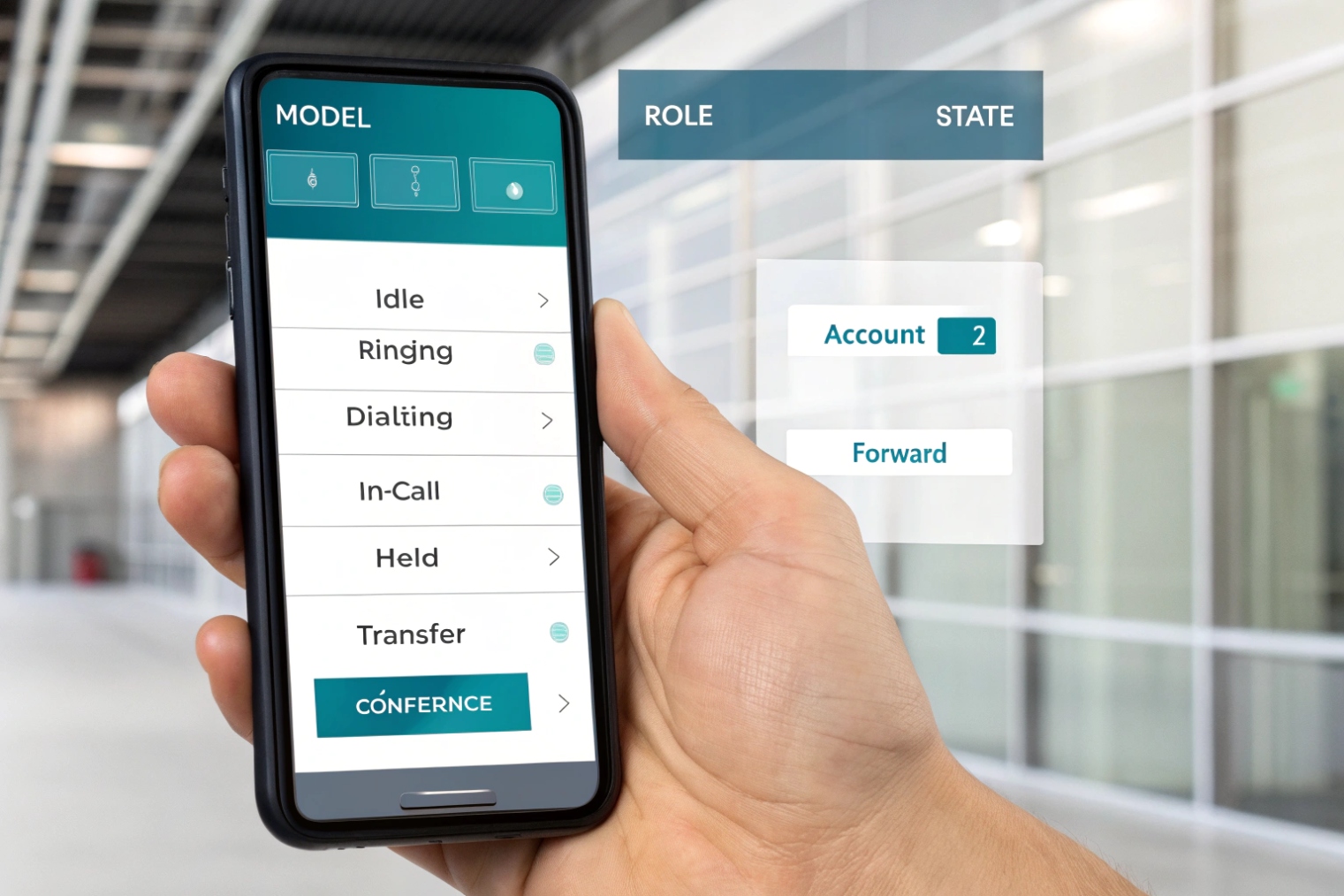
Soft keys can usually be customized by state (screen), by account (line), and by context (role, location, or device type), using the phone UI, web UI, or centralized provisioning templates.
Three layers of customization that matter
Most SIP environments end up with three practical layers:
1) Screen/state mapping
This is the big one. You choose what shows on:
- Idle screen
- Ringing screen
- Dialing screen
- In-call screen
- Held / multi-call screen
If transfer is frequent, keep Transfer and Conf on page one in-call. If you run a security desk, keep Park and Pickup prominent. If it is a hotel room phone, reduce options and keep it simple.
2) Account/line mapping
On multi-account phones, soft keys can behave differently based on the selected line. One line might be a main number with transfer and park. Another line might be a private direct line with fewer features. Some platforms let “Call Forward” apply per account, while others apply globally.
3) Context mapping (role, site, device class)
This is where admin policy wins. A shared lobby phone should not expose call forwarding or voicemail access. A help desk phone should have queue login/logout. A nurse station phone may need panic or broadcast keys.
In my deployments, the fastest way to reduce mistakes is to standardize roles with templates: “Reception,” “Security,” “Help Desk,” “Manager,” and “Common Area.” Each role gets a predictable soft key set.
| Customization axis | What you can tune | How it is commonly applied | Example mapping |
|---|---|---|---|
| Screen/state | Idle vs ringing vs in-call actions | Phone config or PBX template per state | Ringing: Answer/Reject/Forward; In-call: Hold/Transfer/Conf |
| Account/line | Behavior per SIP identity | Line-specific settings or dial plan rules | Account 1: Park visible; Account 2: Park hidden |
| Context/role | Permissions + UI exposure | PBX policies + provisioning groups | Lobby: hide CFwd; Help desk: show Queue Login |
| Device/model | Key count and paging | Model-specific templates | 4-key screen uses “More”; 10-key screen shows all |
Provisioning: where real control usually lives
Most businesses do not customize on every handset manually. Instead, phones fetch configuration from a server using HTTP(S) or TFTP, often bootstrapped by DHCP option 66 (TFTP server name) 7 and similar options. Templates can target:
- A model family
- A user or MAC address
- A site or tenant
- A role group
That is why a phone can be factory-reset and still come back “perfect” after it provisions. It is also why changing one template can fix (or break) hundreds of phones at once. When doing this at scale, testing matters: a soft key that looks fine in the idle screen might fail in-call if the PBX feature is disabled for that user class.
Will my soft keys change during calls, transfers, or conferencing?
Yes, and they should. The point of soft keys is to adapt. The trick is predicting how they adapt so users do not panic when buttons “move.”
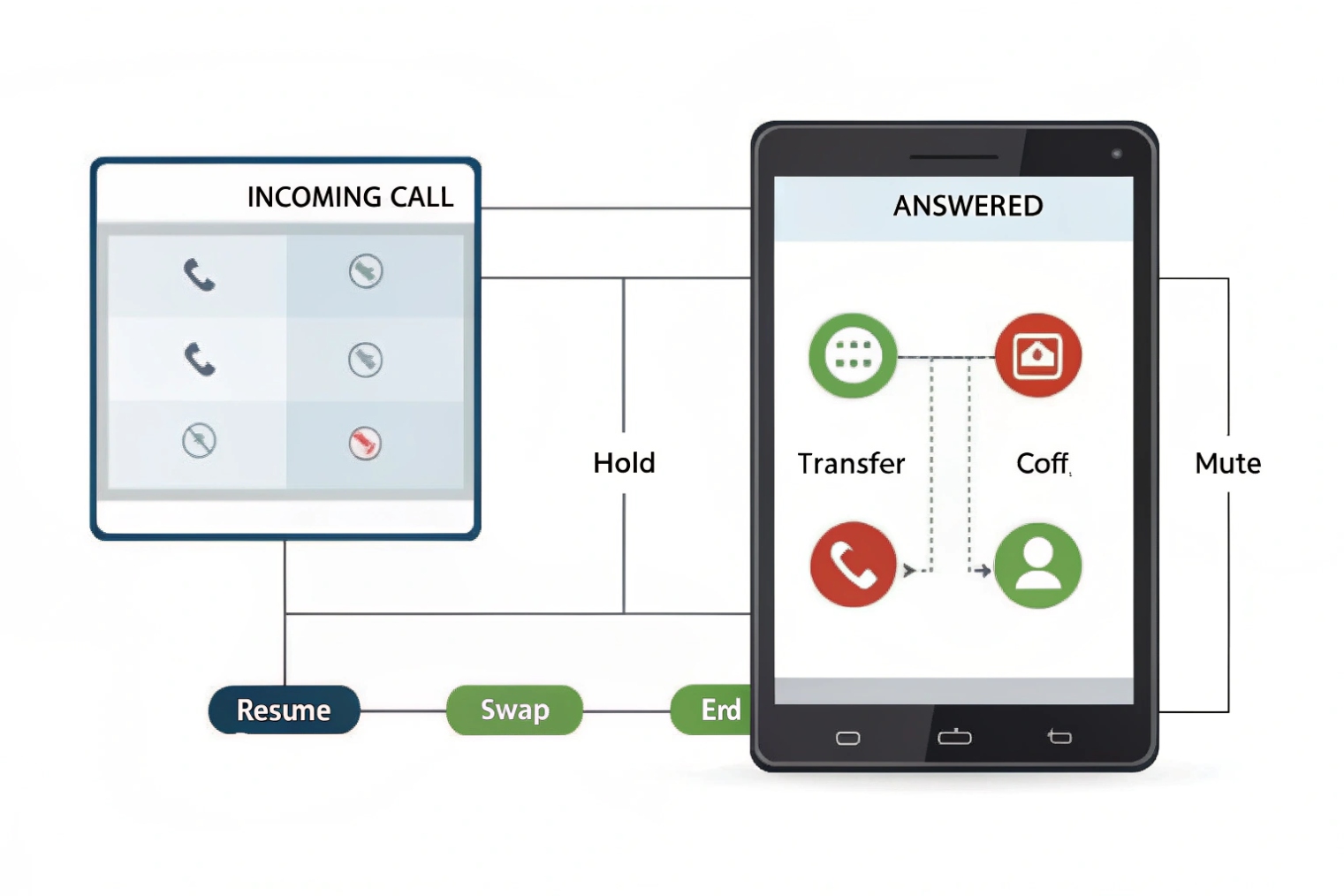
Soft keys usually change at each call milestone—ringing, connected, held, consult, conference, transfer completion—because the next best actions change as the call state changes.
What changes during an active call
During an active call, a phone often exposes a compact set first: Hold, Transfer, Conf, End. After you press one of these, the phone may enter a sub-state and replace the soft keys with step-specific options.
Common examples:
- Attended transfer: Press Transfer → dial target → soft keys change to “Transfer” (complete), “Cancel,” maybe “Swap.”
- Blind transfer: Press Blind → dial target → “Send” completes without consulting.
- Conference: Press Conf → dial participant → “Conf” joins, “Split” separates (vendor-dependent).
This is why training should cover workflows, not buttons. The soft key is only one step in a sequence.
Why keys sometimes show but do nothing
When a label appears but fails, it is usually one of these:
- The PBX does not support the feature method the phone expects (REFER/Replaces, conference join, park orbit logic).
- The user is restricted by policy (role-based permission blocks).
- The phone is in a different call appearance mode (single line vs multiple calls).
- Interop mismatch: phone expects one behavior, PBX implements another.
A real example from a shared security console: “Record” showed on the phone, but the PBX only supported server-side recording via a different feature code. The fix was to remap the key to the PBX’s recording toggle code, not to “enable recording on the phone.”
| Call phase | Typical soft keys | What the phone is trying to do | UX risk |
|---|---|---|---|
| Connected | Hold, Transfer, Conf, Mute, End | Manage current media session | Users hit End instead of Transfer |
| Hold | Resume, Swap, New Call | re-INVITE resume, manage appearances | Users cannot find Resume after paging |
| Consult (attended transfer) | Complete, Cancel, Swap | Keep original call parked, call target | Users forget the second “Complete” step |
| Conference setup | Join, Cancel, Split | Add leg to bridge or local mix | Inconsistent behavior across vendors |
| After transfer | Idle set returns | Original call is gone | Users think transfer failed because screen “changed back” |
The best UI keeps “End” separated from frequent mid-call actions and keeps “Complete Transfer” explicit. Clear labels reduce training time and reduce costly call drops.
Can I lock soft keys with templates, provisioning, and admin policies?
In most business SIP deployments, yes. Soft keys are often controlled more by administrators than by end users, especially on shared phones.
Soft keys can be restricted, reordered, or hidden using centralized provisioning templates and PBX admin policies, often per tenant, role, device type, and call state.
Why locking matters (and where it pays off)
Locking is not about control for its own sake. It is about preventing expensive mistakes:
- A lobby phone should not enable call forwarding to an external number.
- A warehouse phone should not expose directory browsing if that violates privacy policy.
- A hotline phone should keep Answer/Transfer obvious and hide everything else.
This is also a security issue. If local users can reprogram keys, they can route calls in ways that break compliance or billing controls. Shared environments need predictable behavior.
Common ways admins lock soft keys
In most systems, locking happens across two layers:
1) Phone-side provisioning
Provisioning can define:
- Which soft keys appear in which states
- The order of keys
- Whether users can edit keys locally
- Whether “More” pages exist
- Whether long-press actions are enabled
Phones typically fetch config files from an HTTP(S)/TFTP server and apply them at boot or on a scheduled resync. When templates exist per model and role, the same phone hardware can become “Reception” or “Lobby” just by changing the assigned template.
2) PBX-side permissions and feature flags
Even if a phone shows a soft key, the PBX can block execution:
- Disallow call forwarding
- Disallow transfer to external trunks
- Require authorization for pickup or park
- Restrict recording controls
- Limit conference size or method
That split is useful. Phone templates shape the UX. PBX policy enforces what is actually allowed.
| Control point | What it locks | What it cannot fully guarantee | Best practice |
|---|---|---|---|
| Phone template | Visibility, order, labels, per-state layout | PBX feature behavior and permissions | Keep layouts role-based and consistent |
| PBX admin policy | Who can use features (forward, transfer, record) | On-screen labels may still appear | Hide keys and restrict features |
| User local UI | Personal shortcuts | Can create inconsistent UX | Disable local edits on shared phones |
| Network provisioning rules | Where configs come from | Physical access resets | Use secure provisioning, admin PINs |
A small story that shows the value: a shared lobby phone kept “CFwd” on the idle screen. Visitors discovered it and forwarded calls to their mobile numbers. The fix was simple: remove CFwd from the idle template and block forwarding for that device class in the PBX. After that, the phone stayed safe even after reboots and resets.
The end goal is a stable experience: users see the right actions, in the right order, in the right states, and the system enforces the rules behind those actions.
Conclusion
Soft keys are dynamic, state-driven buttons that guide call workflows. When mapped and locked well, they reduce mistakes, speed call handling, and keep shared phones safe.
Footnotes
-
SIP core RFC explaining methods, dialogs, and signaling states that phones expose through soft keys. ↩︎ ↩
-
REFER method specification used by many systems for blind and attended call transfer signaling. ↩︎ ↩
-
Replaces header specification that enables attended transfers by replacing an existing SIP dialog. ↩︎ ↩
-
SUBSCRIBE/NOTIFY event framework used for presence, BLF, and other status notifications. ↩︎ ↩
-
RTP event payload spec that explains how DTMF digits and star codes are carried reliably. ↩︎ ↩
-
Dialog event package describing BLF-style busy/idle/ringing monitoring via SIP events. ↩︎ ↩
-
DHCP option reference showing how phones discover provisioning servers automatically at boot. ↩︎ ↩