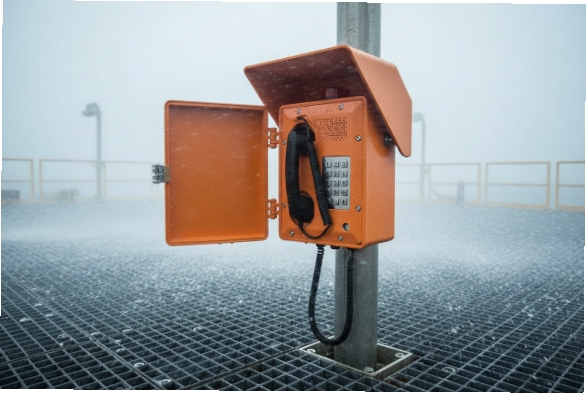
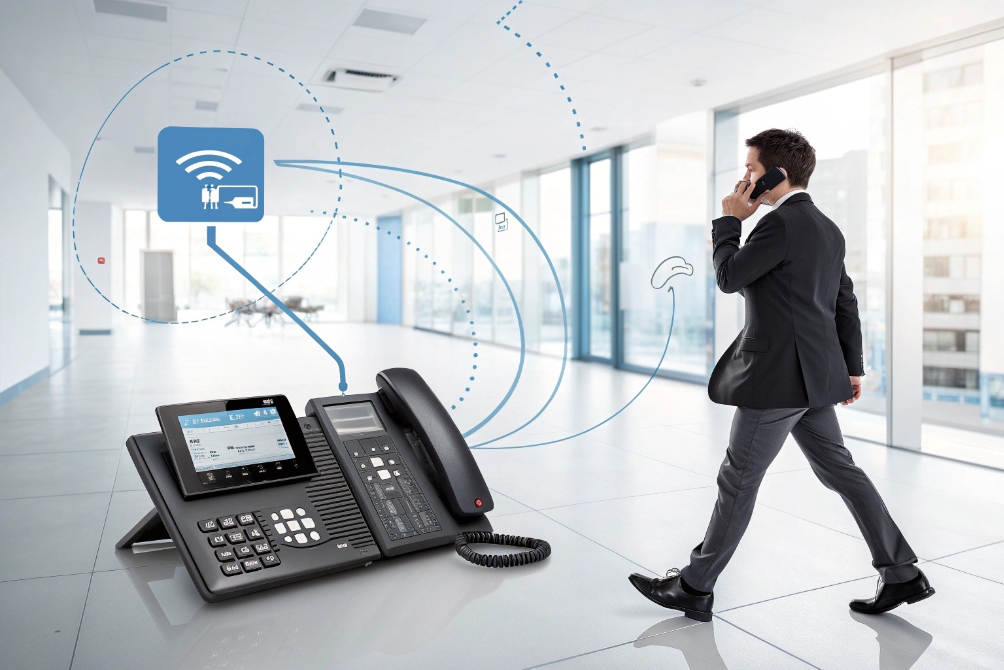
You start an important call at your desk, then you must leave. You either sprint back to the phone, or you say the awful line: “Can I call you back?”
Call Flip is a VoIP feature that moves a live call between your own devices—desk phone, mobile, and softphone—without hanging up, so the other person barely notices the switch.
Call Flip sits on top of your SIP PBX or UC platform. The call stays on the same system and usually the same extension. You simply “push” or “pull” the active call to another registered device, and the PBX keeps the session alive while it hands control to your new endpoint. Used well, it makes you feel free to move, without punishing the caller for your mobility.
How do I move an active call between my devices?
You are on your desk phone, the meeting room you booked becomes free, and you want to walk there without saying “I’ll dial you back”. This friction is exactly what Call Flip removes.
To move an active call, you trigger Call Flip from a button or star code on one device, then answer on your other device that is logged into the same user or extension. The PBX quietly hands the live call over.
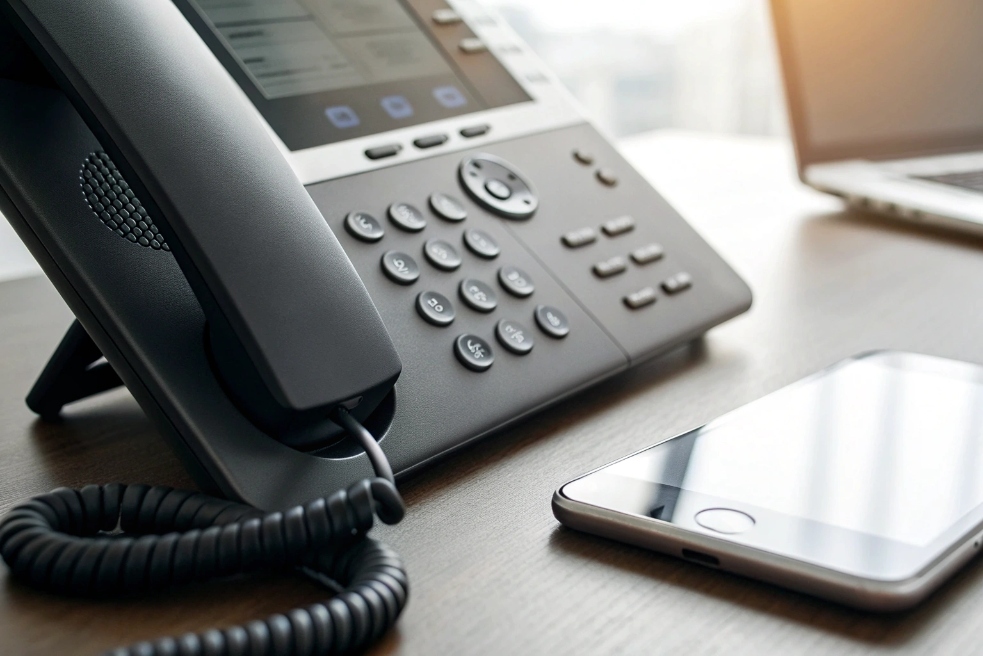
Push vs pull: two ways to flip a call
Most systems implement Call Flip in one of two models:
- Push (from current device)
You press a dedicated “Flip” key or soft button on the active phone. The PBX offers the call to your other devices. You pick it up there. - Pull (from target device)
You pick up the second device (for example, mobile or softphone) and dial a feature code like*77. The PBX looks for your existing live call and “pulls” it onto this device.
In both cases, the call stays in the PBX. Only the endpoint that talks to the PBX changes.
| Model | Who starts it | Typical user action | Good for |
|---|---|---|---|
| Push | Current device | Press Flip key, answer on other device | Desk-to-mobile, planned moves |
| Pull | Target device | Dial star code, call appears there | Picking up from car, hotel, any new place |
Typical Call Flip flows in daily work
Real workflows look like this:
-
Desk → Mobile
You start on an IP desk phone. Your ride to the airport arrives. You hit Flip, your mobile app rings, you answer, and walk out the door still on the same call. -
Mobile → Desk
You pick up a call on your mobile in the corridor. Once at your desk, you dial the Call Flip code from your desk phone. The PBX moves media and control to the desk phone, so you can use headset, recording, or speakerphone more comfortably. -
Softphone → Conference room phone
You start on your laptop, but more people join the conversation. Instead of fumbling with speakers, you “pull” the call onto a meeting-room SIP phone and put it on loudspeaker.
From the far end, there may be a tiny click or half-second pause. Otherwise, the call feels continuous. No second dial tone, no new call, no “sorry, I hung up by mistake”.
Requirements and limits
Call Flip only works inside the same system:
- Devices must belong to the same user/extension/account.
- All devices must be registered and online.
- Some vendors require that you use their own apps or provisioned SIP phones.
Most platforms do not let you flip someone else’s call unless you have special permissions. That keeps control with the call owner and protects privacy. For integrators, this is just another service on top of SIP, but for users, it feels like magic: one identity, many devices, one continuous call.
Does Call Flip work across mobile, desk, and softphone?
People worry Call Flip only works “inside the same app” and not between different device types. In practice, it can follow you almost anywhere as long as your identity stays the same.
Yes. Call Flip usually works across desk phones, mobile apps, and softphones, as long as they are all signed into the same VoIP account or extension on your PBX or UC platform.
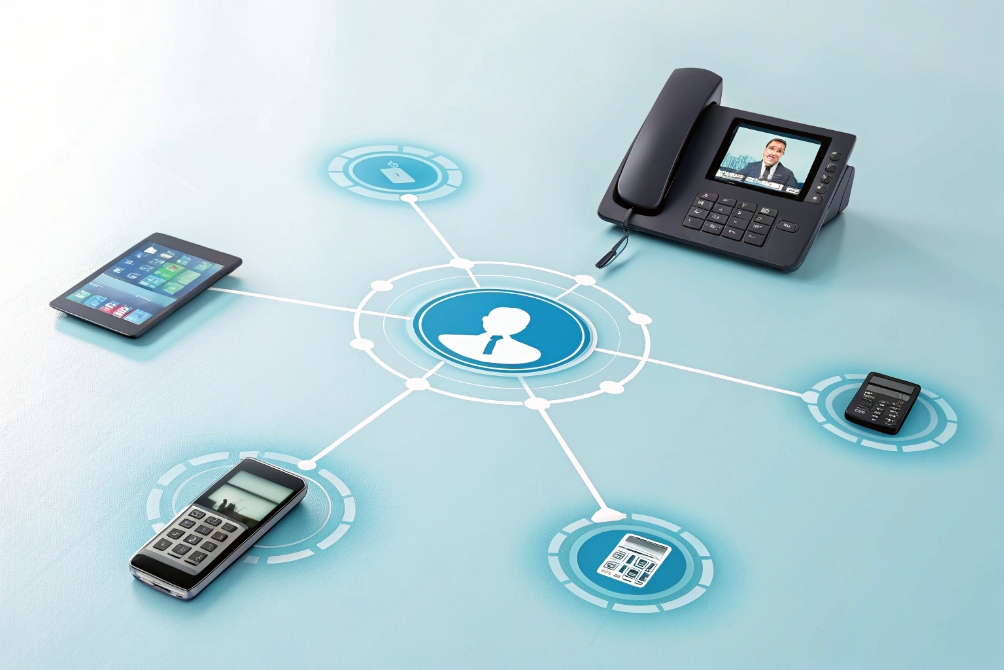
Device types that usually support Call Flip
Most modern UC platforms and IP PBXs support Call Flip across:
- Provisioned IP desk phones (SIP phones on your LAN).
- Mobile apps (iOS/Android clients).
- Desktop softphones (Windows, macOS, browser WebRTC).
- Sometimes SIP intercom panels or wireless handsets, if mapped to the same extension.
The key is not the plastic or the OS. The key is the user identity:
- Same extension user.
- Same SIP account.
- Same cloud UC user profile.
If those match, the system sees all devices as valid “targets” for your current call.
| Device type | Works with Call Flip? | Typical trigger method |
|---|---|---|
| IP desk phone | Yes | Flip softkey or feature code |
| Mobile UC app | Yes | On-screen “Take over” button |
| Desktop softphone | Yes | UI button or hotkey |
| Plain GSM phone | Sometimes | Via callback or call-through |
| Analog phone via ATA | Sometimes | Star code if mapped to extension |
Cross-network and roaming scenarios
Because the PBX controls the call, it does not care if your second device is on:
- Office LAN over Ethernet.
- Office or home Wi-Fi.
- Mobile 4G/5G data.
- A different branch office.
As long as that device can reach the PBX or cloud UC service and register, it can join the party.
However, real-world quality still depends on the network:
- Flipping from wired desk phone to weak mobile data may keep the call alive but lower quality.
- Some mobile apps handle the switch between Wi-Fi and cellular better than others.
So from a design standpoint, yes, Call Flip “works everywhere”. From an experience standpoint, you still want stable connectivity on the target device.
Where Call Flip usually stops
There are limits:
- You cannot flip a call to a random external phone number that is not part of your system, unless the provider emulates this with a callback trick.
- Many providers block Call Flip on emergency calls for safety, because moving a 911/E911 call between devices can confuse location and callback behavior. For background, see VoIP and 911 service guidance 4.
- Some third-party SIP hard phones may not support the exact feature codes or keys your UC provider uses.
For a clean roll-out, list exactly which device models and apps are supported for Call Flip. Then you can promise users a consistent “start anywhere, continue anywhere” story instead of a lottery.
How do I enable Call Flip on my PBX or UC app?
The idea of Call Flip is simple, but the buttons and codes look very different between vendors. This often makes admins think the feature is not available when it is.
You enable Call Flip by turning on the feature in your PBX or UC admin portal, mapping star codes or softkeys, and making sure each user’s devices share the same extension or account.
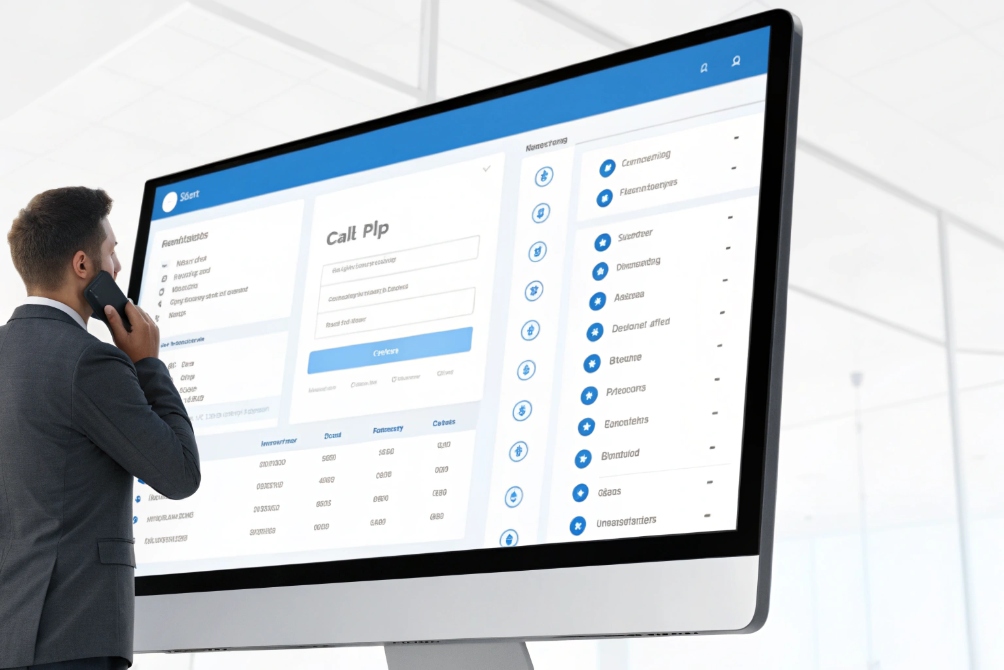
Cloud UC platforms: mostly configuration
On a cloud UC platform, Call Flip is usually:
- Already included in certain plans.
- Enabled per account or per user.
- Accessible via:
- One or more flip numbers.
- A feature code (for pulled flips).
- A built-in button on the app.
Typical steps:
- In the admin portal, confirm the feature is available on your subscription.
- Enable Call Flip in the user’s feature set or company-wide policy.
- Configure flip numbers or short codes if your platform uses them.
- On desk phones, assign a softkey or programmable key to the flip function.
- Test with a user who has multiple devices and confirm the call moves cleanly.
On-prem SIP PBX: feature codes and keymaps
On classic IP PBXs (Asterisk/FreePBX, 3CX, many others), Call Flip is usually implemented as a combination of:
- Feature code that any registered device can dial to “take” the active call for that extension.
- Optional BLF or function key on SIP phones to act as a one-touch trigger.
Conceptually, the PBX:
- Sees an active call on extension 2001.
- Receives a feature code from another device also logged in as 2001.
- Parks or moves the existing media leg.
- Connects that leg to the new device.
As integrator, you design dialplan logic that hides this complexity from users.
A simple comparison:
| Deployment type | Where you configure Call Flip | What user sees |
|---|---|---|
| Cloud UC | Web admin portal, user feature settings | Flip button in app or short code |
| On-prem SIP PBX | Dialplan, feature codes, phone templates | Star codes, programmable keys |
| Hybrid with SBC | PBX + SBC policies | Same as above, but controlled at edge |
Design tips for a clean user experience
To avoid confusion:
- Use a simple, consistent code (like
*77) across all devices if possible. - Add a clear label on desk phone keys, such as “Flip” or “Take Call”.
- Document which devices are eligible for flip per user.
- Make sure call recording policy is clear: does recording stay continuous across devices or restart?
In our own SIP-based projects, Call Flip is often just a small piece of a bigger story: one user identity across multiple DJSlink SIP phones, indoor stations, and mobile softphones. When the mapping is clear in the PBX, users stop thinking about “which phone” they are on. They just see “my extension everywhere” and Call Flip becomes a natural part of their day.
What security and logs track my flipped calls?
Any time you let calls jump between devices, security and compliance teams start asking good questions: who can do this, what gets recorded, and what shows up in the logs?
A proper Call Flip design keeps the call anchored in the PBX or SBC, enforces identity checks on devices, logs every flip event in CDRs, and respects recording, retention, and emergency-calling rules.
What really happens in the PBX during a flip
Under the hood, a flip is usually:
- One continuous call session in the PBX.
- With one user/extension identity.
- That changes contact/device mid-call.
The PBX may:
- Keep the same Call-ID and simply update the endpoint leg.
- Or create a new leg for reporting but mark it as part of a linked session.
From a billing or recording perspective, this is often treated as one call. This is important for compliance:
- Call recording can stay continuous, even if devices change.
- Quality metrics like MOS track the entire conversation, not just one leg.
Security controls you should care about
Because flip is tied to identity, main security points are:
- Strong authentication on every device (passwords, app login, MDM for mobiles).
- Role-based control over who can flip calls and from which devices.
- Lock screens or PINs on desk phones in open areas, so someone cannot walk up, hit a flip code, and take over sensitive calls.
- Clear rules about emergency calling:
- Many systems either block flip on 911/E112 calls.
- Or log it very clearly, because device location matters for callback and legal trace.
If you allow Call Flip on mobile, treat the mobile app as a business phone. Use MDM, remote wipe, and policies. A lost device is not just email exposure; it might expose active calls and call logs too.
Logs, CDRs, and analytics for flipped calls
Your logs should make flips visible:
- PBX CDRs should show:
- Caller/callee.
- Start and end time.
- Which devices or endpoints handled the call.
- Flags for flip or move events.
- Recording logs should show:
- One recording file with internal markers, or
- Multiple files tied by the same session ID.
A simple log structure:
| Field | Use |
|---|---|
| Session or Call ID | Tie all legs and flips together |
| Original device | Where the call started |
| Flip target device(s) | Where the call moved |
| Flip timestamp(s) | When each move happened |
| Recording reference | How to find the audio for review |
In analytics tools, you can treat flipped calls as one interaction:
- AHT and FCR stay valid.
- Supervisor sees one call that crossed devices, not three separate calls.
- Network teams can see if quality changed noticeably after a flip (for example, wired → mobile).
When security, logging, and recording are all aligned, Call Flip is not a blind spot. It is simply another way your SIP PBX or UC system lets users stay mobile without giving up control, audit trails, or compliance posture. If your edge uses a Session Border Controller (SBC) 7, keep flip-related policies and logs consistent there too.
Conclusion
Call Flip lets one user identity move a live call across devices while your PBX keeps control, logs every move, and preserves recording and KPIs for clean operations and coaching.
Footnotes
-
Visual example of flipping calls between desk and mobile devices. ↩ ↩
-
Desk + smartphone context for push/pull call handoff workflows. ↩ ↩
-
Overview graphic of multi-device UC identity across desk, mobile, and softphone. ↩ ↩
-
Explains VoIP 911 expectations and why emergency calls are treated differently. ↩ ↩
-
Admin-style view representing how flip is enabled via portal, keys, and codes. ↩ ↩
-
Security-themed visual for call control, auditability, and compliance around flipping. ↩ ↩
-
Background on SBC roles for SIP policy enforcement, topology hiding, and session logging. ↩ ↩