
Choppy calls make every conversation feel unprofessional. People repeat words. Deals slow down. Support tickets rise. The worst part is that the problem often looks random.
Choppy audio is voice that cuts in and out because RTP audio packets arrive late, out of order, or not at all, so the receiver cannot play a smooth, continuous stream.
What “choppy” sounds like at the RTP layer
Choppy audio is not one sound. It is a pattern. Some calls lose syllables. Some calls sound like short gaps every few seconds. Some calls sound robotic for 1–2 seconds and then recover. In SIP systems, the voice media is carried by Real-time Transport Protocol (RTP) packets 1. Each packet holds a small slice of audio. The receiver needs those slices to arrive on time and in order. When that flow breaks, the phone or softphone tries to hide it with packet loss concealment 2. That concealment helps, but it also creates the “words dropping” feeling.
In SIP intercom and IP PBX deployments, choppy audio usually has one of these roots:
- The network drops packets (loss).
- The network delays packets unevenly (jitter).
- The uplink is saturated and queues build up (bufferbloat/congestion).
- The endpoint or PBX/SBC is overloaded (CPU/transcoding/recording load).
A key point is that “bandwidth” alone is not the whole story. Many sites have enough Mbps, but the path still has jitter spikes that break audio.
Why choppy audio can appear only sometimes
VoIP is real-time. It reacts to short events. A 2-second uplink spike can ruin a 10-minute call, even if a speed test looks fine. Also, many routers handle bursts poorly. When someone starts a cloud backup, the uplink queue can fill. This kind of bufferbloat 3 delays RTP packets, then they get discarded as “too late,” and audio becomes choppy.
Quick mapping from symptoms to likely causes
| What you hear | Most likely cause | What it means technically | First place to look |
|---|---|---|---|
| Random missing syllables | Packet loss | RTP packets never arrive | WAN/ISP, Wi-Fi, firewall drops |
| Short stutters during busy hours | Congestion / bufferbloat | Packets arrive late in bursts | Uplink shaping, QoS, SD-WAN |
| Robotic audio then recovery | High jitter | Jitter buffer overrun/underrun | Wi-Fi, ISP jitter, route changes |
| Only one direction is bad | NAT/firewall/media path | RTP blocked one way | SBC/NAT rules, SIP ALG, port ranges |
| Worse after enabling features | CPU/transcoding/recording | Media processing delays RTP | PBX/SBC load, codec mismatch |
Choppy audio is a media delivery problem first. SIP signaling can be perfect and the call can still sound terrible. So the fastest path to a fix is to measure loss, jitter, and delay, then remove the cause.
Why do I get choppy audio—jitter, packet loss, or bandwidth limits?
Choppy audio is frustrating because it feels like “the call is broken,” but the phone still shows it is connected. That mismatch slows down diagnosis.
Choppy audio usually comes from packet loss, high jitter, or uplink congestion; even small loss (1–3%) or jitter spikes beyond the jitter buffer can cause audible gaps.
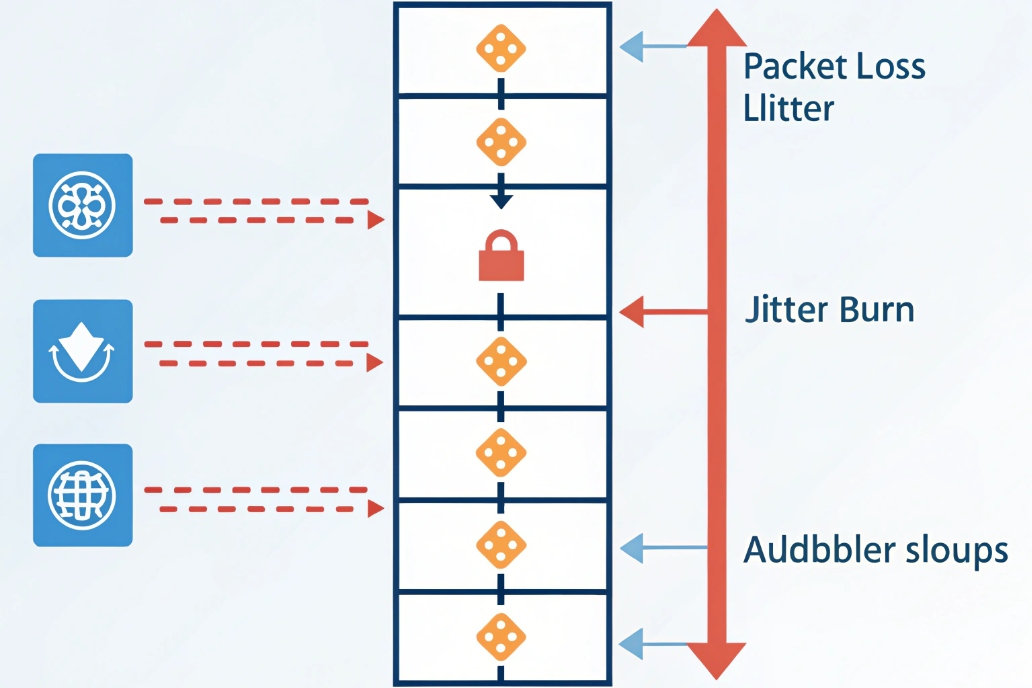
Packet loss is the fastest way to create gaps
Packet loss is when RTP packets never arrive. Even a small loss rate can sound bad because voice needs steady delivery. Loss often comes from:
- Wi-Fi interference and retries
- congested WAN links that drop packets
- poor ISP last-mile quality
- overloaded routers or firewalls
- cabling errors or duplex mismatches on switches
Loss can be steady or bursty. Bursty loss is worse for voice because it drops multiple frames in a row.
Jitter is “late packets,” not “missing packets”
Jitter is variation in packet arrival time. RTP packets can arrive, but arrive too late to be played. Phones use a jitter buffer to smooth timing. If jitter spikes exceed that buffer, the device throws away late packets. That sounds like choppiness.
Jitter often comes from:
- shared uplinks with no shaping
- route changes across the internet
- queueing delays in consumer routers
- Wi-Fi roaming between APs
- VPN tunnels adding variable delay
Bandwidth limits show up as congestion, not only “slow speed”
Many sites run speed tests and see “100 Mbps down,” then assume voice is safe. But voice usually fails on uplink congestion:
- cloud sync and backups
- camera uploads
- large file transfers
- guest Wi-Fi bursts
When the uplink is full, routers buffer packets. That adds delay and jitter. If the buffer is large, it creates bufferbloat, which is a common cause of choppy calls.
A simple “which one is it” checklist
| Signal | Loss problem | Jitter problem | Bandwidth/congestion problem |
|---|---|---|---|
| RTP loss % | High | Low or moderate | Often moderate during peaks |
| Jitter (ms) | Sometimes high | High spikes | High during uplink saturation |
| RTT (ping) | Can be normal | Can be normal | Often rises during busy hours |
| Time pattern | Random or location-based | Burst or roaming-based | Busy-hour and upload-based |
| Best quick test | Wired test endpoint | Lock AP, disable roaming | Rate-limit uplink and retest |
In many real offices, the top cause is uplink congestion plus weak QoS. For SIP intercoms and emergency devices, Wi-Fi can also be a big cause if the device roams or has a weak signal.
How do I diagnose choppy audio with MOS, RTT, and jitter stats?
If diagnosis is only “it sounds bad,” fixes become random. The goal is to collect numbers that point to one root cause.
Diagnose choppy audio by capturing packet loss, jitter, and delay from endpoints or RTCP reports, then correlate MOS trends with time-of-day, network hops, and call legs (LAN, WAN, trunk).

Start with per-call RTP stats, not only speed tests
Most IP phones, softphones, and PBXs can show:
- RTP packets sent/received
- packet loss (local and remote)
- jitter (local and remote)
- codec used and payload type
- sometimes MOS or an estimated quality score
Many platforms derive these metrics from RTCP receiver reports 4. If calls are choppy, capture these stats during a bad call. A speed test after the fact does not prove much.
MOS is helpful, but it is not a single truth
Mean Opinion Score (MOS) 5 is an estimated user quality score. It is useful for trends and alerts, but MOS depends on:
- codec type
- loss and jitter
- concealment behavior
- how the platform calculates it
Use MOS as a trigger. When MOS drops, check whether loss spiked, jitter spiked, or RTT rose.
RTT and one-way delay are not the same
RTT (round-trip time) is easy to measure with ping. It is still useful. If RTT jumps during calls, congestion or routing issues are likely. Still, voice quality is more tied to one-way delay and jitter than RTT alone. A stable RTT with high jitter can still produce choppy audio.
A repeatable diagnosis workflow that works on SIP trunks
- Pick one test call path (same extension, same trunk, same destination).
- Reproduce the issue (or test during the busy window).
- Collect endpoint RTP stats and PBX/SBC call logs.
- Check if the issue is one-way or both-way.
- Correlate with WAN graphs (uplink, drops, queue depth).
- If needed, capture a short packet trace on the SBC side to confirm RTP timing.
What numbers usually point to the cause
| Metric | “Good” shape | “Bad” shape that causes choppy audio | What it suggests |
|---|---|---|---|
| Packet loss | Near 0% | Spikes above 1–3% | Drops, Wi-Fi issues, congestion |
| Jitter | Stable low | Bursts above jitter buffer | Bufferbloat, Wi-Fi roam, route variance |
| RTT | Stable | Jumps during uploads | Uplink saturation, ISP congestion |
| MOS trend | Stable | Drops in the same windows | Repeatable network event |
| One-way only | No | Yes | NAT/firewall/RTP pinholes |
A strong trick is to compare two calls at the same time:
- one call from a wired phone
- one call from a Wi-Fi softphone
If wired is clean and Wi-Fi is choppy, the problem is likely RF/roaming. If both are bad, it’s likely WAN or carrier path quality.
Which QoS, codecs, and jitter buffers fix my choppy SIP calls?
Many teams jump straight to “change codec” or “increase jitter buffer.” Those can help, but they work best when QoS is correct first.
Fix choppy SIP calls by prioritizing RTP with QoS and uplink shaping, using a stable codec set with minimal transcoding, and tuning jitter buffers to match real jitter without adding too much delay.

QoS starts with protecting the uplink
The most practical QoS win is uplink shaping. If the router shapes the uplink slightly below real capacity, it prevents queue explosions and reduces jitter. Then mark and prioritize voice:
- mark RTP with consistent Differentiated Services Code Point (DSCP) values 6
- mark SIP signaling with a separate (lower) priority class
- configure switches/routers to honor those marks
- avoid dropping voice during bursts
QoS must be end-to-end on your LAN. If switches ignore markings, the benefit disappears.
Codec choices should reduce transcoding and tolerate loss
For SIP trunks, keep a short, compatible codec list. A common stable pattern is:
- G.711 for PSTN interop
- G.722 for internal HD when supported end-to-end
- Opus only when trunk and endpoints truly support it without forced transcoding
Transcoding can help interop, but it adds load and can create choppy audio if PBX/SBC CPU spikes.
Jitter buffers should match your real jitter
A jitter buffer that is too small causes underruns and dropouts. A jitter buffer that is too large adds delay and makes conversations feel slow. Many devices support adaptive jitter buffers, which is often the best default. If jitter spikes are huge, the real fix is QoS and path stability—not “giant buffers.”
Simple configuration rules that reduce risk
| Fix area | Recommended direction | Why it helps | Watch-out |
|---|---|---|---|
| Uplink shaping | Enable and set below max | Prevents bufferbloat | Needs correct bandwidth measurement |
| RTP QoS | Prioritize RTP queues | Reduces jitter and drops | Must be consistent across switches |
| Codec list | Keep it short | Reduces negotiation surprises | Too strict can cause call failures |
| Transcoding | Avoid when possible | Lowers CPU load and delay | May be needed for mixed networks |
| Jitter buffer | Adaptive first | Handles normal variance | Not a cure for bad links |
Recording and encryption can expose capacity limits
Recording, SRTP, and TLS don’t “break audio” by themselves, but they increase processing overhead. If your PBX/SBC is close to its limits, adding encryption + recording + transcoding can push it into RTP handling delays (jitter), which sounds like choppiness.
Can VLANs, SRTP, or Wi-Fi settings cause choppy audio issues?
Teams often suspect VLANs or encryption because the audio problem started “after a network change.” That instinct is often right.
Yes. VLAN design, SRTP/TLS overhead on weak devices, and Wi-Fi issues like interference, roaming, and power-save modes can cause jitter and packet loss that sound like choppy audio.
VLANs help only if QoS follows the packets
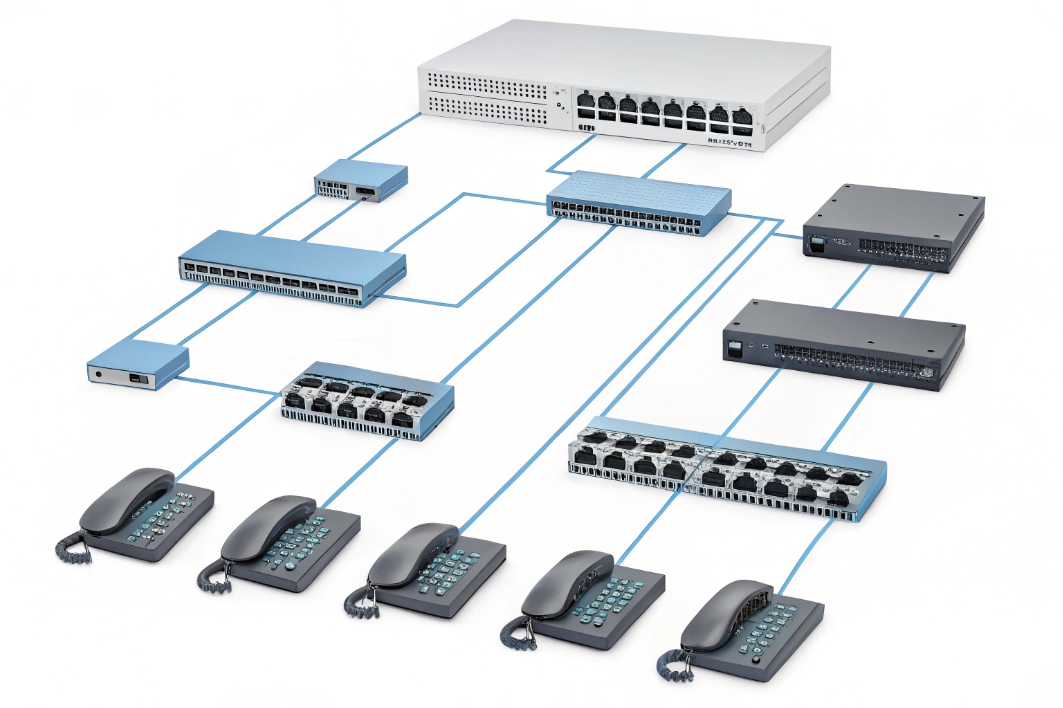
Voice VLANs reduce noise and simplify policy, but if inter-VLAN routing is overloaded or QoS isn’t applied at the L3 hop, voice can still suffer. A fast check: confirm RTP keeps its DSCP markings across VLAN boundaries.
SRTP/TLS can stress weak devices or busy SBCs
On older phones, small gateways, or overloaded SBCs, using Secure Real-time Transport Protocol (SRTP) 7 (plus TLS for signaling) can increase packet handling delay under load. This is more likely when call volume spikes or when transcoding/recording is also active. Fix this by scaling capacity or reducing unnecessary media processing—not by turning off security.
Wi-Fi is the most common “random choppy audio” source
Wi-Fi issues often look like short chops every few seconds. Common causes:
- weak signal / interference
- channel congestion
- roaming between APs mid-call
- power saving settings on laptops/phones
If voice is critical (agents, reception, security), wired Ethernet is still the most stable. If Wi-Fi must be used, keep it disciplined: strong 5 GHz coverage, controlled roaming, and WLAN voice prioritization.
NAT, ALG, and firewall behaviors can mimic “quality” problems
Some choppiness is really intermittent RTP blocking:
- SIP ALG rewriting packets incorrectly
- firewall closing RTP ports too fast
- symmetric NAT issues
- wrong port ranges or SBC anchoring policies
These often show up as one-way stats or short windows where RTP stops arriving.
| Layer | How it can cause choppy audio | Fast check | Typical fix |
|---|---|---|---|
| VLAN/routing | QoS lost at L3 hop | DSCP before/after router | Apply QoS on routed interface |
| SRTP/TLS | CPU delay creates jitter | SBC CPU + call load | Scale SBC, reduce transcoding |
| Wi-Fi | Loss and jitter spikes | Compare wired vs Wi-Fi call | Improve RF, reduce roaming |
| Firewall/ALG | RTP blocked/rewritten | One-way stats, RTP trace | Disable ALG, open RTP ranges |
Conclusion
Choppy audio is RTP that cannot arrive smoothly in real time. Measure loss, jitter, and delay, then fix uplink QoS, codec alignment, Wi-Fi stability, and SBC/firewall media behavior to restore clean SIP calls.
Footnotes
-
Defines RTP packet timing and sequencing for real-time audio. ↩ ↩
-
Explains packet loss concealment techniques that mask missing voice frames. ↩ ↩
-
Learn how bufferbloat creates jitter by overfilling uplink queues. ↩ ↩
-
Shows RTCP receiver report fields for loss, jitter, and round-trip timing. ↩ ↩
-
Meaning of MOS and how the 1–5 voice-quality scale is interpreted. ↩ ↩
-
Reference for DSCP values used to mark and prioritize voice traffic. ↩ ↩
-
Standard for SRTP media encryption and integrity protection in VoIP. ↩ ↩