When a network issue hits, people guess. Time gets burned, and the real fault stays hidden. Ping gives a quick signal, but it also traps teams into false confidence.
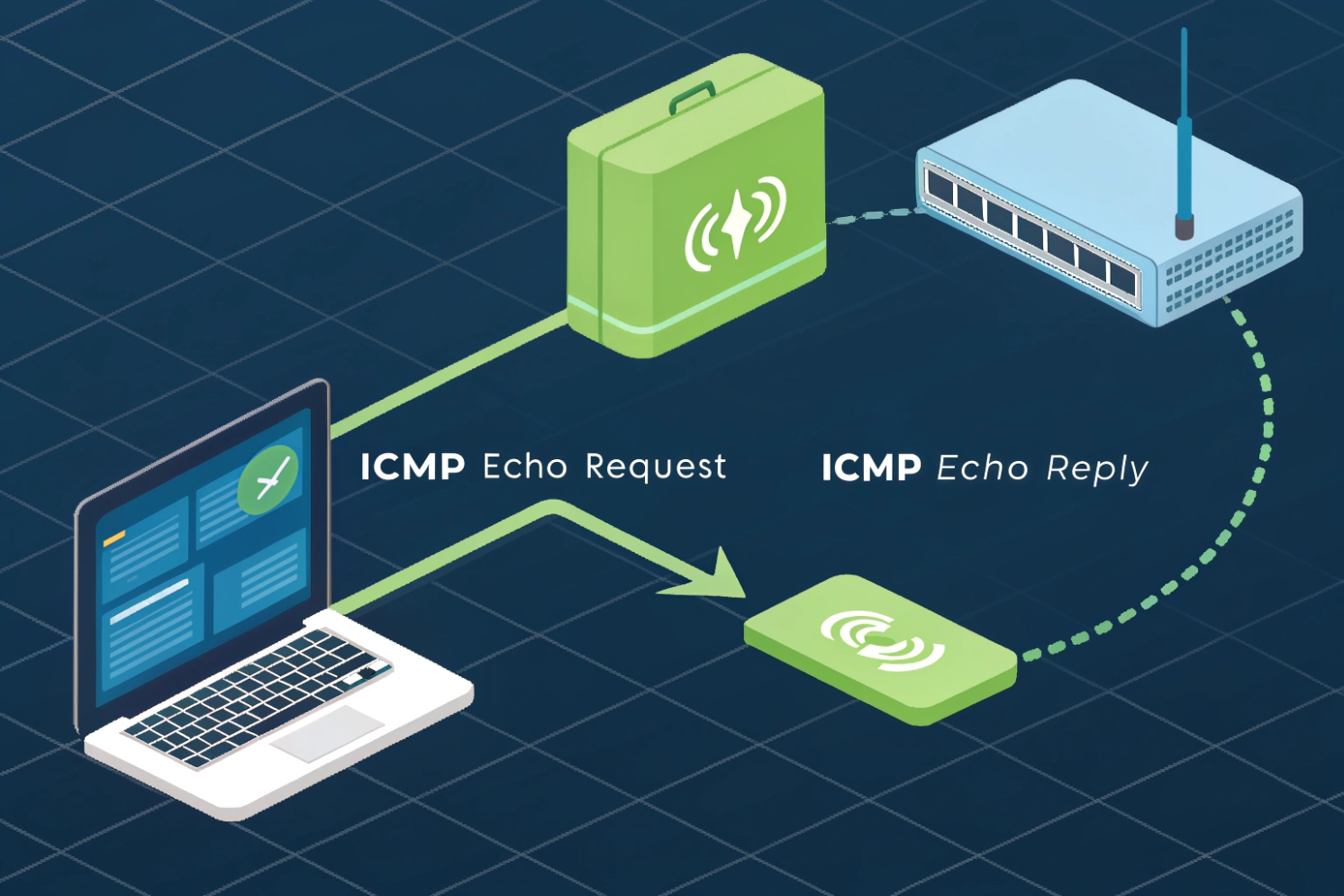
Ping checks basic IP reachability by sending ICMP Echo Requests and timing Echo Replies. It reports round-trip time (RTT), packet loss, and simple path hints like TTL. It proves the path can answer ICMP, but it does not prove any app, port, or service is working.
What Ping Really Tests
ICMP echo is not “the Internet”
Ping is a network diagnostic that asks one simple question: “Can this IP stack hear me and answer back?” It does that with ICMP Echo Request and ICMP Echo Reply 1. In IPv4, those are ICMP types 8 and 0. In IPv6, ICMPv6 Echo messages (types 128 and 129) 2 are used instead. The idea stays the same. A sender transmits a probe, the target (or a device on the path) responds, and the sender measures how long the round trip took.
A typical ping probe includes a sequence number and timing data. The sequence number lets the sender match each reply to the correct request. The timestamp lets it compute RTT per packet. When you run a series of pings, you see timing as a stream. That stream changes with congestion, queueing, Wi-Fi interference, CPU load on the host, and buffer behavior inside routers.
Ping output often shows Time To Live (TTL) 3. TTL is the hop limit. Each router decrements it by 1. So a reply TTL gives a rough hint about path length. Sometimes it also hints at the remote OS’s starting TTL, but that is not reliable enough to treat as an OS fingerprint.
Ping is powerful because it is simple. Ping is also limited because it is simple. Firewalls can rate-limit ICMP. Some hosts ignore ICMP. Some networks allow ICMP but block UDP or TCP ports. So “ping works” only means “ICMP echo works right now.”
Why packet size matters
Default ping payloads are small. Small packets can pass even when larger packets break. If MTU or fragmentation is wrong, large packets may fail while small ones succeed. This is where adjusting payload size and understanding Path MTU Discovery (PMTUD) 4 helps. Bigger pings can expose fragmentation and MTU problems. They can also reveal “black-hole MTU” cases where a path drops fragmented or oversized packets and never returns the right ICMP errors.
| Ping field | What it tells you | What it cannot prove |
|---|---|---|
| Reply received | ICMP reachability at Layer 3 right now | That SIP, HTTP, or any port is reachable |
| RTT (ms) | Round-trip latency for ICMP probes | One-way latency, app latency, or RTP performance |
| Packet loss (%) | Missing replies in this ICMP sample | That real traffic will have the same loss |
| TTL | Hop limit hints, rough path length | Exact hop count, OS type, or routing health |
| Payload size tests | MTU/fragmentation sensitivity | Full throughput or QoS correctness |
If ping is the first check, it should stay the first check. After that, troubleshooting must move to the real protocol and the real ports.
If this feels too basic, keep reading. The big wins come from reading ping correctly and knowing when to stop trusting it.
How do I use ping on Windows, macOS, and Linux?
When a customer says “the device is online,” the next question is “how do you know?” If the ping command is used wrong, the conclusion is wrong.
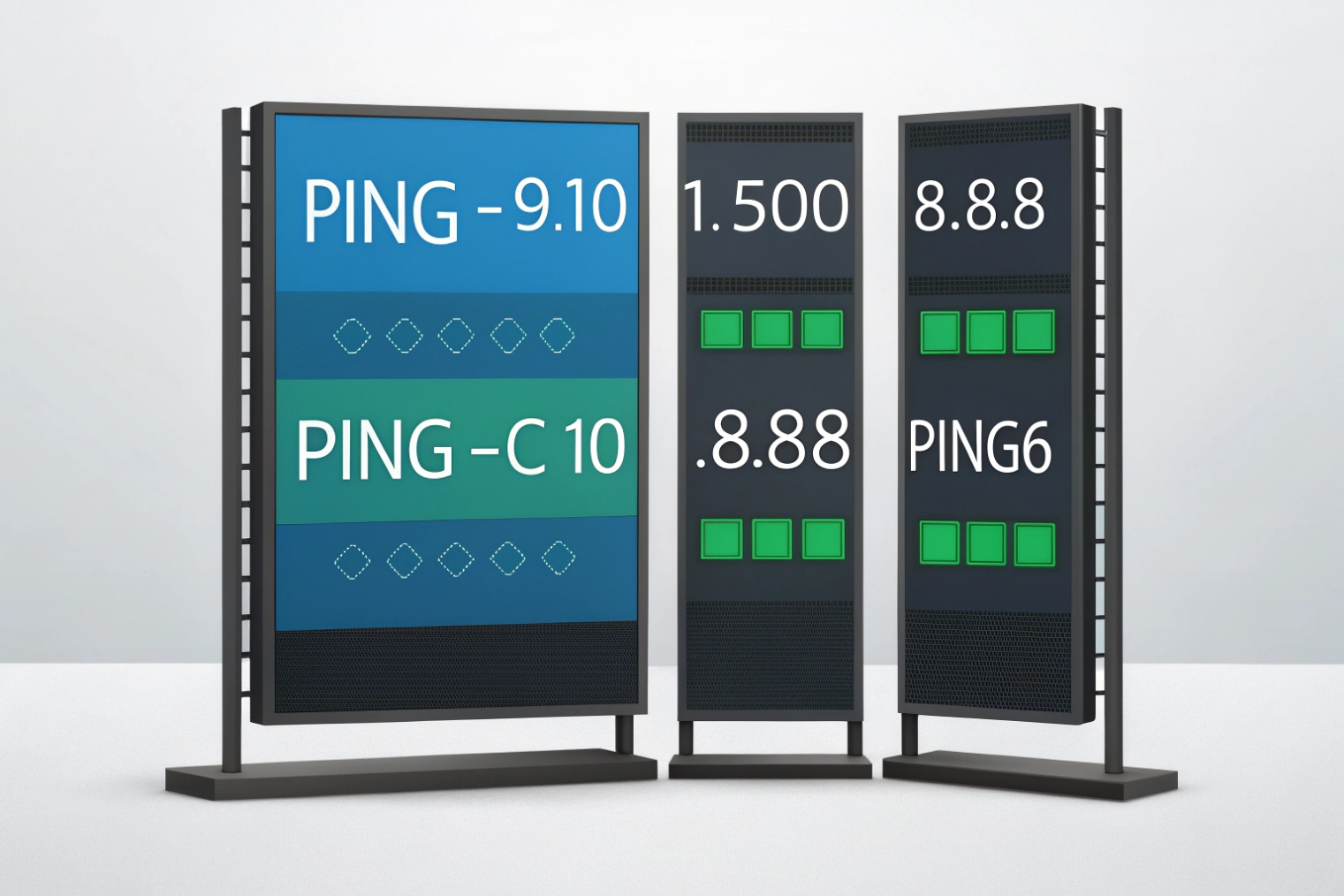
On Windows, ping sends a fixed count by default and uses options like -n, -t, and -l. On macOS and many Linux distros, ping can run until stopped, and -c sets the count. Use DNS names or IPs, test IPv4/IPv6, and vary size when MTU issues are suspected.
Windows: fast checks and useful switches
On Windows, ping <host> usually sends 4 probes and stops. That is good for quick checks. For a longer sample, -n sets the count. For continuous ping, -t runs until you stop it with Ctrl+C. Payload size is -l. Timeout is -w in milliseconds. For full syntax and examples, use the Windows ping command reference 5.
Examples:
ping 8.8.8.8ping -n 20 sip.example.comping -t 192.168.1.50ping -l 1472 -f 8.8.8.8(MTU-style test;-fsets “Don’t Fragment” in IPv4)
Windows also supports -4 and -6 to force the IP family. That matters when DNS returns both A and AAAA records and the wrong path is being tested.
macOS and Linux: control the run and read the stats
On many Linux distros and on macOS, ping often keeps running until you stop it. Use -c to set the count and make results easier to share. Use -i to change interval. Use -s to change payload size. Timeouts differ by platform, but -W is common on Linux for per-packet timeout. If you need option-level detail by OS, check the ping(8) manual page 6.
Examples:
ping -c 10 8.8.8.8ping -c 50 -i 0.2 192.168.1.1(more frequent probes)ping -c 10 -s 1400 sip-gateway.local(bigger payload)ping6 -c 10 <ipv6-address>(some systems useping -6instead)
On modern Linux, ping may require elevated permission for some options depending on distro settings. If results look odd, run with the right privileges and confirm the command syntax for that OS.
Make the test match the problem
For VoIP work, quick checks are not enough. A 4-packet ping can look clean even when a path is unstable. Use a longer run like 50–200 probes. Test from the real endpoint, not just from a laptop on a different VLAN. If the issue is “sometimes,” extend the sample. If the issue is “only on Wi-Fi,” ping over Wi-Fi.
| Goal | Windows | macOS / Linux | What to look for |
|---|---|---|---|
| Quick reachability | ping host |
ping -c 4 host |
Replies vs no replies |
| Longer stability | ping -n 100 host |
ping -c 100 host |
Loss bursts, RTT spikes |
| Continuous view | ping -t host |
ping host |
Pattern changes over time |
| MTU suspicion | ping -l 1472 -f host |
ping -s 1472 -M do -c 5 host (Linux) |
“Frag needed” or silent drops |
| Force IPv6 | ping -6 host |
ping -6 host or ping6 host |
IPv6 route quality |
A clean ping test is a good start. It is not the finish line.
What do latency, jitter, and packet loss mean in ping results?
When people read ping output, they often fixate on “average ms.” That hides the real story. VoIP pain usually comes from variation and loss, not just the average.
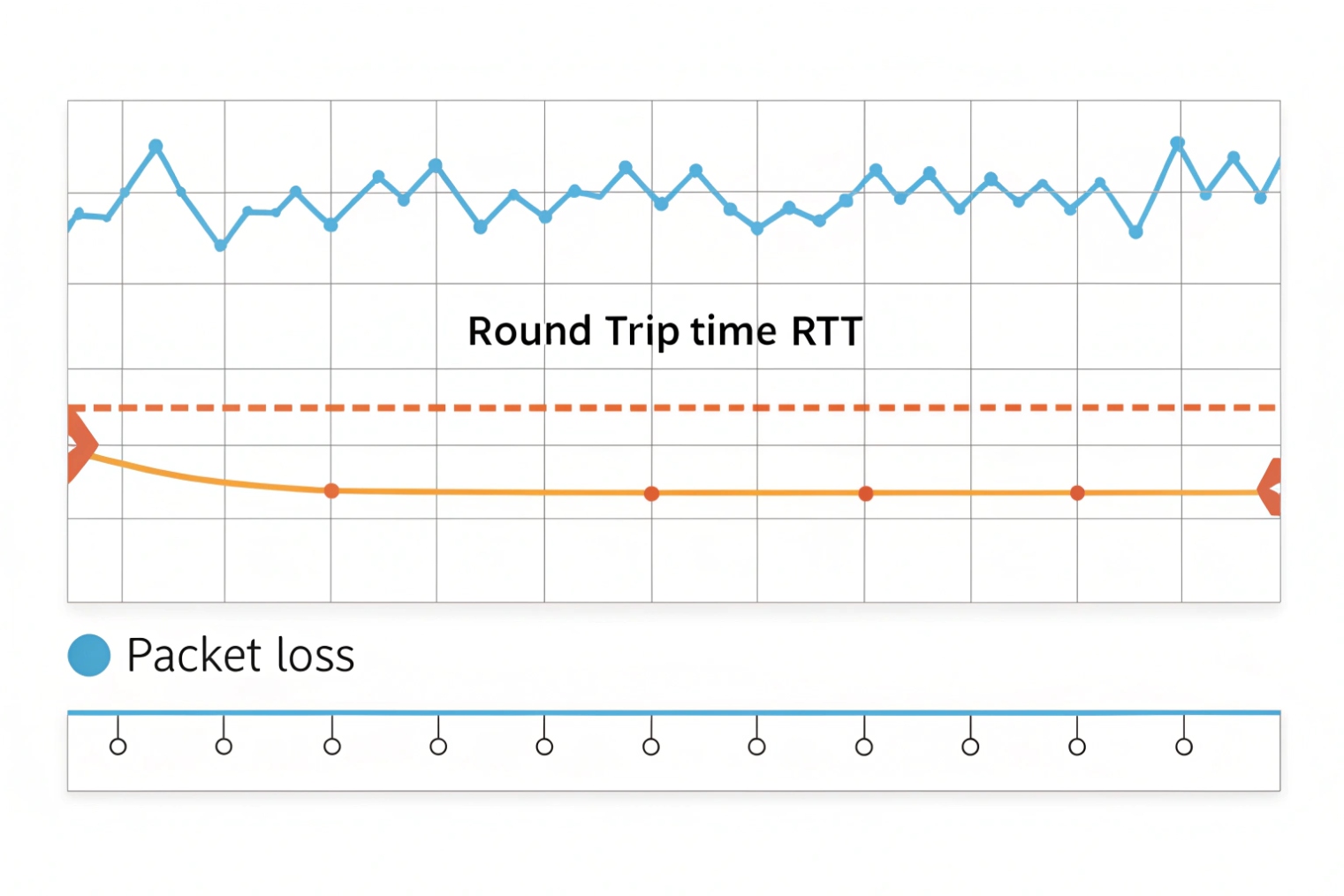
Latency is the time for a ping round trip. Jitter is how much that time changes from packet to packet. Packet loss is the percent of probes that do not get replies. Ping can hint at jitter by showing RTT swings, but VoIP jitter is best measured on RTP/RTCP or real media tests.
Latency: the “how long” number
Ping reports RTT. RTT includes the forward path and the return path. It also includes queueing time inside routers. If RTT is stable, the path is usually calm. If RTT jumps in steps, it may be queueing or Wi-Fi retries. If RTT slowly rises under load, it may be bufferbloat 7.
For VoIP, RTT is not the full truth because voice is sensitive to one-way delay and to timing at the receiver. Still, RTT is a useful signal for basic path delay.
Jitter: the “how much it moves” pattern
Ping does not output “jitter” as a standard field, but the series of RTT values lets you infer stability. If RTT is 20ms, 21ms, 19ms for 200 probes, that path is stable. If it is 20ms, 80ms, 25ms, 200ms, that path is unstable.
A simple way to estimate jitter from ping is to look at the spread (max minus min) and the frequency of spikes. A better way is to compute standard deviation, but even eyeballing the pattern is often enough to know if a path will hurt real-time audio.
Keep one thing clear: ICMP and RTP are not treated the same by every network. Some devices prioritize or deprioritize ICMP. So ping jitter is a hint, not a guarantee.
Packet loss: the silent killer
Packet loss is the percent of probes without replies. Ping loss can come from real drops or from ICMP rate limiting. Still, when loss is seen in a steady sample and it matches user complaints, it deserves attention.
Loss hurts VoIP fast. A small loss rate can sound like clicks, robotic audio, or gaps. Burst loss is worse than random loss. Ping does not show the exact burst structure unless you watch the live output, so capture the pattern.
| Metric | What ping shows | What it means for VoIP | Common causes |
|---|---|---|---|
| Latency (RTT) | time=xx ms |
Talk-over and delay if high | Distance, congestion, queueing |
| Jitter (RTT variation) | RTT swings over time | Choppy audio, jitter buffer growth | Wi-Fi retries, bufferbloat, busy uplink |
| Packet loss | Lost = x (y% loss) |
Drops, robotic sound, one-way audio | RF issues, overloaded links, policing |
| Spikes | Occasional 10× RTT | Short audio glitches | Bursty traffic, CPU spikes, bad Wi-Fi |
If the ping series looks ugly, a VoIP call on the same path will often sound ugly. If ping looks clean but calls fail, the problem is probably above Layer 3.
What ping latency is acceptable for VoIP calls?
People want one number. VoIP does not work like that. The “acceptable” number depends on codec, jitter buffer, echo control, and user tolerance. Still, there are practical ranges that work in real deployments.
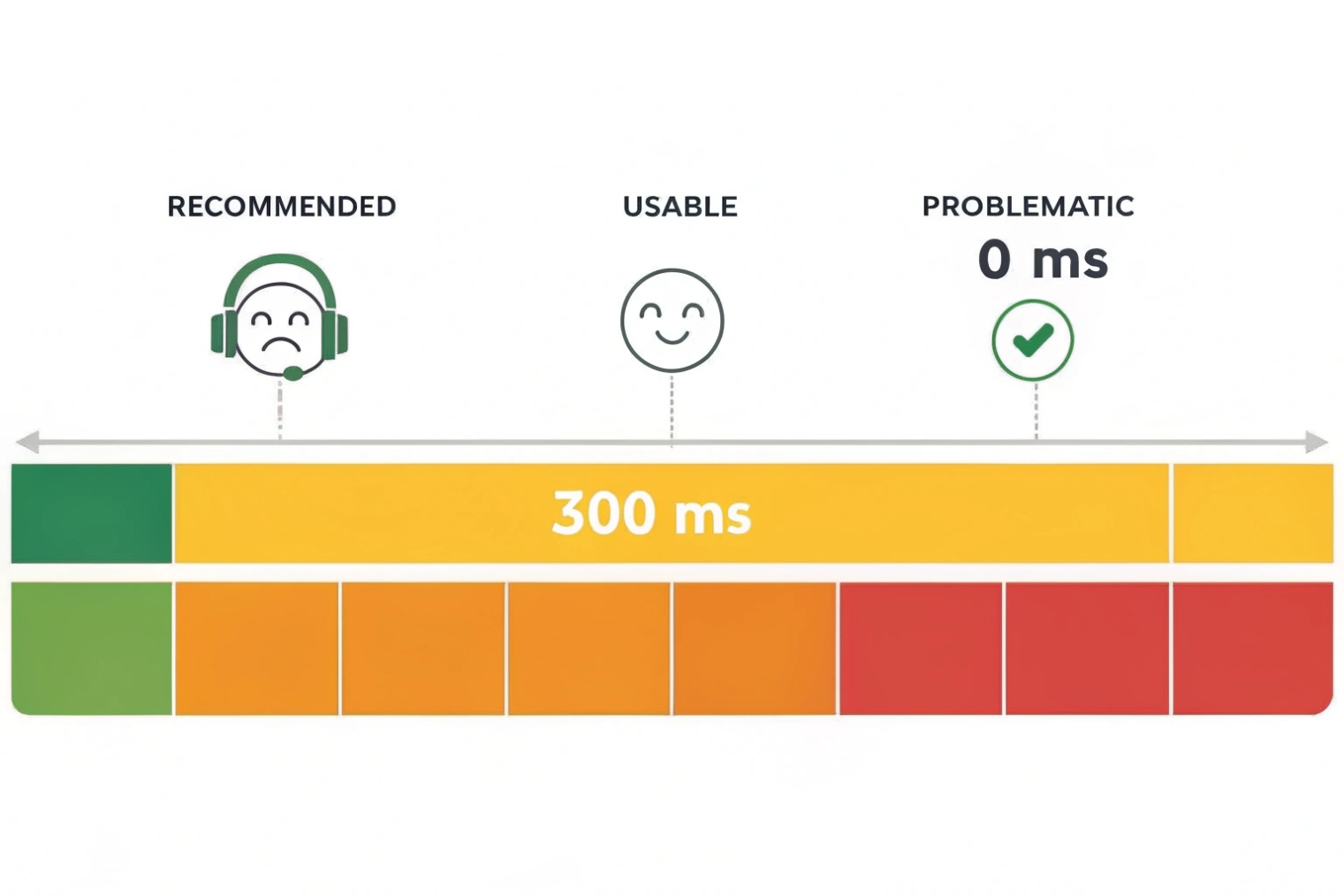
For good VoIP quality, RTT under 100 ms usually feels great, and RTT under 150 ms is often acceptable. Beyond that, conversations can feel delayed. Also watch jitter and loss: keep loss under 1% and keep variation low, because stable timing matters as much as raw latency.
Practical RTT ranges seen in projects
In many enterprise LANs, RTT is single-digit to low tens of ms. In cross-region links, 50–120 ms RTT is common and still workable. Over satellite or overloaded mobile links, RTT can blow past 300 ms, and user experience suffers.
VoIP guidance is often framed in one-way delay. Ping is RTT. So a rough mental model is “one-way is about half of RTT,” but that is not exact because paths can be asymmetric. Still, it helps when doing a quick read.
Latency is not the only gate
A 120 ms RTT call can sound fine if jitter and loss are low. A 30 ms RTT call can sound bad if jitter spikes and loss bursts happen. So acceptable latency must be paired with acceptable stability.
In my own deployments, the most reliable wins came from setting simple targets and then verifying on real RTP flows. Ping is used as a quick guardrail. After that, the focus moves to RTP stats, MOS estimates, and switch/Wi-Fi health.
Targets that work in the real world
The table below is a practical baseline for business voice, not a lab promise. It fits common SIP phones, SIP intercoms, and unified communication endpoints.
| Network quality tier | Ping RTT target | Jitter (practical target) | Packet loss target | What users feel |
|---|---|---|---|---|
| Excellent | < 50 ms | < 10 ms | < 0.3% | Natural conversation |
| Good | 50–100 ms | 10–20 ms | < 0.5% | Very usable |
| Acceptable | 100–150 ms | 20–30 ms | < 1% | Slight delay, still OK |
| Risky | 150–250 ms | 30–50 ms | 1–2% | Talk-over, more artifacts |
| Poor | > 250 ms | > 50 ms | > 2% | Frustrating, frequent issues |
If a path falls into “risky” or “poor,” the fix is usually not inside the SIP device. It is inside the network: uplink saturation, Wi-Fi design, routing, or QoS policy.
Why does ping work but SIP registration or audio fail?
This is one of the most common support tickets. A site says, “We can ping the device, so it is not the network.” Then SIP registration fails, or audio is one-way, or DTMF does not work. This is where layer thinking saves time.
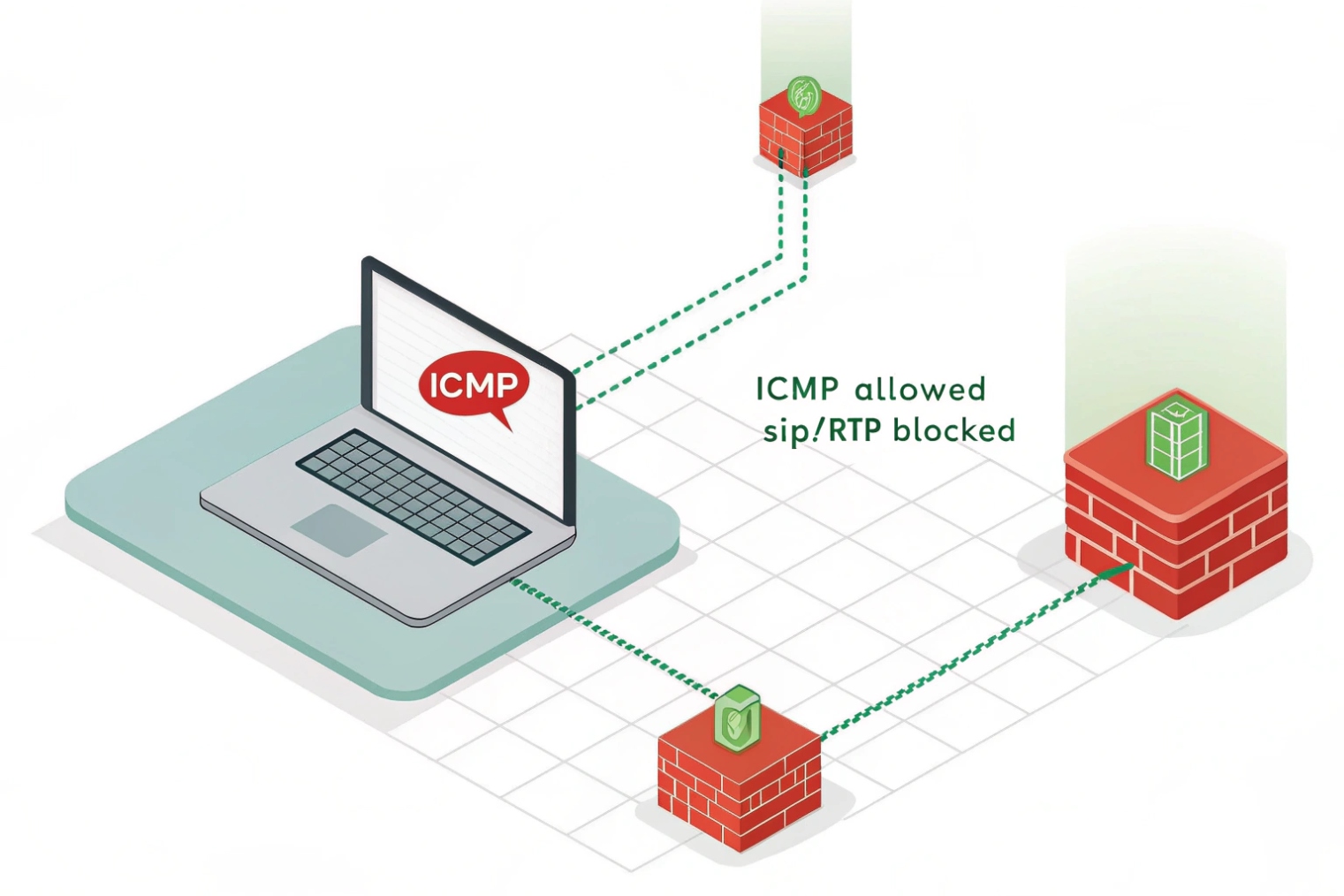
Ping only proves ICMP reachability at Layer 3. SIP registration needs the right SIP port and correct NAT/firewall rules, and audio needs RTP ports in both directions. ICMP may be allowed while UDP/TCP ports are blocked, SIP ALG may rewrite packets, or NAT may break return media.
SIP signaling and RTP media are different paths
SIP registration is signaling. It usually uses UDP 5060, TCP 5060, or TLS 5061, but many systems change ports. RTP audio is media. RTP usually uses dynamic UDP ports (often a range like 10000–20000 or vendor-specific ranges). So you can have a clean ping and still have:
- SIP port blocked
- SIP messages reaching the server but replies blocked
- RTP ports blocked or not mapped through NAT
- A SIP ALG rewriting headers in a harmful way
Ping does not test any of that. It does not test 5060. It does not test the RTP range. It also does not test TLS certificates, DNS SRV lookups, or authentication.
NAT and firewall behavior breaks “works on paper”
Many SIP failures are NAT related. Registration may succeed, but audio fails because RTP uses a different address/port than expected. Or registration fails because the firewall blocks inbound responses due to short UDP timeout. Some networks have strict outbound policies where only “known” ports pass. ICMP can pass while UDP is filtered.
Also watch for SIP ALG. Some routers enable it by default. It tries to “help” SIP, but it often breaks modern SIP endpoints and SBCs. Disabling ALG is a common fix in real projects.
MTU and fragmentation can hit SIP/RTP but not ping
Small pings may pass while SIP over TLS or large SDP packets fragment and fail. RTP packets are usually smaller, but VPN encapsulation or mis-set MTU can still cause silent loss. A “large ping” test can reveal this.
A focused troubleshooting checklist
When ping works but SIP fails, move from Layer 3 to Layer 4/7 fast. Use port tests, logs, and packet captures.
| Symptom | What ping says | Likely cause | Fast next test |
|---|---|---|---|
| No SIP registration | “Host reachable” | SIP port blocked, DNS wrong, auth fails | Test TCP/UDP to SIP port, check SIP logs |
| Registers, no audio both ways | “Looks fine” | RTP blocked, wrong RTP range, SBC policy | Confirm RTP port range, capture RTP on both ends |
| One-way audio | “Looks fine” | NAT mapping issue, symmetric RTP mismatch | Check SDP addresses, enable symmetric RTP/keepalive |
| Intermittent audio | “Average OK” | Jitter spikes, burst loss, Wi-Fi retries | Longer ping series, then RTP stats and Wi-Fi health |
| TLS registration fails | “Reachable” | Cert trust/time mismatch, SNI, TLS policy | Verify NTP time, CA trust, TLS handshake capture |
| Works on LAN, fails on WAN | “WAN ping OK” | Firewall policy, SIP ALG, NAT hairpin | Disable ALG, review rules, test from outside network |
In one rollout story (a detail that can be swapped later), a building had clean ping to the SBC, but SIP registration kept dropping every few minutes. The root cause was a firewall with a short UDP session timeout. Registration refresh happened, but replies arrived after the NAT mapping closed. The fix was simple: adjust UDP timeout and add SIP keepalives. Ping never showed the issue because ICMP was not tied to that session state.
For SIP intercoms and emergency endpoints, the lesson is the same: use ping as a first signal, then confirm SIP and RTP with the right tools. That is where real certainty comes from.
Conclusion
Ping is a fast Layer-3 truth test. Read RTT, loss, and stability, but do not stop there. For VoIP, confirm SIP and RTP on the real ports and paths.
Footnotes
-
ICMP’s original Echo Request/Reply definition and behavior for IPv4 ping implementations. ↩ ↩
-
ICMPv6 Echo message formats and type numbers used by IPv6 ping. ↩ ↩
-
Defines the IPv4 TTL field and why hop-by-hop decrementing prevents routing loops. ↩ ↩
-
Explains how PMTUD discovers the largest usable packet size without fragmentation. ↩ ↩
-
Official Windows ping syntax and switches, including count, size, and “Don’t Fragment” testing. ↩ ↩
-
Option-by-option reference for ping behavior and flags on Linux (iputils). ↩ ↩
-
Background on bufferbloat and why oversized queues inflate RTT under load. ↩ ↩