
Agents waste precious seconds asking for names, numbers, and case IDs that your systems already know. Customers repeat themselves and feel like you do not remember them.
Screen pop is a CTI feature that automatically opens the right customer or ticket record on an agent’s screen when a call arrives, using caller data to fetch context from CRM or other business systems.
Once screen pop is in place, every call arrives with context. Agents see who is calling, why they might be calling, and what happened last time. That makes calls faster, more personal, and less stressful for both sides. The rest of this article explains how screen pop works, what value it brings, how to implement it with CTI and CRM, and where AI and omnichannel tools are taking it next.
How does screen pop work in contact center and CRM?
Without integration, agents answer a call, ask for identifiers, and then manually search CRM while the caller waits in silence. This wastes time and breaks the flow.
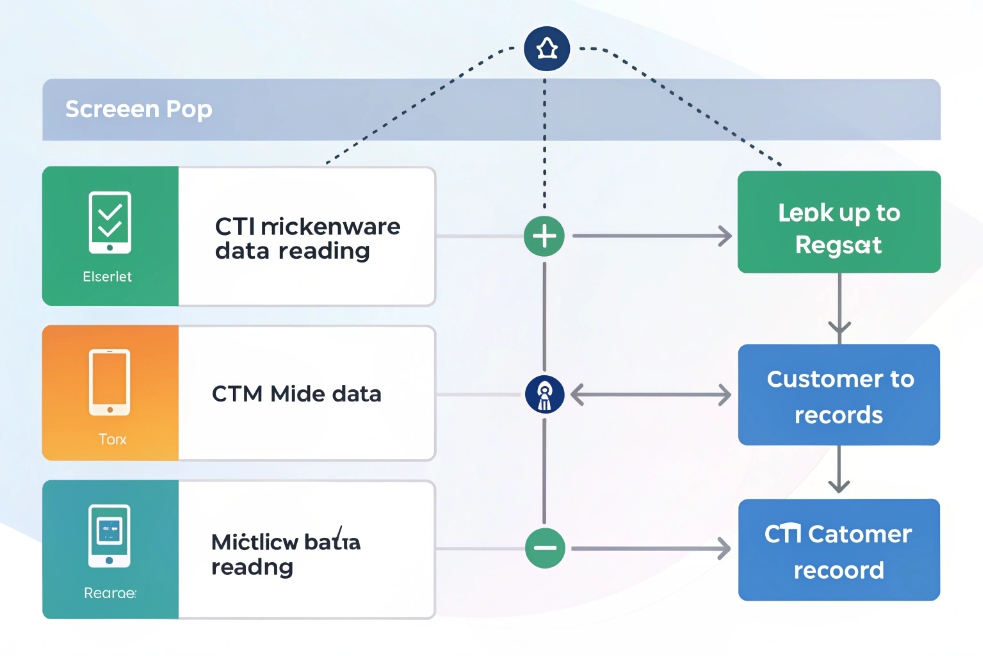
Screen pop works by linking your telephony (PBX/CCaaS) to CRM or ticketing through CTI, then using caller ID, dialed number, and IVR inputs to open the matching customer or case screen when the call connects.
In practice, screen pop is one of the most common computer-telephony integration (CTI) 1 patterns in modern contact centers.
The basic CTI flow behind a screen pop
At a high level, a screen pop happens in a few steps:
- A call hits your contact center platform or PBX.
- CTI middleware or a built-in connector reads key data:
- Caller ID / Automatic Number Identification (ANI) 2
- Dialed number (Dialed Number Identification Service (DNIS) 3) or queue
- Interactive voice response (IVR) 4 inputs (account number, order ID, language, reason codes)
- The CTI layer sends a lookup request to CRM, helpdesk, or another system.
- The target app returns one or more matching records.
- The connector opens the right page or URL in the agent’s client as soon as the call is offered or answered.
In some platforms, the pop shows before the call is even accepted. That gives the agent a second or two to read the name and account status and start with a warmer greeting.
Here is how common data points drive the pop:
| Data source | Example value | How the pop uses it |
|---|---|---|
| Caller ID / ANI | +1 415 555 0100 | Match contact or account by phone number |
| DNIS / service number | 800-XXX-SALES | Open sales view instead of general support |
| IVR input | Account: 123456 | Jump straight to account profile |
| Queue or skill | “Premium Support” | Show SLA details and contract tier |
If multiple matches appear, the pop can present a small list. If there is no match, it can open a “new contact” or “new case” screen with basic fields prefilled from IVR or caller ID.
Where the pop actually appears
There are several common UI patterns:
- A softphone or embedded widget inside CRM with the pop panel docked beside it.
- A separate CTI toolbar that launches new browser tabs or windows with the right record.
- A thick-client agent desktop that shows telephony, CRM, and knowledge data in one layout.
Inbound calls are the main use, but outbound flows can benefit too. When agents click-to-dial from a CRM record, the platform can “lock” that record as the active context and show it on top during the call, even if the agent navigates elsewhere.
The exact layout depends on your tools, but the core idea is the same: remove manual searching and bring the right data to the agent at the exact moment they need it.
What business benefits does screen pop deliver for agents and CX?
If agents spend the first 30–60 seconds of every call collecting basic details, queue times grow, customers get impatient, and handle time stays high.
Screen pop cuts out repetitive lookup steps, so agents handle calls faster, personalize greetings, avoid data entry errors, and deliver smoother experiences that lift satisfaction and key contact center metrics.

Faster calls, better first impressions
With screen pop, the agent sees the name and context right away. They can say:
“Hi Maria, thanks for calling back about your SIP intercom order. I see your last ticket here.”
This does a few things at once:
- Confirms to the caller that they reached the right place.
- Reduces the need to spell names, numbers, or case IDs.
- Cuts dead air while the agent “hunts” in the system.
Over hundreds of calls, those saved seconds add up. Average handle time (AHT) drops without rushing callers. Queue wait times improve without needing new headcount.
Higher first-call resolution and fewer errors
When agents see full history and context, they do not start from zero. They can:
- Spot open tickets or recent orders that explain the call.
- See previous troubleshooting steps and avoid repeating them.
- Notice upsell or cross-sell signals in the history.
This leads to higher first-call resolution (FCR). Issues are solved in one interaction instead of bouncing between agents or channels. It also reduces errors. Agents are less likely to open duplicate records or attach notes to the wrong contact when the right profile is already open.
A simple view of impact:
| Area | Effect of good screen pop |
|---|---|
| Agent workload | Less time on lookups and wrap-up |
| Customer effort | Less repetition of basic details |
| Quality and context | Fewer misplaced notes and duplicate records |
| CSAT / NPS | Better, more personal interactions |
Better training, coaching, and consistency
Screen pop also supports training and quality:
- New agents rely less on memorizing where to click. The system puts key data in front of them.
- Supervisors can design pops that highlight must-read fields, such as SLA or risk flags.
- With standard layouts, every agent sees a similar view, which makes coaching and scripting easier.
In short, screen pop reduces cognitive load. Agents spend more brainpower on listening and problem solving, and less on navigating many systems while juggling a live conversation.
How should I implement screen pop with CTI, CRM, and data privacy?
Poorly planned screen pop can backfire. If it opens the wrong things, shows too much data, or breaks when calls transfer, agents will ignore it and go back to manual searches.
To implement screen pop well, define your use cases, choose solid CTI and CRM integrations, design simple pop layouts, and apply strong privacy and access controls so only relevant, permitted data appears on screen.

Start with scenarios and data mapping
Before touching connectors, answer a few simple questions:
- Which calls need screen pop most (support, sales, billing, VIP lines)?
- Which system should be the primary pop target (CRM, ticketing, ERP)?
- Which fields must be on-screen within the first seconds of a call?
Then map your telephony data to CRM fields:
| Telephony data | Target system field | Use in screen pop |
|---|---|---|
| Caller ID | Phone field on contact | Find the right contact |
| IVR account ID | Account or customer ID | Jump to account, even from a new number |
| Dialed number | Service / product context | Choose the right layout or workflow |
| Queue / skill | Team or topic tag | Pre-set case category or script |
Decide what happens for each case:
- Single match
- Multiple matches
- No match
For “no match”, many teams open a “new contact/new ticket” form with the caller’s number prefilled.
Choose the integration approach
There are three common approaches:
- Native CTI connector from your contact center or UCaaS vendor to a popular CRM (for example, Salesforce Open CTI 5, HubSpot, Zendesk).
- Middleware CTI that sits between your PBX/CCaaS and many business apps (for example, Zendesk CTI 6).
- Custom integration using APIs and URL templates.
Native connectors are usually fastest to deploy and easiest to support. Middleware gives more flexibility if you have multiple systems. Custom code is for edge cases and complex environments.
Whichever you pick, test:
- Inbound and outbound flows.
- Transfers between agents and queues (screen pop should follow or refresh).
- Warm transfers, where the second agent should see the same context.
- Multi-tab or multi-window behavior, so pops do not open a new tab storm on every call.
Privacy, security, and compliance
Screen pop exposes data in front of agents very quickly. That data often includes PII, payment details, health information, or other sensitive fields. So you need clear controls:
- Least privilege: limit which fields appear by team or role.
- Role-based layouts: finance may see billing data that front-line support should not.
- Audit logging: track which user saw or accessed which records.
- Masking: show partial phone or card numbers where policies require it.
- Secure transport: use HTTPS and strong auth for all CTI–CRM links.
Apply the principle of least privilege 7 to pop layouts so agents see only what they need for that interaction.
Policy-wise, document:
- When it is allowed to open records based on caller ID alone.
- How to handle misidentified callers (for example, shared phones).
- How long any “screen pop logs” or CTI traces are kept.
These points matter even more in regulated industries. The goal is simple: use the minimum data needed to help the agent, and protect the rest with normal access controls. Screen pop should not turn into a broad “data wall” for every caller.
What trends shape screen pop—AI intent, omnichannel context, and real-time personalization?
Classic screen pops were simple: look up by number, show the record. Modern customer journeys are longer and cross more channels, so context needs to be richer and smarter.
Screen pop is evolving toward AI-driven intent detection, omnichannel context sharing, and real-time personalization, so the information that appears reflects not just who is calling, but why they are calling and what just happened in other channels.

AI and intent-aware pops
AI is already present in many IVR and voicebot layers. It can classify intent from what callers say, not just what they press. That intent can shape the pop:
- If the bot detects “billing question”, open the billing tab or workflow.
- If the model predicts churn risk, show retention offers or notes.
- If speech analytics flags strong emotion, show guidance or escalation tips.
Instead of one static layout, AI can choose which panels to highlight. An agent sees the most relevant data for that call’s type at the top, with less urgent details further down.
Omnichannel and journey-aware context
Customers do not live on voice alone. They email, chat, use web forms, and message through apps. When they finally call, screen pop can show that full journey:
- Last chat transcript
- Open tickets and their status
- Recent orders and shipments
- Web pages viewed just before calling (where privacy and consent allow)
This helps agents avoid asking “Have you contacted us about this before?”. They see the path and pick up the thread.
A simple trend table:
| Trend | How it changes screen pop |
|---|---|
| AI intent | Pops based on “why” they call, not just “who” |
| Omnichannel history | Pops show full journey across voice and digital |
| Real-time personalization | Fields and layouts adapt per caller and situation |
Real-time personalization and next-best action
The last trend is personalization. Screen pop is starting to blend with “next-best action” engines:
- For a loyal customer, highlight loyalty benefits or early access offers.
- For a new trial user, show onboarding steps and key activation metrics.
- For a partner, display contract tier and dedicated contact details.
The pop becomes more than static information. It becomes a small, real-time playbook for the agent.
As these trends mature, the core rule stays the same: a good screen pop shows the right detail at the right time, not every detail all the time. AI and omnichannel context just give you better tools to decide what “right” means for each contact.
Conclusion
Screen pop is a simple idea with big impact: connect your phones to your data, so agents greet every caller with the right context already on screen and spend more time helping, less time hunting.
Footnotes
-
Overview of CTI and how telephony events integrate with desktop apps. ↩ ↩
-
Explains ANI and how networks deliver calling numbers to your contact center. ↩ ↩
-
DNIS basics for routing calls by dialed number and service line. ↩ ↩
-
IVR overview and how collected inputs drive routing and screen pops. ↩ ↩
-
Official Salesforce docs for implementing screen pop via Open CTI. ↩ ↩
-
Zendesk guidance on CTI integrations and screen-pop style workflows. ↩ ↩
-
NIST glossary entry clarifying least privilege for safer data access designs. ↩ ↩