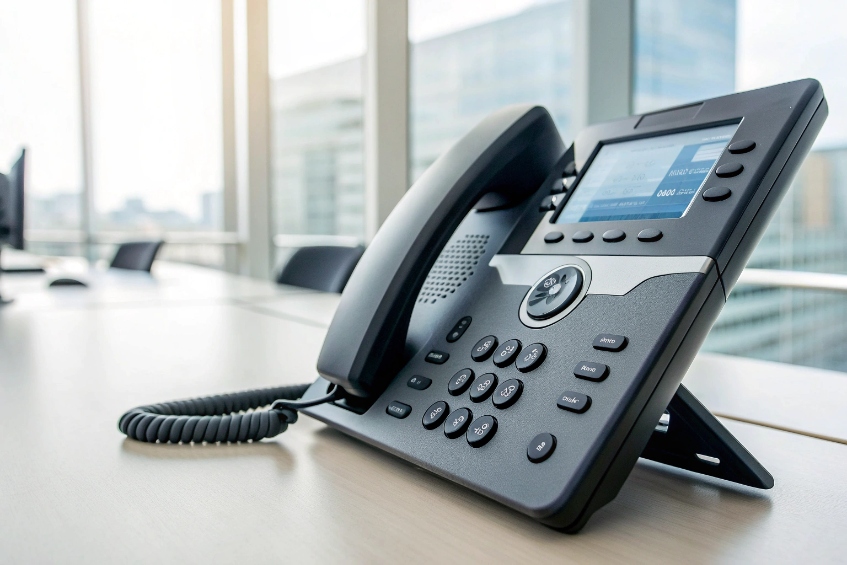
Busy lines should not lose good calls. The call waiting feature on digital phone lines 1 gives control. A short tone, a clear screen hint, and smart keys keep both callers on track.
Call waiting alerts me about a second call while I am already connected. I can answer, swap, or reject without dropping anyone. The first call goes on hold.
Now we turn that simple idea into daily practice. First, how it works with a SIP PBX. Then, how to enable it on common IP phones. Next, how it behaves with urgent intercom traffic. Last, how caller ID shows up and what to check if the display looks wrong.
Does call waiting work with my SIP PBX?
Teams worry that “PBX logic” will block phone features. In most SIP-based IP PBX systems 2, it is the opposite. The PBX and the phone share the job.
Yes. Call waiting is a basic SIP behavior. The PBX presents the second call; the phone shows the alert. Policies like DND or busy rules can allow or stop it.
How the pieces cooperate
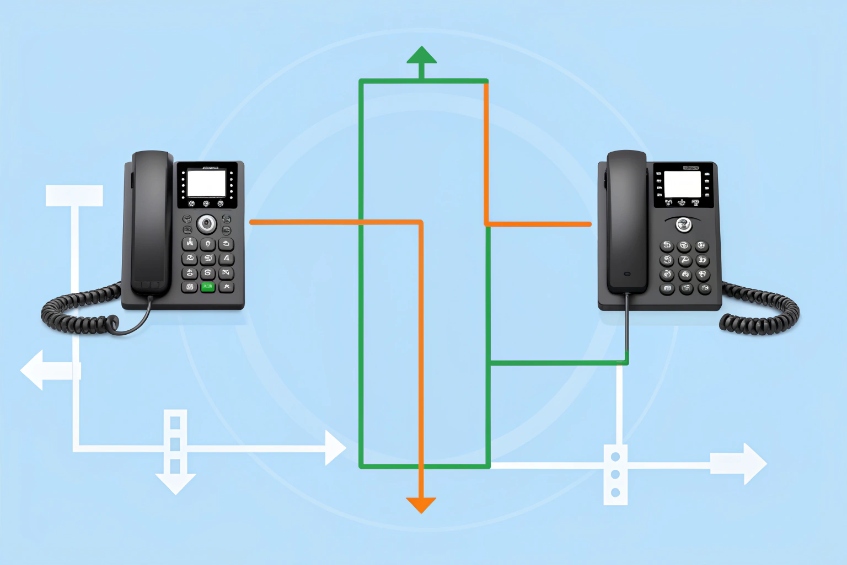
A SIP PBX routes an incoming INVITE to my registered device even when a call is active. The phone sees the second dialog on the same line appearance or a second appearance. It plays a short tone and updates the screen. If I press Answer, the phone sends a hold (re-INVITE/UPDATE with a=sendonly or a=inactive) for the first call and accepts the second. When I press Swap/Resume, it toggles which dialog is on hold. If I ignore the alert, the PBX follows the busy rule for my extension: send to voicemail, overflow to a group, or reject with busy.
What can block call waiting
- Do Not Disturb (DND). The phone or PBX rejects new calls by design. Call waiting alerts do not play when DND is active 3.
- Per-line disable. Many phones let me disable call waiting on a specific account/line. The PBX may still try to deliver; the phone auto-rejects.
- Policy limits. Some systems cap the number of waiting calls per extension. Excess calls go to the next rule.
- Call states. Active three-way conferences, call monitoring, or barge scenarios may lock out waiting calls until the state ends.
Why this helps operations
This split design is good. The PBX controls routing and overflow. The phone controls the human interaction. Reports stay accurate. Analytics show one user with multiple legs, not a maze of transfers.
Quick compatibility table
| Environment | Call waiting support | Notes |
|---|---|---|
| Hosted SIP PBX (UCaaS) | Native | Managed in user/line policy |
| On-prem Asterisk/FreeSWITCH | Native | Toggle in endpoint and dialplan |
| SIP trunk to legacy key system | Mixed | The key system decides behavior |
| Single-line SIP intercom | Rare | Usually no waiting; one call at a time |
How do I enable call waiting on my IP phone?
The option is close, but menus differ. The fastest setup is a plan: enable per line, confirm tones, set busy rules, and teach two buttons. Many call waiting implementations on IP desk phones 4 follow a similar pattern, even if labels change.
Turn it on per account/line in the phone UI, match PBX busy rules, and map soft keys for Answer/Hold and Swap/Resume. Test with two inbound calls.
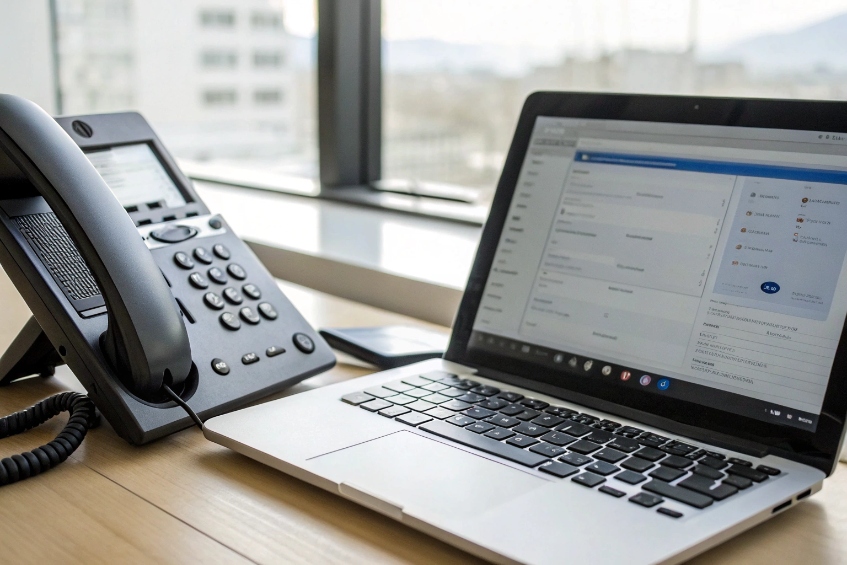
A simple, brand-agnostic setup flow
- Phone web UI: Log in to the phone’s web page. Open the Account or Line settings. Toggle Call Waiting = Enabled.
- Alerting: Under Audio or Tones, keep Call Waiting Tone on. Set a modest volume so it is clear but not startling in headsets.
- Keys: Map soft keys: Answer, Hold, Swap/Resume, EndCall. If the phone supports Conf on screen, keep it handy for quick three-way merges.
- PBX user policy: In the PBX portal, set Call Forward on Busy, Voicemail on Busy, or Overflow targets. Confirm Max concurrent calls per extension (often 2–4).
- DND behavior: Decide if DND should forward to voicemail or to a live queue. Make it consistent across teams.
- Headset behavior: If using a USB or EHS headset, verify the Answer/End button toggles the waiting call, not just the active call. Update firmware if mapping fails.
Sample paths for popular phones (generic labels)
- Yealink/Grandstream/Snom/Poly: Account > Advanced > Call Waiting = Enabled. Features > Audio > Call Waiting Tone = On. DND policy lives under Features or Accounts.
- Teams/Zoom/Softphones: In-app Calls > Call handling > Allow call waiting. Also set When busy routing in the admin portal.
What to test in five minutes
- Call A reaches me. While on A, place Call B. I see B’s Caller ID and hear the tone.
- Press Answer. Call A goes on hold.
- Press Swap/Resume. Call B goes on hold; A resumes.
- Press EndCall on active leg. The held leg resumes cleanly.
- Reject a third call. Confirm it follows my overflow rule.
Troubleshooting quick hits
| Symptom | Likely cause | Quick fix |
|---|---|---|
| No tone but banner shows | Tone disabled | Enable Call Waiting Tone |
| Alert never appears | DND on or per-line disabled | Turn off DND; enable per line |
| Second call drops to VM | PBX “busy” rule takes priority | Increase max concurrent or change busy rule |
| Headset button ignores waiting call | HID/EHS mapping off | Update firmware; map “Answer Second” |
Will call waiting affect emergency intercom calls?
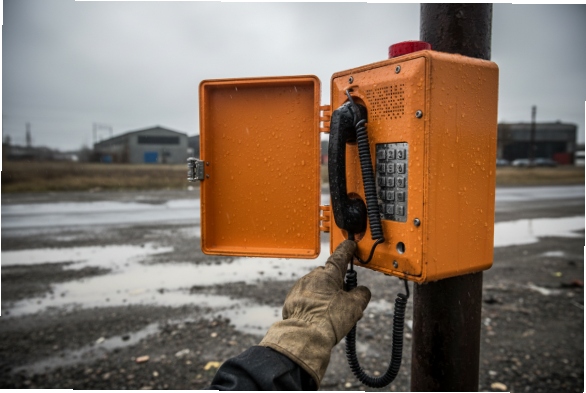
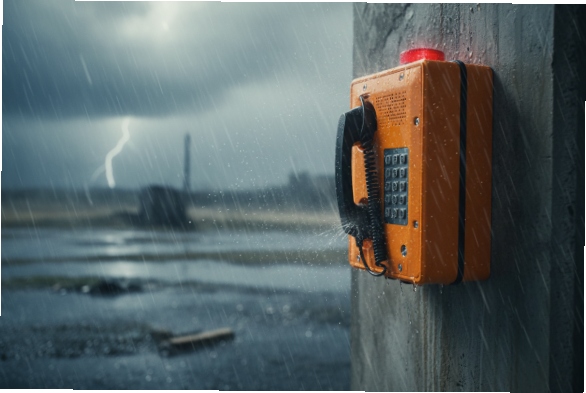
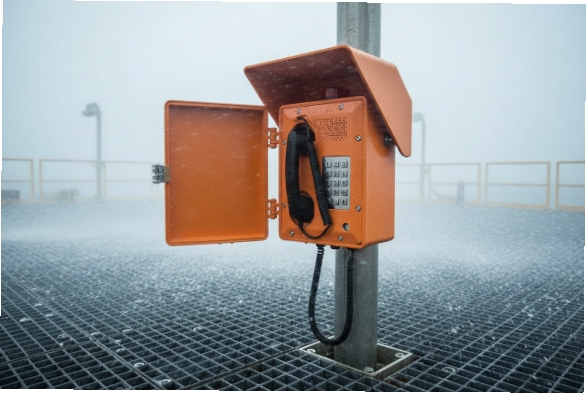
Emergency audio must break through. Call waiting tones should not hide alarms or door calls. The rule is simple: urgent paths should not wait. Designs for emergency intercom and paging over IP networks 5 follow the same principle.
Plan exceptions. Use priority ringing, auto-answer groups, paging, or hunt groups that bypass call waiting. For emergencies, preempt or route around.
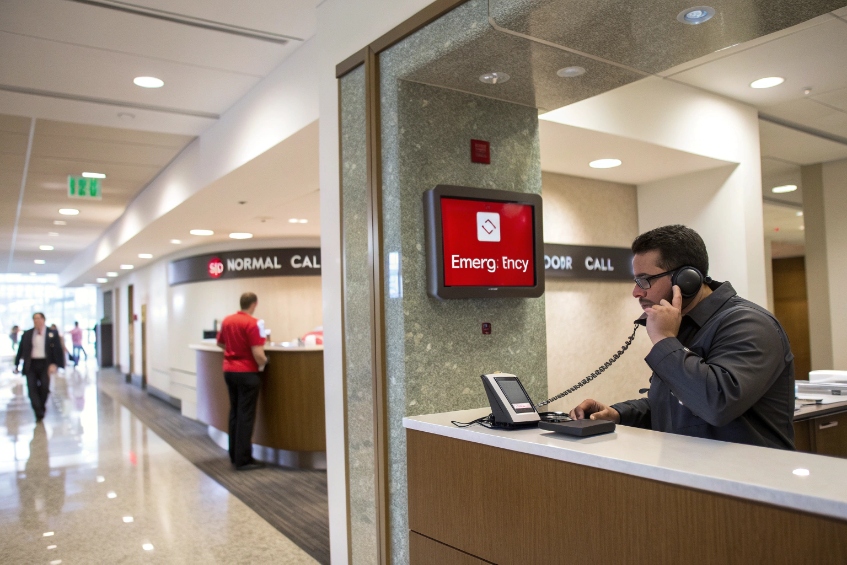
Why “normal rules” are not enough
Call waiting keeps my current caller safe while another call arrives. That is good for sales and support. It is not good for emergencies or door stations where delay can cause harm or security issues. A short beep is easy to miss on a headset in a loud room. If the system treats an urgent intercom like any other second call, it may sit in the waiting state or roll to voicemail. That is not acceptable for safety or access control.
Design patterns that work
- Priority routing: Tag intercom INVITEs with Alert-Info header-based priority ringing 6 or a priority DID. On the PBX, route them to a priority ring group that ignores user busy and DND.
- Auto-answer groups: Use multicast paging or auto-answer lines for alarms. These paths open the speaker immediately and mute the current call if policy allows.
- Preemption policies: Some PBXs offer Emergency Barge/Override. When an emergency code or trunk is detected, the PBX pulls focus to the emergency call and parks the active call automatically.
- Separate device: Place intercom audio on a wall phone or a desk sidecar that is not the same user line. This keeps emergency audio independent from my personal call state.
- Clear signage and training: Teach agents that certain tones or a red screen theme mean “emergency—acknowledge now.”
What to configure and verify
- Classification: Mark doorphones and panic buttons as Emergency/High Priority in the PBX.
- Bypass busy: Enable ring even if busy for the emergency group. Test with users on an active call.
- Tone and volume: Use a distinct, louder cadence for emergency intercom.
- Recording and logs: Keep recordings and audit trails separate for compliance.
- Failover: If the endpoint cannot reach the PBX, set a fallback DID or parallel ring to a guard desk.
Risk map
| Risk | Cause | Mitigation |
|---|---|---|
| Alarm missed due to headset | Soft, identical call waiting tone | Unique alert + screen color + vibration (mobile) |
| Door call stuck in voicemail | Busy rule overrides | Priority ring group bypasses busy/DND |
| Talk-over on emergency page | Normal two-way call path | Use paging/auto-answer mode |
| Compliance gap | Shared logs | Separate queue/recording policy |
Can call waiting show caller ID on my display?
Names and numbers decide what I do next. Caller ID on VoIP lines behaves like standard caller identification services 7 with a few SIP twists. If the display hides the waiting caller, I guess. That wastes time and hurts service.
Yes. Most SIP phones show caller ID for the waiting call with a banner, soft keys, and line LEDs. If it fails, check PBX privacy, PAI/From headers, and CNAM sources.
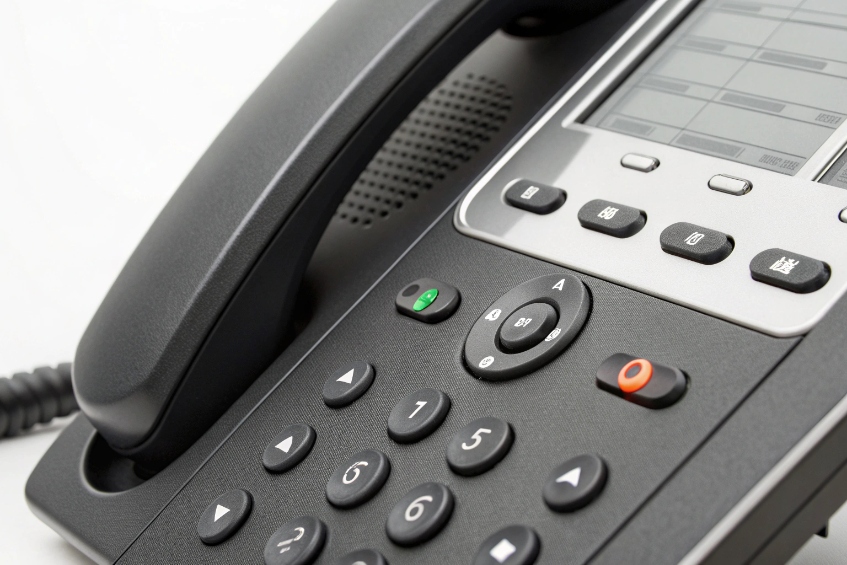
What good looks like
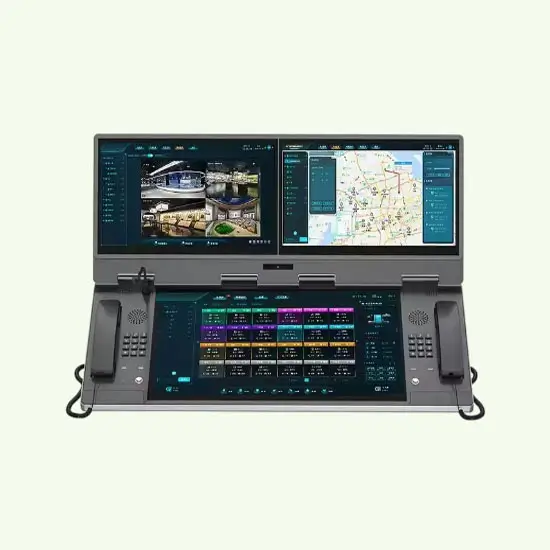
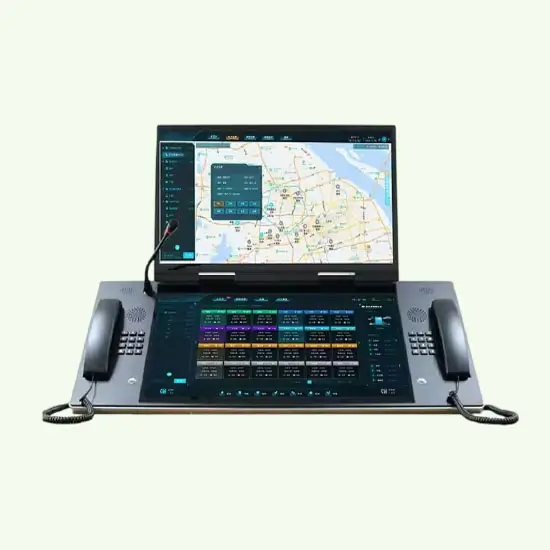
When the second call arrives, the screen shows Name/Number, a timer, and keys like Answer, Reject, EndCall, and Swap. Line LEDs flash on the waiting appearance. On sidecars, the target key blinks with a different color. Headsets may play a distinct beep pattern so I can look up.
Why caller ID may be missing or wrong
- Privacy flags: If the PBX preserves Anonymous/Privacy headers, the phone hides the name by design.
- Header mismatch: Some carriers set caller ID in P-Asserted-Identity (PAI) while the phone reads from From. Updating a header rule fixes this.
- Transcoding edge cases: After a transfer or forward, caller ID can show the last hop instead of the original caller if RPI/History-Info is not passed.
- Multiple accounts: If two accounts ring on the same device, the display may show the account label, not the caller, on small screens.
Steps to guarantee display clarity
- Standardize headers: In the PBX, normalize inbound caller ID into the fields your phones read (PAI/From/Display-Name).
- Enable CNAM: If you want names, enable CNAM dips where legal. Cache results to reduce lookup lag.
- Tune the skin: Many phones let me pick a compact or expanded call screen. Use expanded mode if agents need more context.
- Sidecar labels: For reception, assign line keys to key customers or departments. The LED pattern for waiting calls becomes obvious.
Quick display reference
| Phone element | What it shows | Why it helps |
|---|---|---|
| Banner | Name/Number + timer | Decide fast to answer or reject |
| Soft keys | Answer / Reject / Swap | One-press action, no menu hunt |
| Line LEDs | Flashing patterns | Hands-down status at a glance |
| Headset tone | Distinct beeps | Alert without looking away |
Conclusion
Call waiting keeps live calls flowing without drops. Enable it per line, align PBX busy rules, and set clear exceptions for emergency paths. Show clean caller ID, train two buttons—Answer and Swap—and the team will not miss a beat.
Footnotes
-
Overview of traditional call waiting feature and how second calls are handled on digital phone lines. ↩ ↩
-
Background on SIP-based IP PBX systems that route multiple concurrent VoIP calls for business users. ↩ ↩
-
Cisco configuration guide showing how Do Not Disturb interacts with incoming calls and call waiting alerts. ↩ ↩
-
Short explainer on how call waiting behaves on common IP desk phones in business environments. ↩ ↩
-
Guide to designing emergency intercom and paging systems that prioritize critical calls over routine traffic. ↩ ↩
-
RFC describing SIP Alert-Info URNs for priority ringing, including special tones like call waiting and emergency alerts. ↩ ↩
-
General explanation of caller ID and CNAM services on analog, digital, and VoIP telephone networks. ↩ ↩