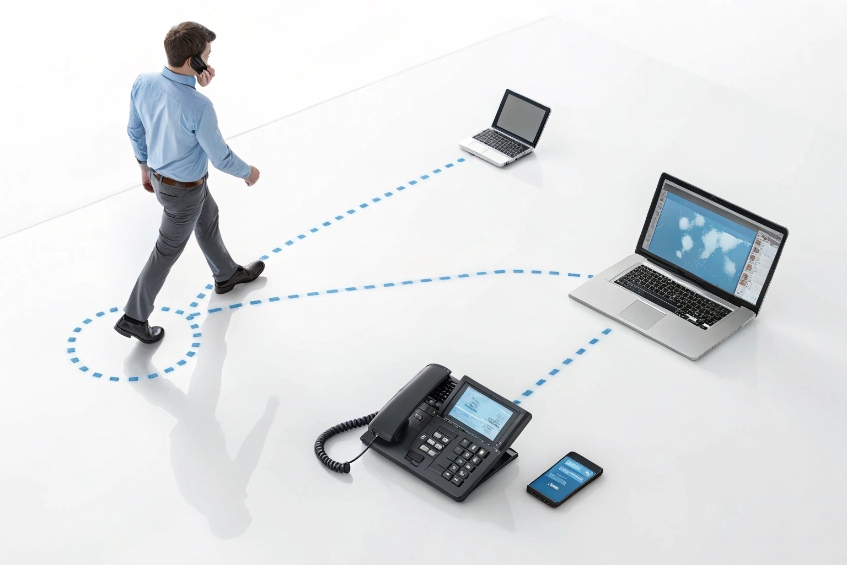
Calls should move with me. I stand up. I leave my desk. I keep talking. Call flip 1 makes that feel natural. No goodbye, no redial, no panic.
Call flip moves an active call from one of my devices to another without hanging up. It keeps the same call, the same caller ID, and the same analytics.
Now we go step by step. First, what call flip is in simple words. Next, how to flip in the real world. Then, what “same extension” means in practice. After that, how flip differs from transfer and park. Last, how this plays with SIP intercoms and PBXs, and what to check before rollout.
How do I flip a live call between devices?
The customer is still speaking. I need to walk. The switch must be fast and silent. No hold music. No new call. One action should do it.
On most systems, I press a Flip button or dial a star code. My other device rings. I answer, and the audio moves over instantly. The caller does not notice.
The usual paths to flip
There are two common paths. The app path is a “Flip” or “Move” button in the desktop or mobile client. I tap it, then select the target device. The feature-code path is a star code such as *44 2, *11, or a provider-specific short code. I dial it on the target device while the original call stays live. The system finds my active session and pulls it over. Some platforms call this “call pulling” mobility feature 3.
What happens under the hood
My provider ties the active dialog to my user identity or extension. When I request a flip, the server rings only my devices that are allowed to take over. When I answer, the server retargets media and signaling to the new endpoint. The call-ID may stay, or the server uses a new leg but preserves the session in its core. Call recording and analytics follow my user, so reports stay intact.
Tips that make flips smooth every time
- Know the code. Post the flip code on agent cheat sheets. Use keys on desk phones. Label the button “Flip” to avoid mixing it up with “Transfer” or “Park.”
- Answer quickly. Many systems time out the flip request if I do not answer the target device within a few rings.
- Use the same network if possible. Flipping from office Wi-Fi to weak cellular may trigger codec renegotiation. The call survives, but I may hear a short quality shift.
- Avoid restricted states. Some systems block flips during three-way calls, on-hold states, or when a supervisor is monitoring. Train teams on these limits.
Mini checklist
| Step | What I do | What I expect |
|---|---|---|
| On Device A | Press Flip or dial code | Device B rings |
| On Device B | Answer within 2–3 rings | Audio moves to B |
| On Device A | Hang up after pickup | Call continues on B |
| Customer side | Keep talking | No hold music or drop |
Does call flip require the same extension on all devices?
Most issues come from identity. The server must know that both devices belong to me. If that mapping is wrong, flips fail or hit the wrong phone.
In most systems, yes. Devices must be tied to the same user or extension. Some platforms allow cross-extension flip for admins, but that is not the norm.
The simple rule
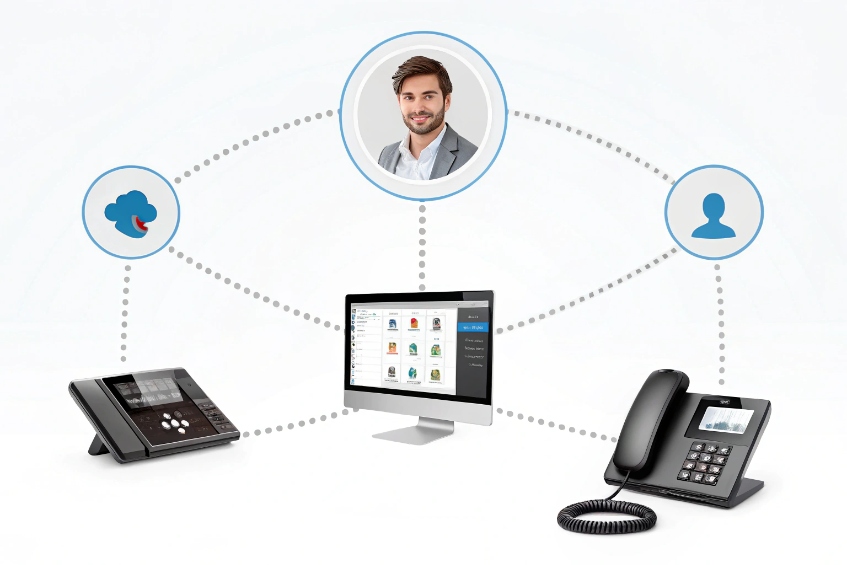
Call flip is user-centric. The platform tracks my active call by my account. Desk phone, softphone, and mobile app all register as me. When I flip, the system only offers my devices as targets. This keeps caller ID, call recording, and analytics aligned to one person.
Variations to watch for
- Shared lines. If a team uses a shared line appearance 4, some vendors let any team device pull an active call from that shared line. That is a “shared line pickup,” not a personal flip, but it feels similar.
- Cross-extension flip. Admins sometimes get permission to grab a call from another user for escalation. This is closer to directed pickup and usually uses a different code.
- BYOD mobile apps. The mobile app often registers as the same user, so flips work out of the box. If the app signs in with a different profile, flips will not appear.
Provisioning patterns that work
Bind each device to the same SIP user or the same cloud identity. Use unique device names but one identity. If the system supports multiple device tokens per user, enroll all of them for ring-on-flip. Turn on a “trusted devices only” flag so a lost phone cannot pull calls. For hot-desking phones, tie the flip feature to the user profile that logs in, not the physical handset.
Quick reference table
| Scenario | Will flip work? | Why |
|---|---|---|
| Desk phone + softphone on same user | Yes | Same identity, same extension |
| Mobile app signed into same account | Yes | Same user token |
| Two different users, same site | No (default) | Not the same identity |
| Shared line appearance | Sometimes | Vendor-specific behavior |
| Hot-desk phone without user login | No | No user mapping yet |
Is call flip different from blind or attended transfer?
Flip keeps the call with me. Transfer hands it to someone else. Park puts it on a shelf. The names are close. The outcomes are not.
Call flip moves the session between my devices. Blind and attended transfer move the caller to another person. Park holds the call at a shared slot.
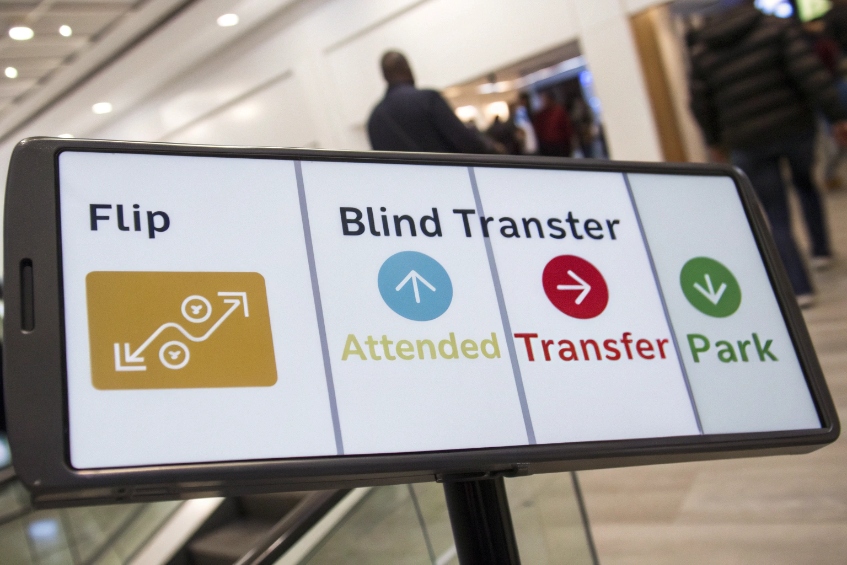
Clear definitions in one place
- Call Flip (Call Pull). Retarget an ongoing call to another of my devices. The remote party stays on the same conversation with me. Caller ID and recording context stay the same.
- Blind Transfer. Send the call to a new destination without speaking to them first. The far end hears hold music or ringback. The call now belongs to that other endpoint (see blind vs attended transfer overview 5).
- Attended (Consultative) Transfer. First I speak to the target to confirm context. Then I complete the transfer. The caller ends up with the target.
- Call Park. Place the call on a shared parking orbit using Call Park 6. Any user can retrieve it by dialing the park slot code. This is a good fallback when flip is not available.
Why confusion happens
All three actions move audio somewhere else. On key systems, the buttons may sit next to each other. In a rush, an agent presses “Transfer” when they meant “Flip.” The customer then waits while the call goes to a coworker. This hurts experience. The fix is simple naming and training. Label the keys and teach the difference in onboarding.
Which one should I use when?
- Use Flip to move with the customer from desk to mobile or from softphone to a meeting room phone.
- Use Attended Transfer to escalate to billing, tier 2, or a manager with a warm handoff.
- Use Blind Transfer only when speed matters and context is obvious, like sending to a hunt group.
- Use Park when I need a neutral holding place, or when I want any teammate to pick up from a common phone.
Comparison table
| Feature | Flip | Blind Transfer | Attended Transfer | Park |
|---|---|---|---|---|
| Caller stays with me | ✅ | ❌ | ❌ | ❌ |
| Needs same user identity | ✅ | ❌ | ❌ | ❌ |
| Customer hears ring/hold | ❌ | Usually | Sometimes | Sometimes |
| Best for mobility | ✅ | ❌ | ❌ | ⚠️ fallback |
| Preserves my analytics/recording | ✅ | ❌ | ❌ | ❌ |
Will call flip work with my SIP intercom or PBX?
Most cloud UC apps flip well across my own devices. Plain SIP intercoms and mixed PBX stacks need checks. The feature relies on identity and server support.
Flip works when the platform supports it and my endpoints register as the same user. On basic SIP gear, I may simulate flip with park + pickup or with a vendor feature code.
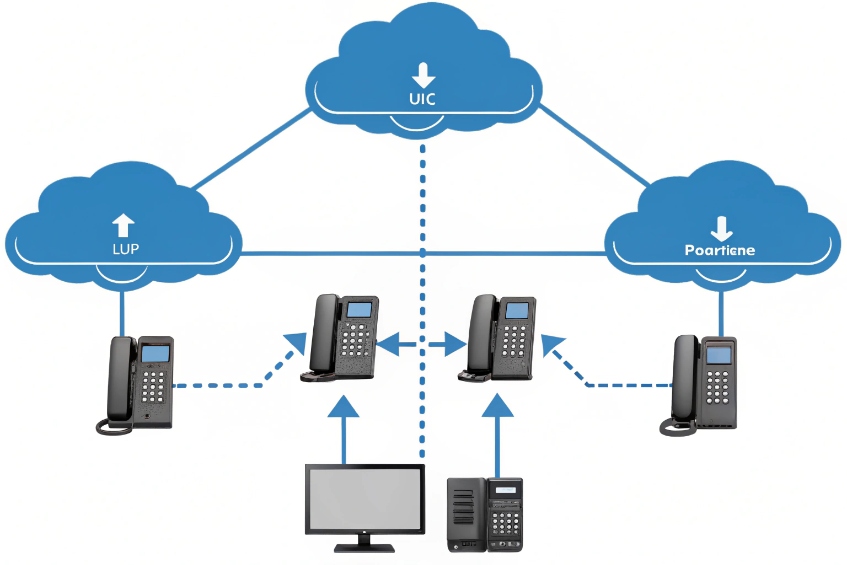
Understand the control point
Flip is not a raw SIP primitive like REFER alone. It is a service feature in the call controller that moves media between my registered devices while keeping the call context. Cloud UC platforms implement it in their core. Many hosted PBXs expose it via star codes and app buttons. Standalone SIP intercoms and basic phones do not add flip on their own. They just follow the PBX.
Common compatibility patterns
- Hosted UC/CC platforms. Full support. Desk phone, softphone, and mobile app tied to the same user can flip freely. Recording and analytics follow the user.
- Modern IP PBX platforms 7 (Asterisk/FreeSWITCH-derived). Often supported through a feature code, application module, or a “call pull” function. If not, I can emulate it with Park + Directed Pickup: park the call from device A, then pick up from device B. It takes two steps but works.
- SIP Intercoms and Door Phones. These devices are single-line endpoints. They do not “own” my user identity. To move that audio to another device, I use Park, Transfer, or set up the intercom to call a hunt group that I can answer from any device. True flip is rare unless the intercom is integrated with the same UC identity framework.
- Gateways and PSTN bridges. Flip depends on the core, not the gateway. If the PBX controls the call, flips still work even with a PSTN leg. Expect a brief re-invite or media shuffle.
What to test before rollout
- Identity binding. Confirm all of my devices register as the same user or extension.
- Star codes and keys. Program flip on a button and publish a one-line guide. Keep codes consistent across sites.
- Call states. Try flipping while recording, during mute/unmute, and during screen share. Some systems block flips while on hold or in a three-way call.
- Mixed networks. Flip from office LAN to cellular data. Listen for any audio dip. Ensure the system renegotiates codecs cleanly.
- Fallback flow. If flip is not available on a device, teach “Park then pickup” as the standard backup.
Compatibility snapshot
| Environment | Flip support | Notes |
|---|---|---|
| Cloud UC (desktop + mobile) | Native | One tap or star code |
| IP PBX (Asterisk/FS) | Often via module/code | Else use Park + Pickup |
| SIP Intercom | Rare natively | Use hunt groups or transfer |
| Analog via Gateway | Controlled by PBX | Flip still works if core supports |
Conclusion
Call flip is a mobility tool, not a transfer. Tie all devices to the same user, learn the flip code, and test mixed networks. When flip is missing, use park plus pickup as a clean fallback.
Footnotes
-
Overview of call flip feature that moves active calls seamlessly between desk phones, apps, and mobile devices. ↩ ↩
-
Reference list of VoIP star codes, including *44 used for call flip on some systems. ↩ ↩
-
Examples of call flip and call pull mobility between desk phones and mobile devices in VoIP systems. ↩ ↩
-
Explains shared line appearance so multiple phones can monitor and answer the same business number. ↩ ↩
-
Guide comparing blind and attended transfers, with examples of when to use each transfer style. ↩ ↩
-
Introduction to Call Park, where calls are held in a parking lot and retrieved from any extension. ↩ ↩
-
Beginner-friendly overview of IP PBX phone systems and how they connect VoIP phones and softphones. ↩ ↩