Video intercoms look great on the datasheet, then nobody can get the camera into the NVR, VMS, or apps without odd plugins or hacks.
RTSP is a standard streaming control protocol that lets my video intercom expose its camera as a normal IP stream, so NVRs, VMS platforms, and apps can view and record it without proprietary software.
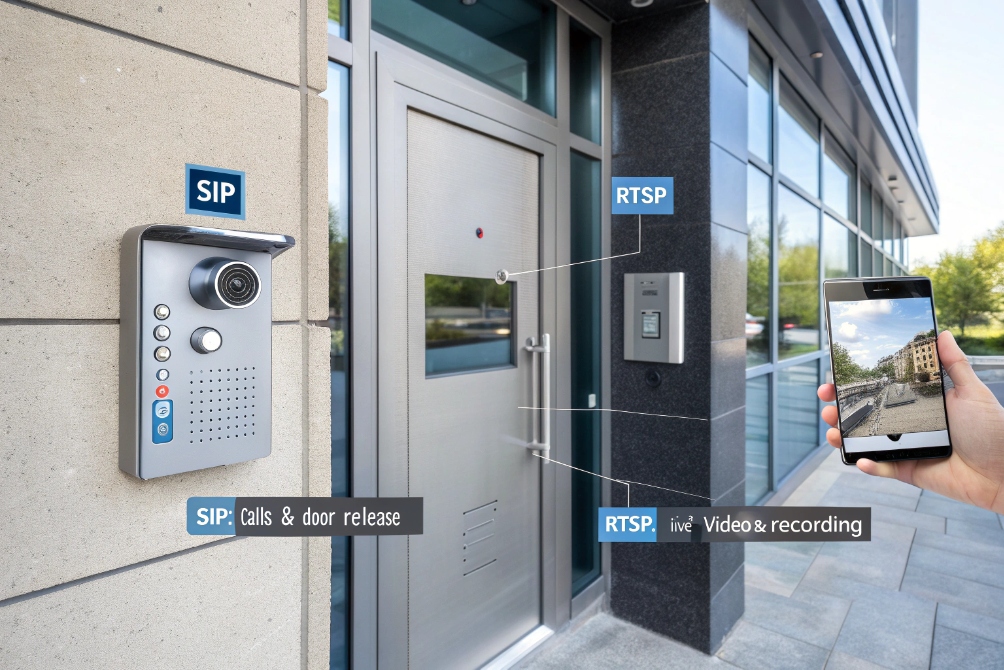
In a SIP intercom project, Real Time Streaming Protocol (RTSP) (RFC 2326) 1 becomes the bridge between “door camera” and the rest of the security ecosystem. SIP handles calls and door release; RTSP feeds live and recorded video to security desks, mobile clients, and compliance storage.
How do I stream RTSP to NVRs and VMS platforms?
It is common to see the intercom’s video inside the vendor app, but the NVR just shows “connection failed” for the same camera.
To stream RTSP to NVRs and VMS, I use the intercom’s RTSP URL, pick codecs the recorder supports, then add it as an IP camera or ONVIF device with the right credentials and transport.
Treating the intercom as a standard IP camera
Most SIP video intercoms expose one or more RTSP URLs. The NVR or VMS acts as an RTSP client, sends SETUP and PLAY, and then receives the actual media over Real-time Transport Protocol (RTP) (RFC 3550) 2. This means the intercom is just another network camera from the recorder’s point of view.
In practice, my steps look like this:
- Find the RTSP URL format in the intercom manual or web UI.
- Confirm the codec settings (usually H.264/AVC video codec (ITU-T H.264) 3 for video, G.711 or AAC for audio).
- Decide if the NVR should use unicast (one stream per viewer) or multicast (one stream shared across many viewers on the LAN).
- Add the camera in the NVR/VMS either via ONVIF Profile S 4 discovery or by entering the RTSP URL manually.
Typical URL patterns:
| Use case | Example RTSP URL |
|---|---|
| Main video stream | rtsp://user:pass@192.168.10.50:554/stream1 |
| Sub / low-res stream | rtsp://user:pass@192.168.10.50:554/stream2 |
| ONVIF-discovered | NVR learns the URL from the camera via ONVIF profile S |
When ONVIF works well, the recorder discovers the intercom, sees its profiles, and fills the paths automatically. If ONVIF is weak or disabled, I fall back to the raw RTSP URL.
Integrating RTSP with call flows and monitoring
RTSP runs independently from SIP calls. That is useful:
- Security can watch the door continuously, even when nobody presses the button.
- The NVR can record motion, events, or continuous video.
- Mobile apps can open RTSP for live view while the SIP audio is on a voice app.
I also like to configure two profiles on the intercom:
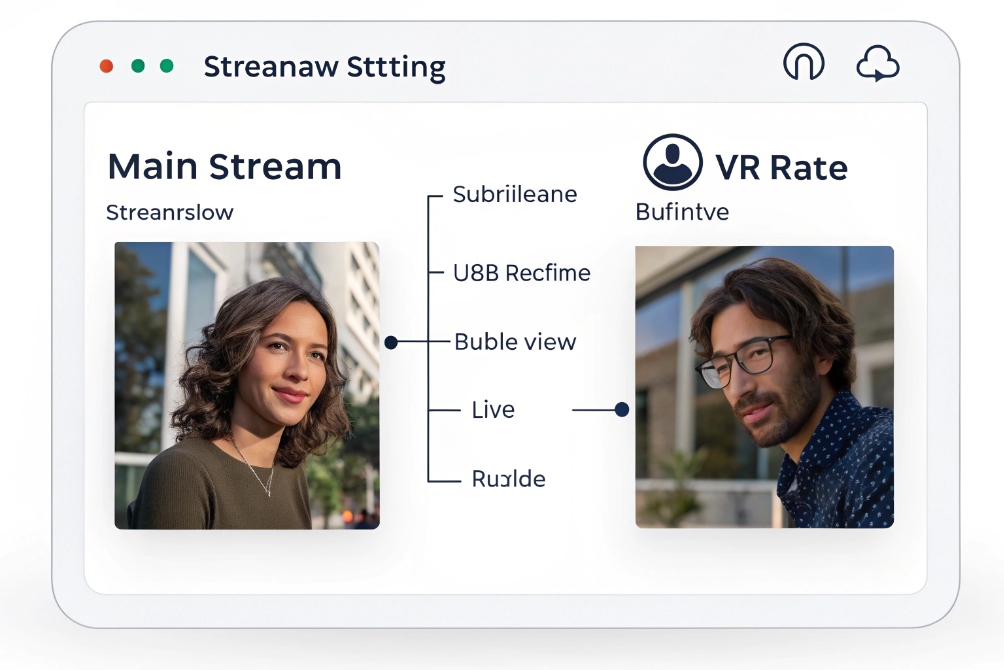
| Profile | Resolution / bitrate | Typical use |
|---|---|---|
| Main stream | 1080p or higher, higher bitrate | Recording on NVR / VMS archive |
| Sub stream | 720p or lower, lower bitrate | Live grid view, mobile preview, walls |
The NVR can then mix both: low-res grid view for many cameras, high-res pull when an operator opens one channel full-screen or needs evidence export.
Once RTSP is set correctly, the intercom no longer feels like a “special” endpoint. It behaves like any other camera channel in the video system, which is exactly what security teams expect.
Can I secure RTSP with TLS or digest auth?
Out of the box, many cameras ship with anonymous RTSP or simple basic auth, which means anyone on the LAN can pull video if they know the URL.
I secure RTSP by enforcing per-device credentials, using digest or basic auth over protected networks, and where supported, enabling RTSPS or placing streams behind VPNs and firewalls instead of exposing them on the public internet.

What “secure RTSP” really means in the field
RTSP security has three layers:
- Who can connect (authentication and authorization).
- Where they can reach it from (network and firewall design).
- How the stream travels (encrypted vs cleartext).
On many intercoms and cameras, I start by:
- Creating a strong username/password just for the RTSP client (for example, the NVR service).
- Disabling anonymous viewing and default accounts.
- Limiting management HTTP/HTTPS access to admin networks.
RTSP supports several auth methods, and the cleanest reference point for “digest” behavior is HTTP Digest Access Authentication (RFC 7616) 5:
| Method | Pros | Cons |
|---|---|---|
| None | Easiest to test | No security at all |
| Basic auth | Widely supported | Credentials in cleartext if no TLS |
| Digest auth | Better credential protection | Some older NVRs have weak support |
| RTSPS (TLS) | Encrypts control + media path | Not all NVRs support, more setup |
In many LAN-only deployments, digest or even basic auth is enough if the voice/video VLAN is already isolated and not reachable from guest or internet paths. For higher-security sites, I combine:
- RTSP (or RTSPS) allowed only inside VPN or private links.
- ACLs that restrict which IPs can open RTSP sessions.
- Central credentials stored in the VMS, not shared with users.
Balancing encryption and compatibility
RTSP over TLS (RTSPS) looks nice on paper, but real deployments often hit NVR/VMS compatibility issues. When the recorder does not support RTSPS, I put the camera on a trusted, segmented VLAN and keep RTSP unencrypted there, then secure the VLAN boundary:
- No inbound RTSP from untrusted networks.
- Only VMS/NVR servers can open sessions.
- Intercom management ports locked down.
For remote operators, I use VPN or secure remote-desktop access to the VMS instead of trying to open RTSP through the firewall to the outside. This keeps all camera streams off the public internet, which is much easier to explain to a security auditor.
With SIP intercoms, this fits well: use TLS/SRTP for door calls, use segmented RTSP for video feeds, and keep both inside a controlled, monitored network zone. If you need a standards reference for SRTP itself, use Secure Real-time Transport Protocol (SRTP) (RFC 3711) 6.
How do I reduce latency and packet loss on streams?
Video looks “fine” on the NVR but feels slow or choppy when someone talks through the intercom, or it falls apart during busy times on the link.
I reduce RTSP latency and packet loss by tuning resolution, bitrate, GOP size, and transport (TCP vs UDP), then protecting RTP with QoS, proper VLANs, and clean cabling on the LAN and uplinks.
Understanding where latency comes from
End-to-end delay has several pieces:
- Encoder delay inside the intercom (frame capture, encode, GOP structure).
- Network delay and jitter on switches, routers, and WAN links.
- Buffers and decode on the NVR, VMS, or client app.
For intercoms, the goal is simple: the door video must feel live enough that voice and motion make sense together. I usually do not need cinema-grade quality; I need clear faces with low delay.
The key tuning knobs on the intercom:
| Setting | Effect on latency and quality |
|---|---|
| Resolution | Lower = less data, less chance of congestion |
| Bitrate | Too high = saturation; too low = artifacts |
| Frame rate (fps) | 15–20 fps often fine for doors, reduces bandwidth |
| GOP size / keyframe interval | Shorter GOP can lower visible delay in some clients |
| CBR vs VBR | CBR is easier to design for on tight WAN links |
| Transport (UDP/TCP) | UDP is lower latency; TCP can hide loss but adds jitter |
On a tight WAN, I often use:
- 720p or similar for the main stream.
- 15–20 fps.
- Reasonable fixed bitrate (for example 1–3 Mbps depending on link).
- RTP over UDP with QoS marking in a dedicated video class.
Network design for steady streams
Good encoder settings still fail if the network treats camera traffic as background noise. A few network practices make a big difference:
- Put intercom video on a separate VLAN from user traffic.
- Use QoS to mark RTP and ensure it has enough queue space and bandwidth.
- Avoid oversubscribed uplinks from access switches, especially at busy times.
- Ensure IGMP snooping (RFC 4541) 7 is on if I use multicast RTSP, so I do not flood the LAN.
Matching symptoms to likely causes helps:
| Symptom | Likely cause |
|---|---|
| Long delay but smooth video | Buffers too deep, TCP fallback, large GOP |
| Jerky motion, missing frames | Packet loss, no QoS, link congestion |
| Great in LAN, poor over VPN | VPN MTU, encryption overhead, no shaping |
If low latency is critical, I also test RTSP over UDP vs TCP. Many clients default to UDP, but some NVRs or proxies force TCP “interleaved” mode, which can increase sensitivity to loss and buffer size. For critical doors, I avoid putting the RTSP path through extra proxies or internet hops; I keep it as local as possible.
Once encoder and network are tuned together, door video lines up much better with SIP audio and access control events.
Why do RTSP URLs work in VLC but not in NVR?
This is one of the most common questions during commissioning: VLC on a laptop plays the stream in seconds, but the NVR says “no signal” or “login error”.
RTSP URLs work in VLC but fail in NVRs when the recorder expects a different URL path, port, transport, codec, or auth method. I fix this by matching the NVR’s camera profile to the exact RTSP settings and capabilities of the intercom.
Why VLC is so forgiving
VLC and similar desktop players are testing tools first. They:
- Try both UDP and TCP automatically.
- Accept many non-standard resolutions and profiles.
- Show prompts for credentials and can store them flexibly.
- Log detailed errors if handshake steps fail.
So a slightly wrong path, an odd port, or a codec mismatch can still “just work” in VLC with a little tolerance.
NVRs and VMS systems are stricter because they must:
- Scale to many cameras.
- Save CPU by only supporting certain codecs and profiles.
- Use fixed transport methods and ports for their pipeline.
Matching the NVR’s expectations
When VLC works and the NVR does not, I check:
| Area | Check |
|---|---|
| URL path | Does the NVR use the exact same /stream1 or /h264 path? |
| Port | Is RTSP on 554, 8554, or a custom port on the intercom? |
| Auth | Does the NVR support digest or only basic? |
| Codec | Does the NVR support the selected H.264/H.265 profile? |
| Transport | Is the NVR locked to UDP/TCP while the camera expects the other? |
I also pay attention to multi-stream setups. Sometimes VLC is pulling a sub-stream (low-res), while the NVR is set to use the main stream but the path points to the wrong one. Or the NVR tries to use ONVIF auto-discovery with one profile, while VLC points straight to another profile’s RTSP URL.
A simple debugging pattern:
- Confirm the exact RTSP URL in VLC that works.
- Use that same URL and credentials in the NVR’s “custom camera” mode if available.
- Check NVR logs or diagnostics for codec or auth errors.
- If the NVR only supports certain codecs, adjust the intercom’s stream settings to match (for example H.264 baseline, no H.265).
If none of this helps, I test with another NVR/VMS or a simple open-source recorder. That helps decide whether I need a firmware change on the intercom, or if the NVR has limited RTSP support that requires a different integration path, such as pure ONVIF or using an intermediate gateway.
Once both sides agree on URL, auth, port, transport, and codec, the “VLC works but NVR fails” problem usually disappears and the intercom behaves like any other camera channel in the system.
Conclusion
RTSP turns a video intercom into a standard IP camera stream for NVRs, VMS, and apps; with the right security, tuning, and URL details, it becomes reliable and low-latency instead of fragile.
Footnotes
-
RTSP’s core IETF spec—useful for understanding URL formats, SETUP/PLAY behavior, and RTP handoff. ↩ ↩
-
RTP reference for how the actual video packets flow after RTSP control succeeds. ↩ ↩
-
Official H.264 spec page for codec baseline/high-level concepts that affect NVR compatibility. ↩ ↩
-
ONVIF Profile S explains discovery and profile-based streaming so NVRs can auto-add cameras cleanly. ↩ ↩
-
Digest auth standard that clarifies how credentials are protected compared with basic auth. ↩ ↩
-
SRTP standard reference for encrypted media streams used in secure SIP call designs. ↩ ↩
-
IGMP snooping guidance to prevent multicast stream flooding and stabilize LAN video performance. ↩ ↩