When calls hit your main number and bounce around between desks, everyone loses time, and customers lose patience.
An auto attendant is a virtual receptionist that answers calls with a professional greeting, offers simple menu choices, and routes callers to the right person, queue, or self-service path 24/7.
A good auto attendant 1 removes manual call sorting, handles peak times more calmly, and keeps your brand consistent on every call. The real difference comes from how you design the menu, what the greeting says, how you separate auto attendant from full IVR, and how you route calls when the office is closed.
A confusing menu sends callers in circles. Agents then waste time fixing misroutes, and transfer counts climb.
Design your menu around real caller intents, keep it shallow, put the most-used options first, and always offer an easy way to reach a person when self-navigation fails.
Start from caller intents, not your org chart
Many menus copy the internal structure of the company. Callers do not think that way. They think in tasks and problems.
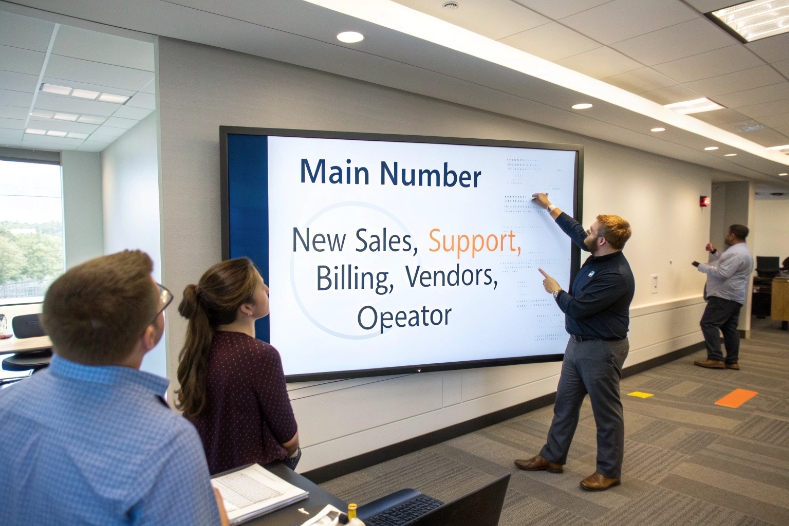
A better starting point is a short list of real reasons people call:
- I want to place a new order.
- I need support for a product I already bought.
- I need billing or payment help.
- I am a vendor or partner.
You can get this list from call logs, agent notes, or CRM reason codes. Group similar intents together. If your company has several brands or regions, callers should never need to know the internal team names to reach help.
Map those intents to simple menu text:
- “Press 1 for new sales”
- “Press 2 for support on an existing product”
- “Press 3 for billing and payments”
If you support speech input, keep it just as simple: “You can say ‘sales’, ‘support’, or ‘billing’.”
Deep menus increase misroutes. Most callers are willing to handle one or two choices. After that, they get lost.
Practical auto attendant menu design best practices 2 that work well:
- Aim for no more than 4–5 options in the first menu.
- Avoid more than two levels unless there is a strong reason.
- Order options by actual volume, not by internal politics.
- Put your main money-making or support option at 1 or 2.
A small planning table helps:
| Option text | Caller intent it serves | Owner queue / team |
|---|---|---|
| 1 – New sales and quotes | New customers, upgrades | Sales queue |
| 2 – Support for an existing order | Existing customers, issues | Support queue |
| 3 – Billing and payment questions | Invoices, refunds, disputes | Billing queue |
| 4 – Vendor and partner enquiries | Suppliers, partners | Admin / procurement |
| 0 – Operator or reception | Anything unclear or special | Front desk / main line |
Review this table against actual traffic every few months. If one option gets most calls, consider breaking it into a second-level menu. If one option gets almost none, remove or merge it.
Use zero-out, repeats, and testing to keep callers calm
Even a well-designed menu will not fit everyone. Give callers escape hatches.
Good patterns:
- Let callers press 0 (or say “operator”) at any time to reach a human.
- Allow * to repeat the menu.
- Read menu options at a steady pace with short pauses.
If you support both DTMF and speech, keep both active. This helps callers in noisy places and supports accessibility.
Once the menu runs in production, track:
- How often callers press 0 from each menu.
- Which options lead to the most transfers.
- Where hang-ups spike.
You can adjust wording and order in small A/B tests. For example, try “support for an existing product” versus “technical support” and compare zero-outs and transfers. Data will show which phrasing callers understand better.
What should my business greeting say for best results?
First words matter. A long, slow, vague greeting wastes time and sounds unprofessional. A cold robotic clip can feel cheap.
A strong greeting clearly states who you are, when callers are reaching you, what main options they have, and how to reach a person quickly if needed.
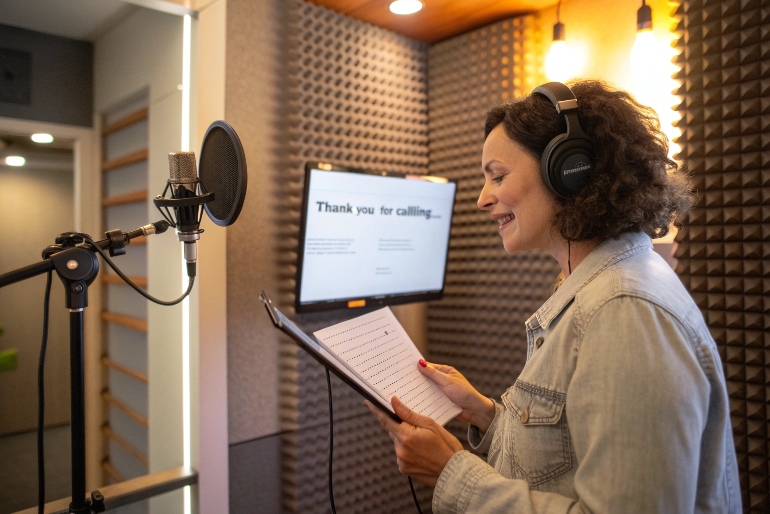
Core elements of a clear, friendly greeting
A simple template for auto attendant greetings 3 works for most businesses:
- Thank the caller and name the company.
- State any important status (hours, delays, major incidents).
- Present the main purpose of the menu.
- Offer a direct path to a person.
For example:
“Thank you for calling ACME Security. If you are calling about a current alarm, press 1. For sales, press 2. For support, press 3. To speak with our operator at any time, press 0.”
This sets context fast. It also shows that emergencies get special treatment, which reduces stress for critical callers.
Tone, brand, and language options
Your greeting should sound like your brand, not a generic script. A formal bank and a tech startup will use different tone, but both should stay plain and clear.
Think about:
- Pace: not too fast, not too slow.
- Clarity: avoid jargon and long sentences.
- Warmth: sound like a person, even if it is a recording.
If you serve multiple languages, offer them right away:
“For service in English, press 1. Para servicio en español, marque 2.”
After callers choose their language, all later menus and agents should follow that choice. This reduces misroutes and repeated questions like “Do you speak…?”
Examples and quick checks
Here is a simple comparison:
| Greeting style | Good for | Risk if misused |
|---|---|---|
| Very formal, precise | Finance, legal, government | Can feel cold or slow |
| Friendly, conversational | Retail, SaaS, hospitality | Can drift into long talky scripts |
| Emergency-first (“If this is urgent…”) | Security, medical, field service | Must be kept short and up to date |
Before you finalize a greeting, check:
- Can a new caller understand it on the first listen?
- Does it take under 10–12 seconds before the first option?
- Is there a clear path to a human in case of confusion?
Small changes in wording and pacing often improve completion rates more than any technical tweak. This is a good place to run simple A/B tests: two versions, one month each, then compare average handle time and transfer counts.
How is an auto attendant different from IVR?
Vendors often mix “auto attendant” and “IVR” in one pitch. Understanding the key differences between the two 4 keeps planning clear and expectations realistic.
An auto attendant mainly answers and routes calls with menus and schedules, while IVR adds deeper self-service, database lookups, and multi-step workflows beyond simple routing.
What an auto attendant is meant to do
An auto attendant is your virtual front desk. Its jobs are simple:
- Answer every call with a consistent greeting.
- Offer a small set of clear choices.
- Route the call to the right extension, hunt group, or queue.
- Handle time-of-day and holiday rules.
It does not usually:
- Ask for account numbers and validate them.
- Take payments.
- Walk through long troubleshooting scripts.
Think of it as “who should handle this call, right now?”
What IVR adds on top
Interactive Voice Response (IVR) goes deeper:
- Collects structured data, like account IDs or meter readings.
- Connects to CRM, billing, or booking systems.
- Can complete tasks end-to-end without an agent.
- Often uses ASR and NLU to understand free speech.
An IVR might let callers:
- Pay invoices by card.
- Check shipment status from a tracking number.
- Confirm or change an appointment.
Here is a compact comparison:
| Feature / focus | Auto attendant | IVR |
|---|---|---|
| Main job | Answer and route | Self-service and transactions |
| Menu depth | Shallow, few options | Often deeper, multi-step flows |
| Data lookups | Rare or none | Common, uses back-end systems |
| Speech recognition | Optional, simple choices | Often key for natural language flows |
| Best first project | Replace manual receptionist routing | Automate one common task (e.g., payments) |
In many real deployments, the auto attendant and IVR share the same platform. The important thing is to design them with different goals. Start with a solid auto attendant as the front door. Then add IVR flows for your highest-volume, low-risk tasks.
Can I route after-hours calls and holidays automatically?
Missed after-hours calls mean missed revenue and more voicemail backlogs in the morning. Manual call forwarding is easy to forget.
Yes, you can route after-hours and holiday calls automatically by using time-based rules in your auto attendant, with different menus and destinations for open hours, nights, weekends, and special dates.
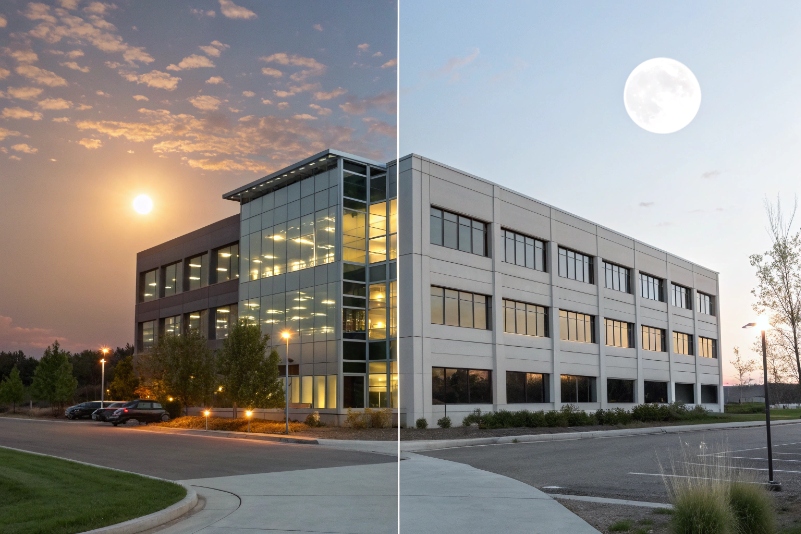
Time-of-day rules for open and closed hours
Modern auto attendants can use time-based call routing 5 to check the current time and day before they play a greeting or route the call. You define:
- Business hours per site or time zone.
- Weekday vs weekend behavior.
- What should happen when lines are closed.
For example:
- During open hours, send “sales” to the live sales hunt group.
- After hours, send “sales” to a shared voicemail or callback queue.
- For emergencies, always offer an on-call path, even when closed.
You can also play different greetings:
- “We are open” greeting with full menu.
- “We are currently closed” greeting with simple choices and information about your hours.
Holiday calendars and special events
Holidays often ignore normal weekday rules. You can add a holiday auto attendant calendar 6 with:
- Fixed dates (for example, January 1).
- Moving holidays per region.
- Special events like inventory days or company-wide meetings.
On those days, the auto attendant can:
- Use a specific holiday greeting.
- Offer only urgent options and send others to voicemail.
- Route to backup answering services if you use them.
A simple routing matrix:
| Scenario | Greeting type | Route behavior |
|---|---|---|
| Weekday, open hours | Standard business | Full menu, live queues |
| Weekday, after hours | Closed-hours | Voicemail, callbacks, on-call for emergencies |
| Weekend normal | Weekend | Reduced menu, some queues closed |
| Public holiday | Holiday | Voicemail + emergency only, or live service |
You can maintain multiple calendars if you run sites in different countries or time zones.
Voicemail, callbacks, and follow-up
Routing after-hours calls is not only about where they land. It is also about what happens next.
Useful patterns:
- Assign each menu path a mailbox or dedicated callback queue for returning calls 7.
- Send voicemail notifications to the right team or shared inbox.
- Let callers request a callback window instead of leaving a long message.
If your auto attendant integrates with CRM or ticketing, you can even:
- Create tickets automatically from voicemails.
- Tag them with the menu path and time of day.
- Report on how long it takes to clear after-hours work.
When this is in place, your main number behaves like a simple contact center front door, even if you are a small team. Callers always hear a clear, current message instead of endless ringing.
Conclusion
A well-designed auto attendant is a quiet workhorse: it greets every caller, routes them cleanly by intent, separates business hours from off-hours, and leaves your team free to focus on real conversations instead of being human switchboards.
-
Overview of auto attendant features and benefits for modern business phone systems. ↩ ↩
-
Detailed best practices for simplifying auto attendant menus and keeping call flows efficient. ↩ ↩
-
Guide to designing clear auto attendant greetings and using professional voice recordings. ↩ ↩
-
Explains key differences between auto attendants and IVR, with examples of suitable use cases. ↩ ↩
-
Overview of time-based call routing features for handling open hours, nights, and weekends automatically. ↩ ↩
-
Step-by-step example of configuring a dedicated holiday auto attendant and custom greetings. ↩ ↩
-
Complete guide to queue callback strategy for reducing abandoned calls and improving caller experience. ↩ ↩